User manual
Detailed business guides
- Personnel and fleet tachodata evaluations
- Driver-card analysis – every tab
- Vehicle-unit analysis – every tab
- Driving-licence checks and RFID/NFC
- Vehicle costs and credits
- Foreign invoices – workflow and every tab
- E-invoice and XRechnung import
- Cost analysis and reporting
- Position maps for C and M data
These guides use a temporary anonymised copy of the development database. Activities, timestamps, amounts and approved coordinates remain representative; person, card and vehicle identities were replaced deterministically.
1. Sign-in and workspace
Start FLEET Mira from the installed shortcut. The splash screen is followed by the sign-in dialog. A new installation uses admin / admin once and forces a secure replacement password. If an administrator has configured SSO and pre-assigned your account, select Sign in with Microsoft or Sign in with Google instead. Microsoft Entra ID SSO is currently beta and has not yet been validated end-to-end with a real customer tenant. Keep local sign-in available as a fallback until customer-specific acceptance is complete and contact your administrator if sign-in fails. Setup and troubleshooting are covered by the Administrator and integrator guide.
 Figure: FLEET Mira splash screen before sign-in.
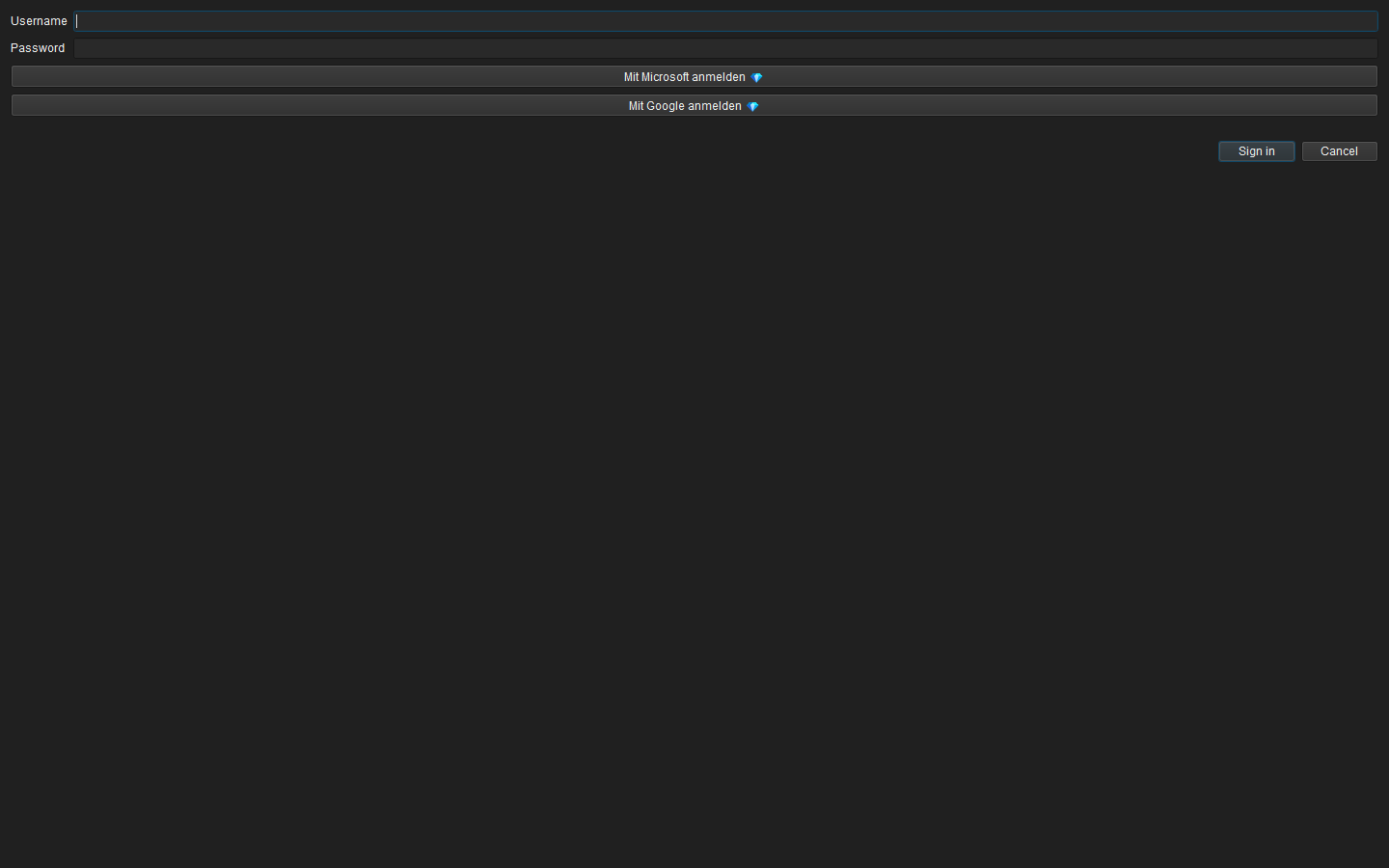 Figure: Local sign-in, Microsoft Entra SSO in untested beta status and regularly supported Google SSO.
After every sign-in, the Dashboard is the active page. The top navigation switches between the five main areas. Long operations show a non-modal loading status and may be cancelled; other tabs remain usable.
User profile
Open User → My profile to change display name, email, language and region. Language or region changes take effect after the next sign-in. Table layouts, filters, splitter positions and column order are stored per user.
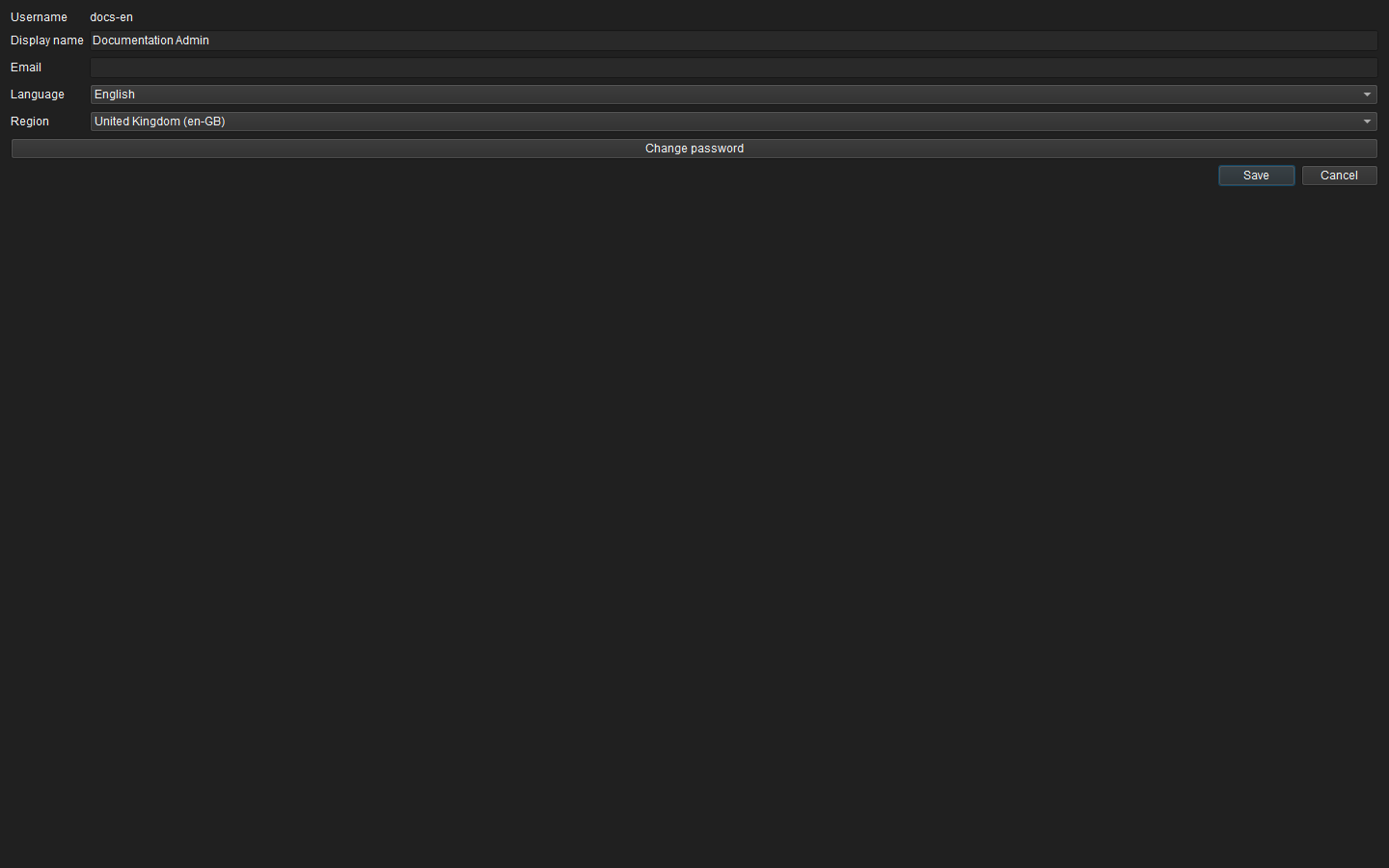 Figure: User-specific language, region and profile settings.
Tables and context menus
- Click a header to sort; click again to reverse the direction.
- Drag headers to change the column order and drag header boundaries to change widths.
- Right-click a header to show or hide columns where offered.
- Right-click a data row for object-specific actions. The row under the pointer is selected first.
- Selected rows use a dark-blue background and white text, overriding status colours for readability.
2. Dashboard
The six photo-backed cards provide direct navigation:
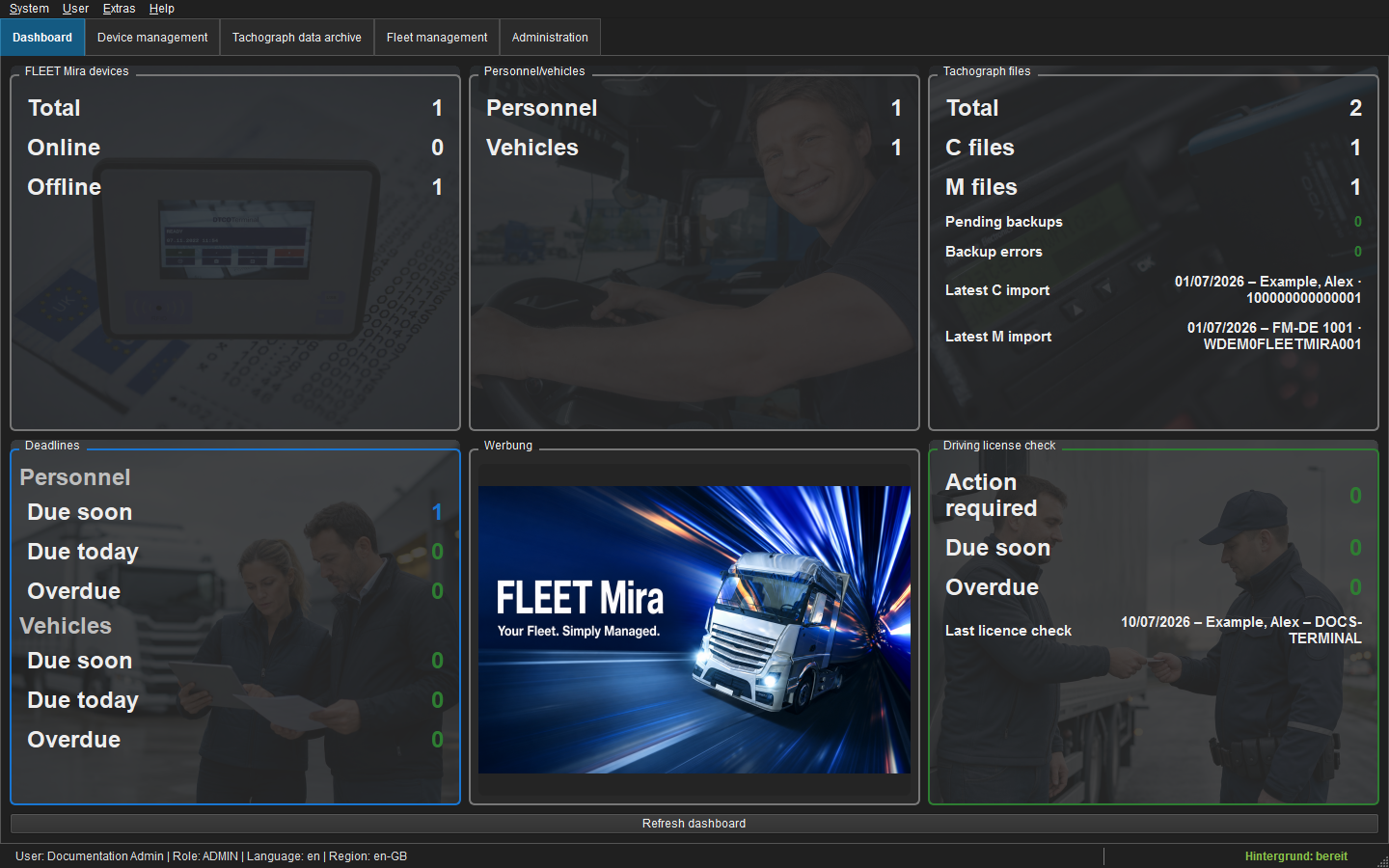 Figure: Dashboard with anonymised demonstration data and direct navigation figures.
- FLEET Mira devices: total, online and offline devices.
- People/Vehicles: active master records.
- Tachograph files: total C/M files, backup backlog/errors and latest imports.
- Personnel deadlines / Vehicle deadlines: upcoming, due today and overdue items.
- Driving-licence checks: pending clarification, checks due soon, overdue checks and the latest successful check.
Click an individual figure, not only the card, to open the corresponding pre-filtered list. Select Refresh dashboard after major imports when an immediate refresh is needed.
3. Device Management
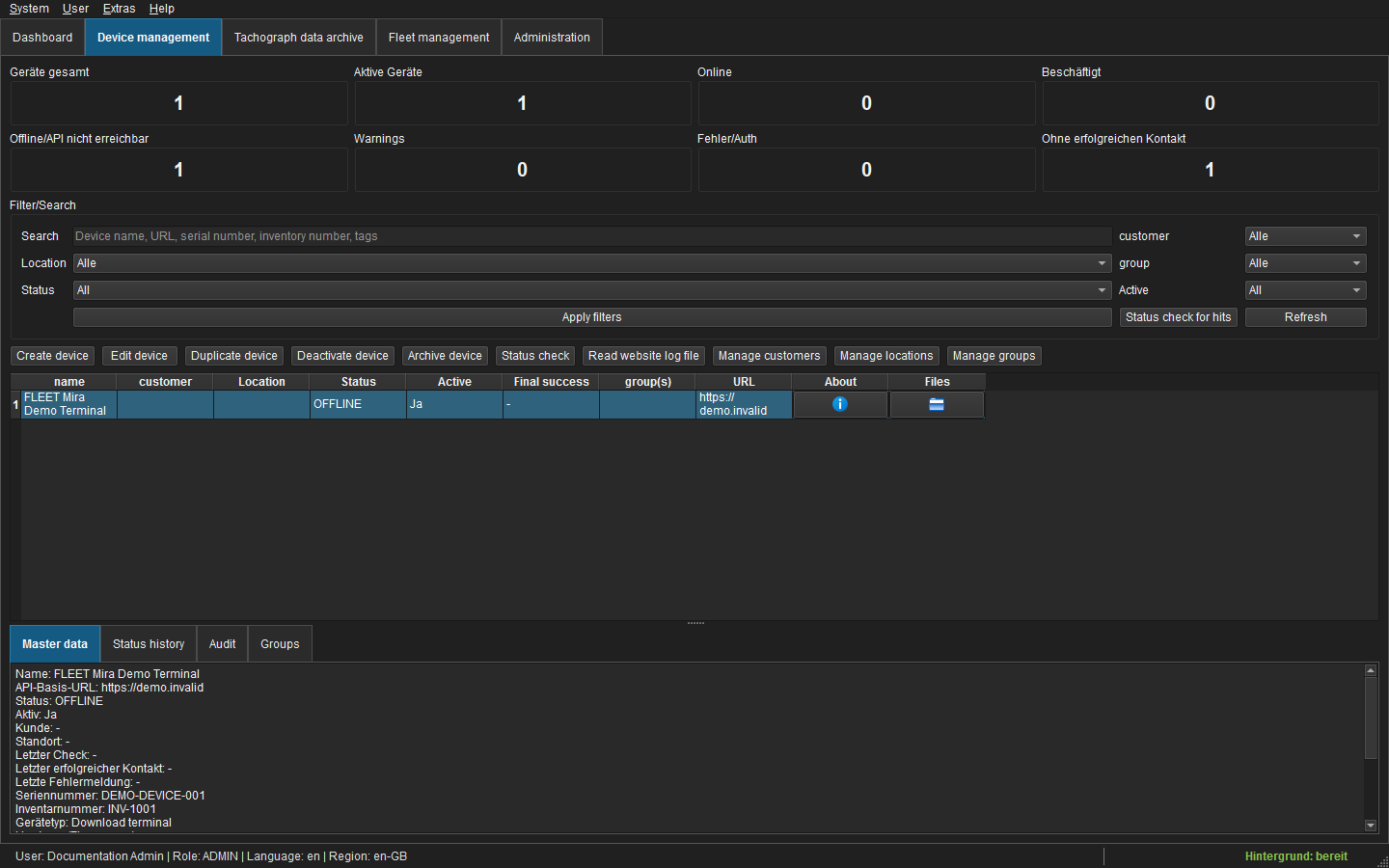 Figure: Device list and device-management workspace.
The device list can be filtered by name, tenant, site, group and status. Depending on permission, the toolbar and context menu allow you to:
- create, edit or duplicate a device;
- check status for one device or the current result set;
- open the embedded or standard browser interface;
- retrieve system information, remote files and the website log;
- deactivate or archive a device with confirmation.
The lower detail pages show master data, files, status history and audit. Remote file downloads use the configured destination and never alter the archive until the normal import path processes them.
4. Sources and download tasks
Open Administration → Sources to configure FTP, DLT API and SFTP endpoints, local folders, or UNC server shares. Test the connection before assigning a source to a task. Credentials and SFTP key passphrases are protected and do not appear in logs.
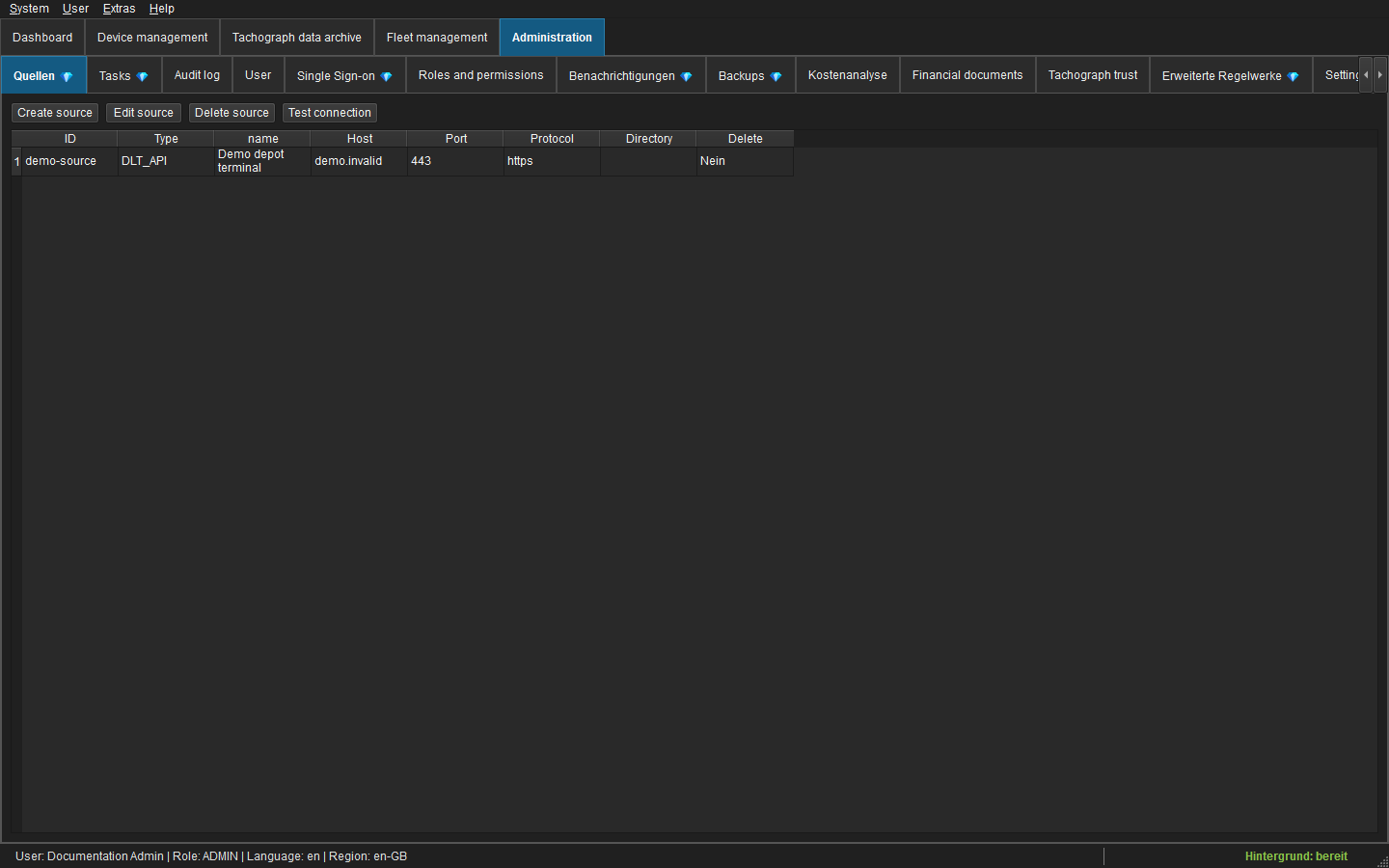 Figure: Administration of automatic import sources.
Open Administration → Tasks to define source selection, file patterns, recursion, schedule, archive behaviour and optional strict cloud-backup mode. Run now opens a detailed progress view with one row per source and live log messages. RFID terminal CSV files require RFID_*.CSV in the pattern.
The Administration → Settings → Automatically import USB removable drives option recursively scans newly inserted drives for DDD and RFID*.CSV files. It operates only while FLEET Mira is open or running in the system tray; source files remain on the drive.
Data root and storage paths
Under Administration → Settings, administrators can see the active data root and the fully resolved log, SQLite, DDD archive, document archive and financial archive paths. These fields are intentionally read-only: changing one path in isolation would separate files, database references and access permissions. Until the controlled relocation wizard is available, these paths cannot be changed through either the settings page or raw configuration. Enterprise displays the SQLite path as unused because its database is held in PostgreSQL.
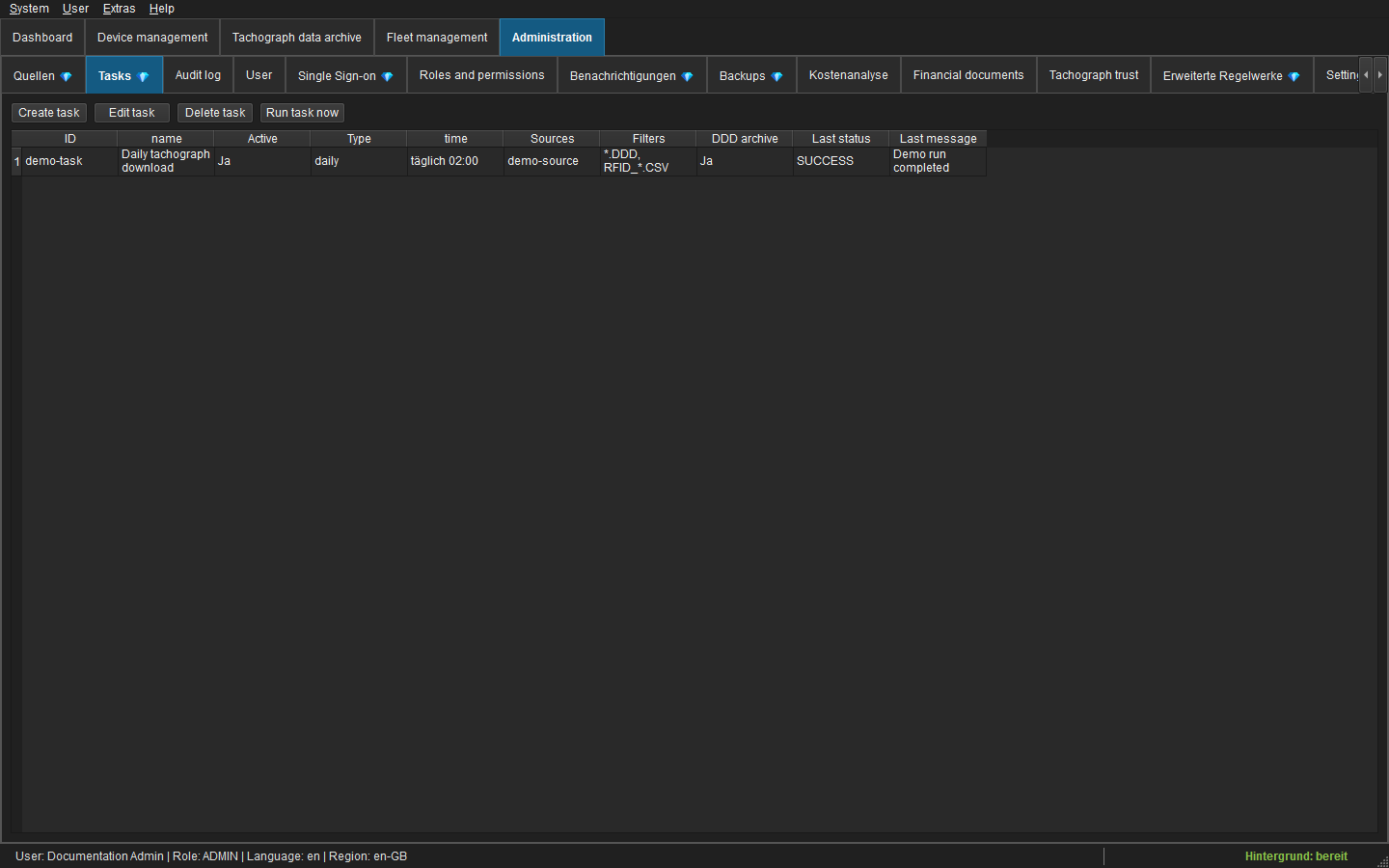 Figure: Scheduled and manually executable download tasks.
In strict mode, a terminal file is not marked as processed or deleted until its cloud copy is verified.
5. Tachodata Archive
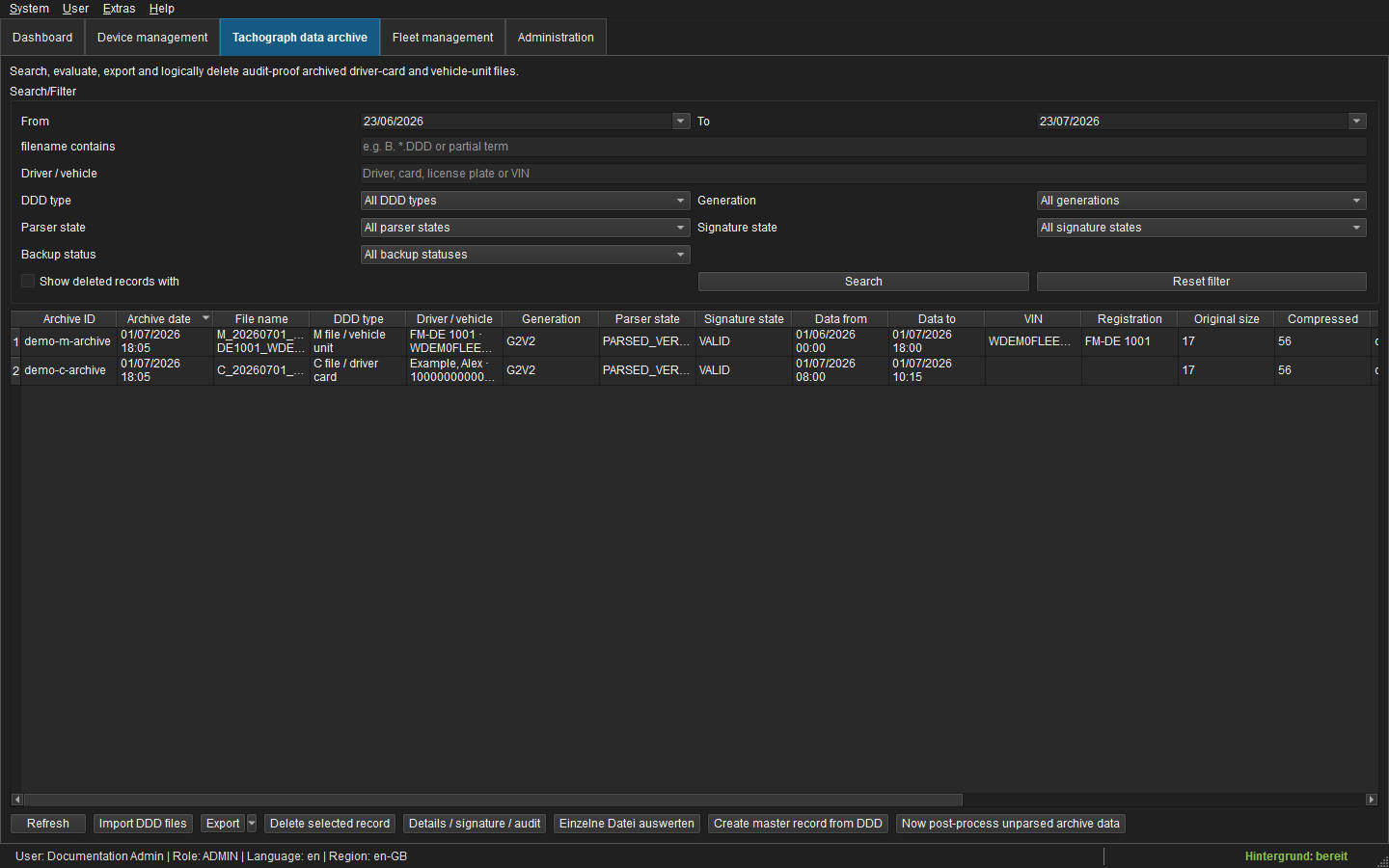 Figure: Filterable C/M tachodata archive with status columns.
The archive contains driver-card C files and vehicle-unit M files. Filter by date, name, driver/vehicle, file type, generation, parser status, signature status, deletion state or backup state.
Import and status
- Import DDD files accepts one or more local files.
- Content determines C/M type; the filename is only a hint.
- Successful parsing stores structured details without changing the original archive object.
VALIDmeans all available signatures and the chain could be verified.INVALIDorUNVERIFIABLEplaces the file in quarantine; it remains viewable and exportable but cannot drive trusted links or combined evaluations.
Open, export and delete
- Double-click or choose Open analysis to open the C or M analysis.
- One selected row exports the original DDD; several rows or the current view export a ZIP.
- Logical deletion requires a reason and is recorded in audit. It does not automatically delete a verified cloud backup.
- Details / Signature / Audit explains hashes, parser warnings, signature sections and history.
Backup status
Verified is shown only after complete upload and remote hash verification. Use the context menu to retry, verify or restore a file. Backup errors are also linked from the dashboard.
6. Driver-card analysis
The header identifies the driver, card number and selected archive file. The analysis always uses the selected C file as its base.
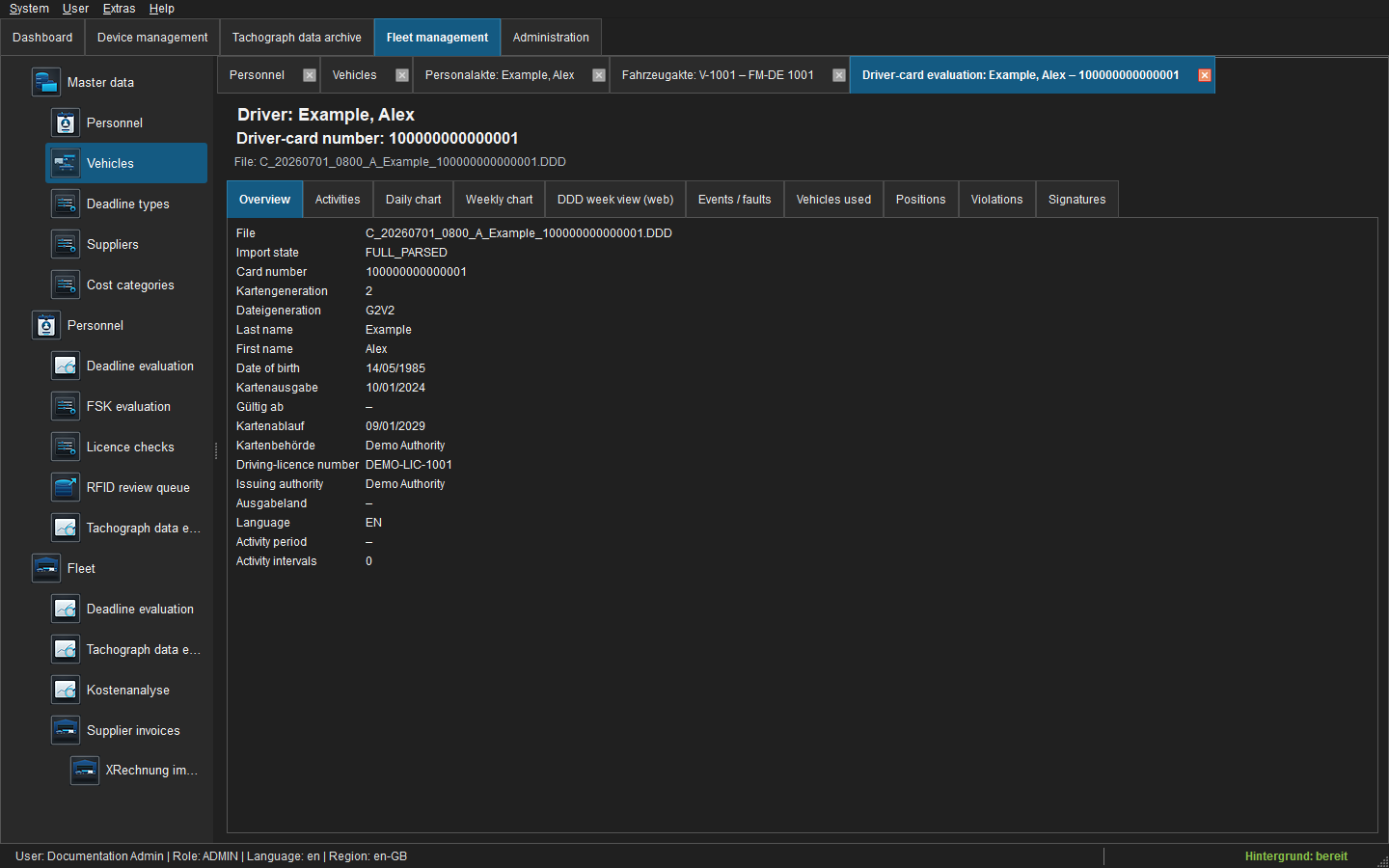 Figure: Driver-card analysis for one selected C archive.
| Tab | Purpose |
|---|---|
| Overview | identity, validity, issuing authorities, generation and data range |
| Activities | sortable intervals with UTC timestamps and C/M availability |
| Day / Week | graphical timelines, totals and details for the selected period |
| DDD week view Web | browser-style interactive week view using the selected file |
| Events / Faults | technical records from the card |
| Vehicles used | vehicle identifiers observed on the card |
| Positions | location list and interactive map |
| Violations | technical EU 561/2006 pre-check |
| Signatures | chain and per-EF verification results |
The Data availability filter distinguishes all activities, C and M available, driver card only and vehicle unit only. The other source is comparison evidence; it never replaces the selected base file. All displayed tachograph calculations use UTC.
7. Vehicle-unit analysis
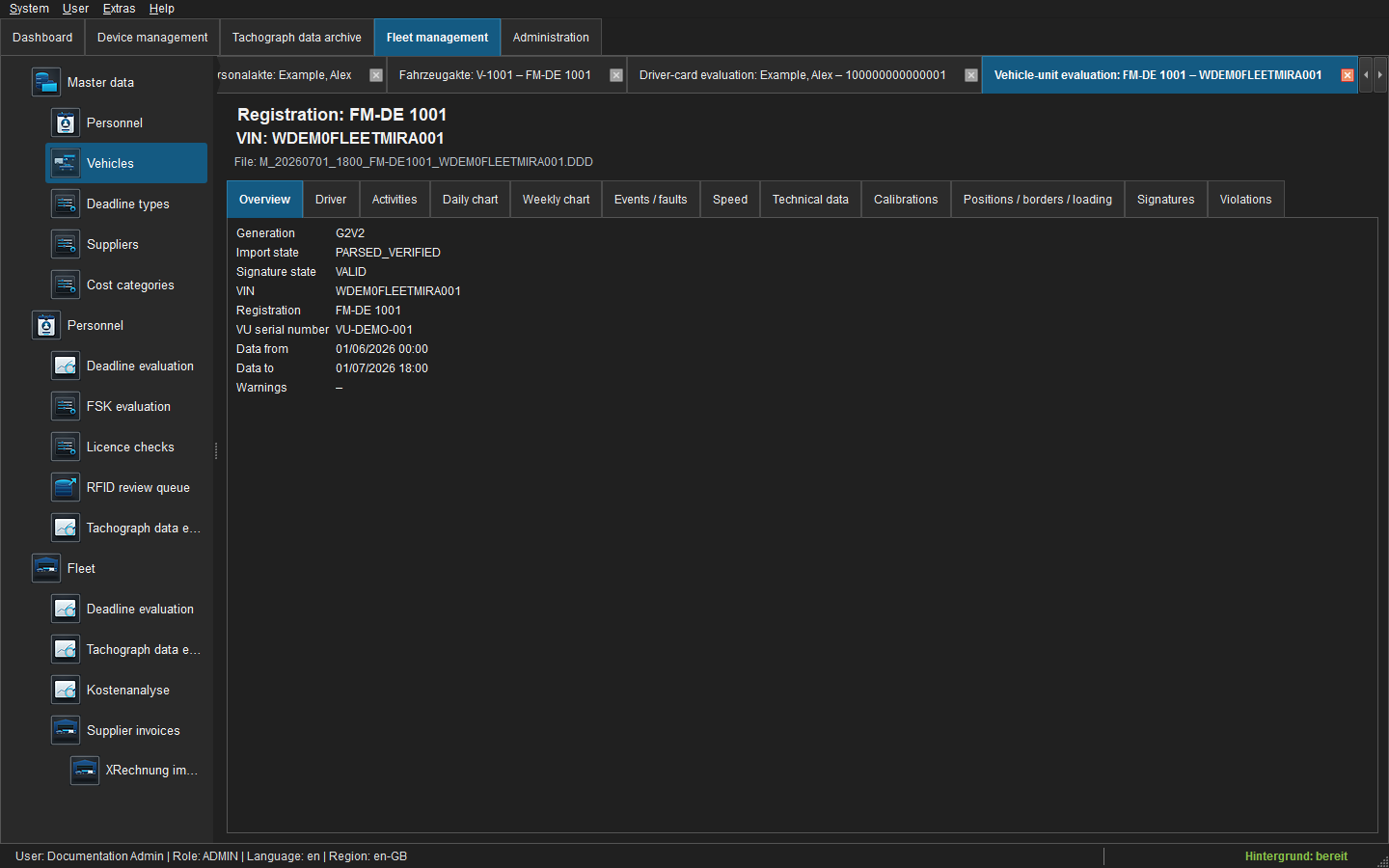 Figure: Vehicle-unit analysis for one selected M archive.
The M analysis shows vehicle identity and the selected M file. Driver sessions are grouped by normalised card number and generation. Team driving displays slot 1 and slot 2 separately.
Tabs include drivers, activities, day/week timelines, events/faults, speed, technical data, calibrations, positions/borders/loading, signatures and violations. Technical data uses a field tree; Calibrations lists calibration time, next calibration, workshop, VIN and registration. Position tabs can open the interactive map.
“No assigned driver card” means the M file contains slot activity for which no active card-insertion interval with a usable card number was found. It does not mean that a matching C archive is merely missing; the tooltip in day/week views explains this distinction.
8. Fleet Management
The left icon navigation opens non-duplicated work tabs. A new session starts with an empty fleet workspace.
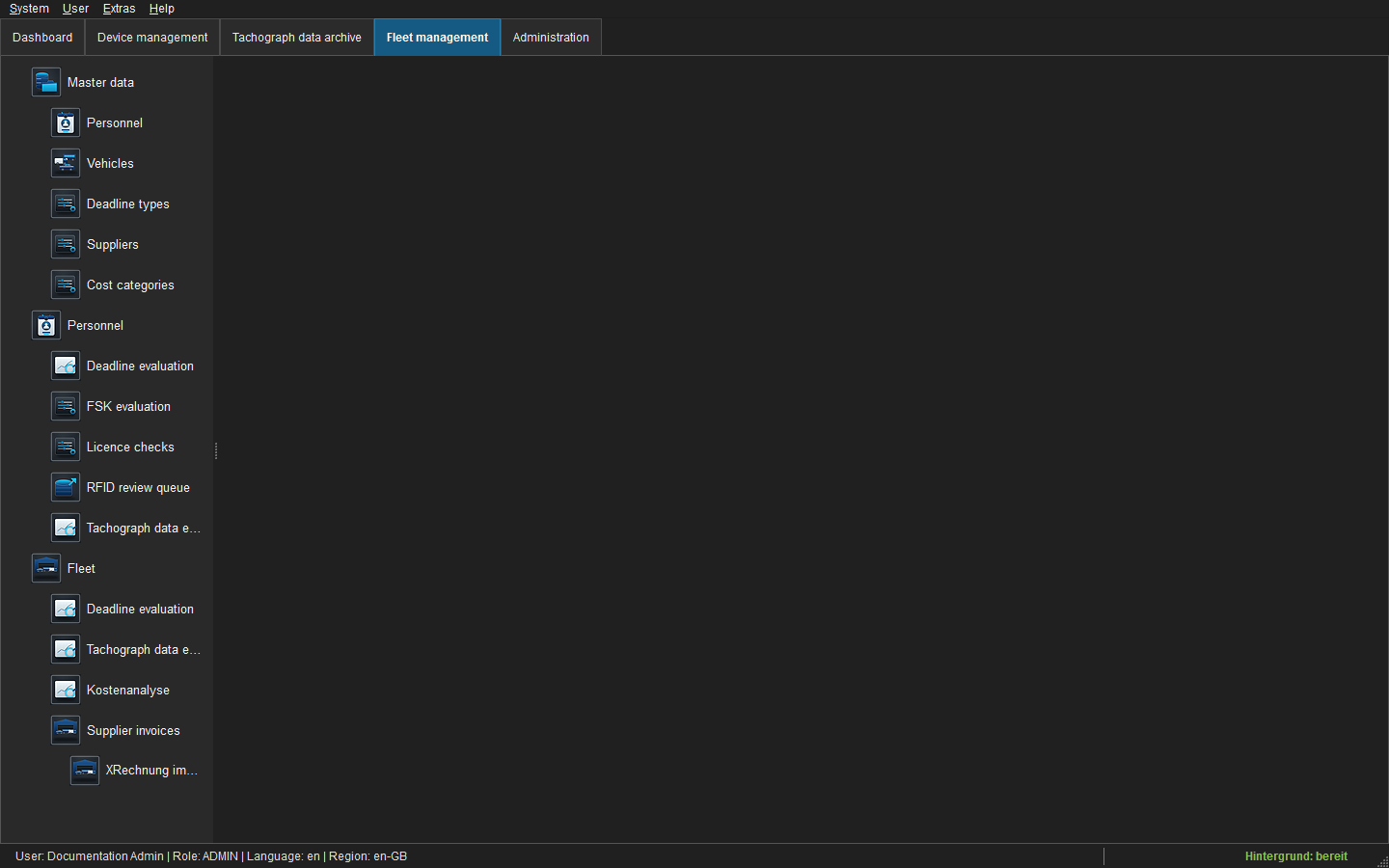 Figure: Fleet Management icon navigation and non-duplicated work tabs.
Master data
- People: personal number, identity, contact data, licence data, FSK policy and status.
- Vehicles: internal number, registration, VIN, type and status.
- Due types: system and user-defined deadline categories for people or vehicles.
- Suppliers / Cost categories: finance master data.
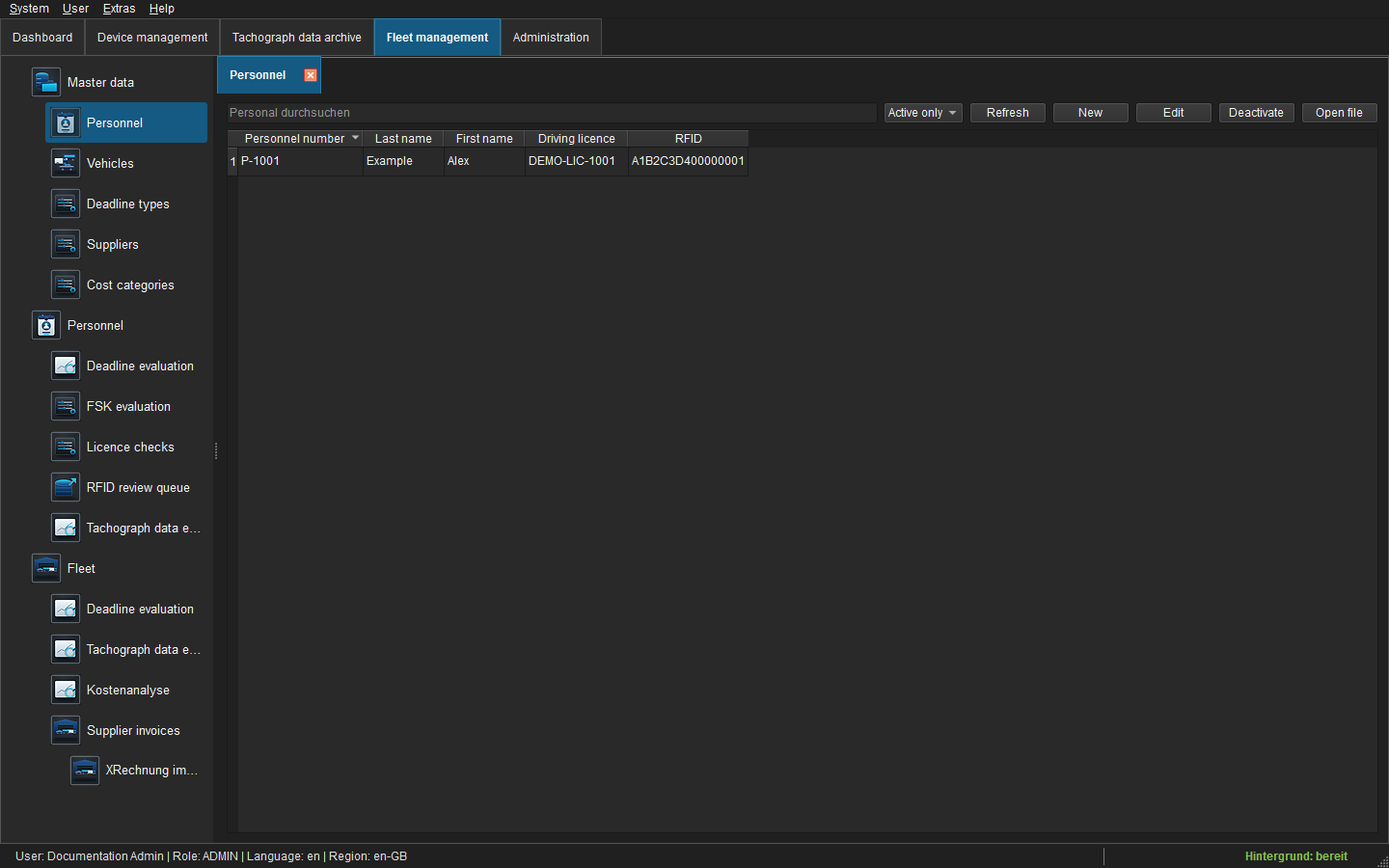 Figure: Personnel master-data list.
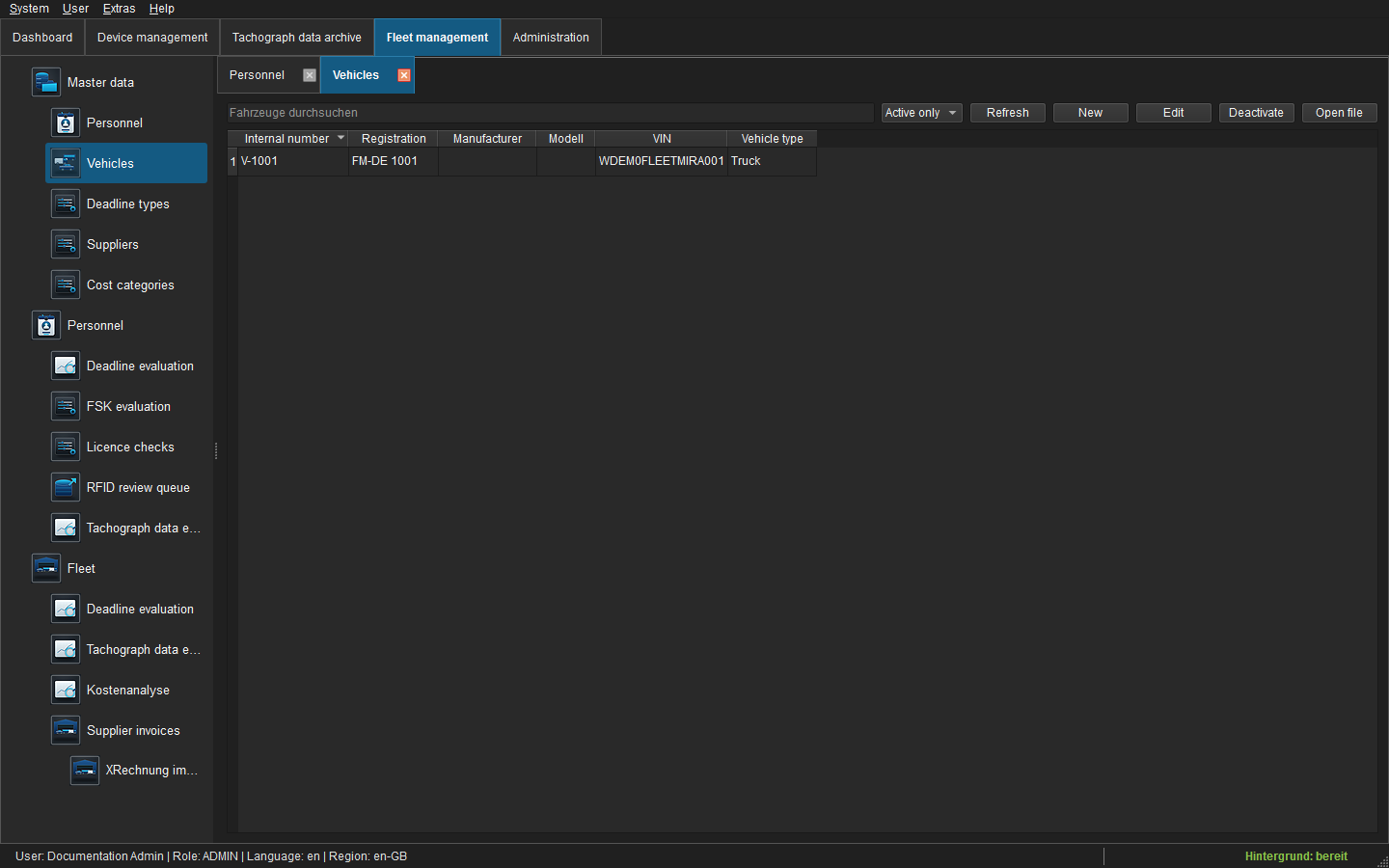 Figure: Vehicle master-data list.
Double-click a person or vehicle to open its record. Context menus jump directly to deadlines, tachodata, RFID or finance pages.
Use Fleet > Cost analysis to evaluate booked vehicle costs. Its initial period runs from the start of the current year through today; administrators can change the global default under Administration > Cost analysis > Calculation parameters.
Person record
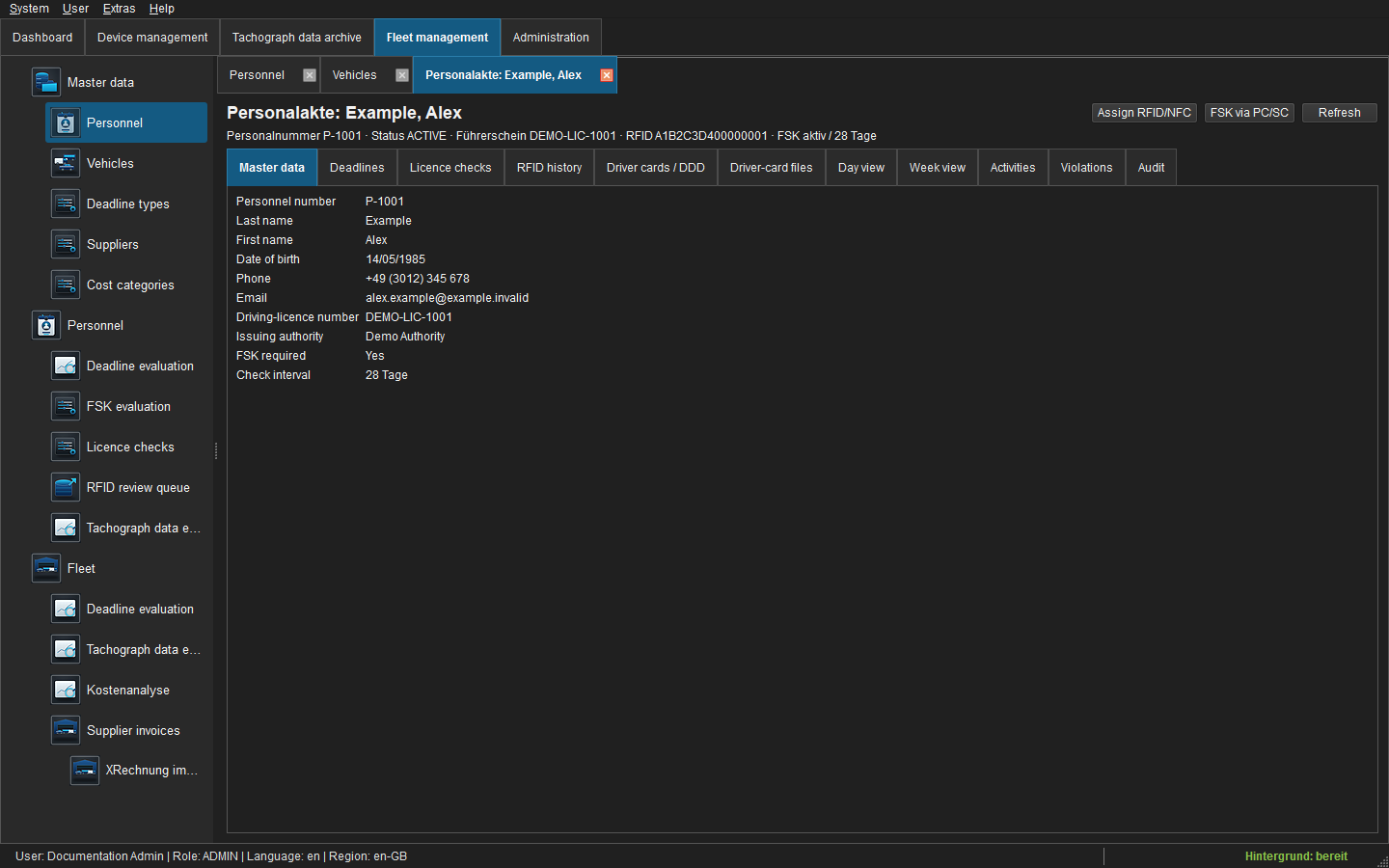 Figure: Person record with related business tabs.
The record contains master data, deadlines, documents, licence checks, RFID history, card links/files, day/week/activity views and audit. The Audit tab uses the same context menu as the global Audit Log: open the related record, show the XML tree view, or copy details, rows and cells. The Documents tab accepts drag-and-drop or file selection, versioning and metadata; PDF and image files can be previewed directly. Document and validity dates use date pickers formatted for the signed-in user's region. The immutable local original is created when the document is added, while the configured backup task handles external backup. Logical archiving remains available from the context menu. Local restore and permanent purge are visible only to appropriately authorised administrators. Use Assign RFID/NFC to read a UID from a local PC/SC reader. FSK via PC/SC records a successful check only when the read UID belongs to the selected person.
For a new record document, the document date defaults to today. Valid until is calculated from the document date plus the period configured under Administration → Receipts/Documents → Document retention period. The financial-document retention period remains independent.
The Audit tab covers the complete record. In addition to personnel or vehicle master-data changes, it includes logged events for related deadlines, documents, driving-licence checks and tachograph links. Vehicle records additionally include odometer readings, costs/credits, associated supplier invoices, financial documents and accounting exports. The Area column identifies the related sub-object.
Vehicle record
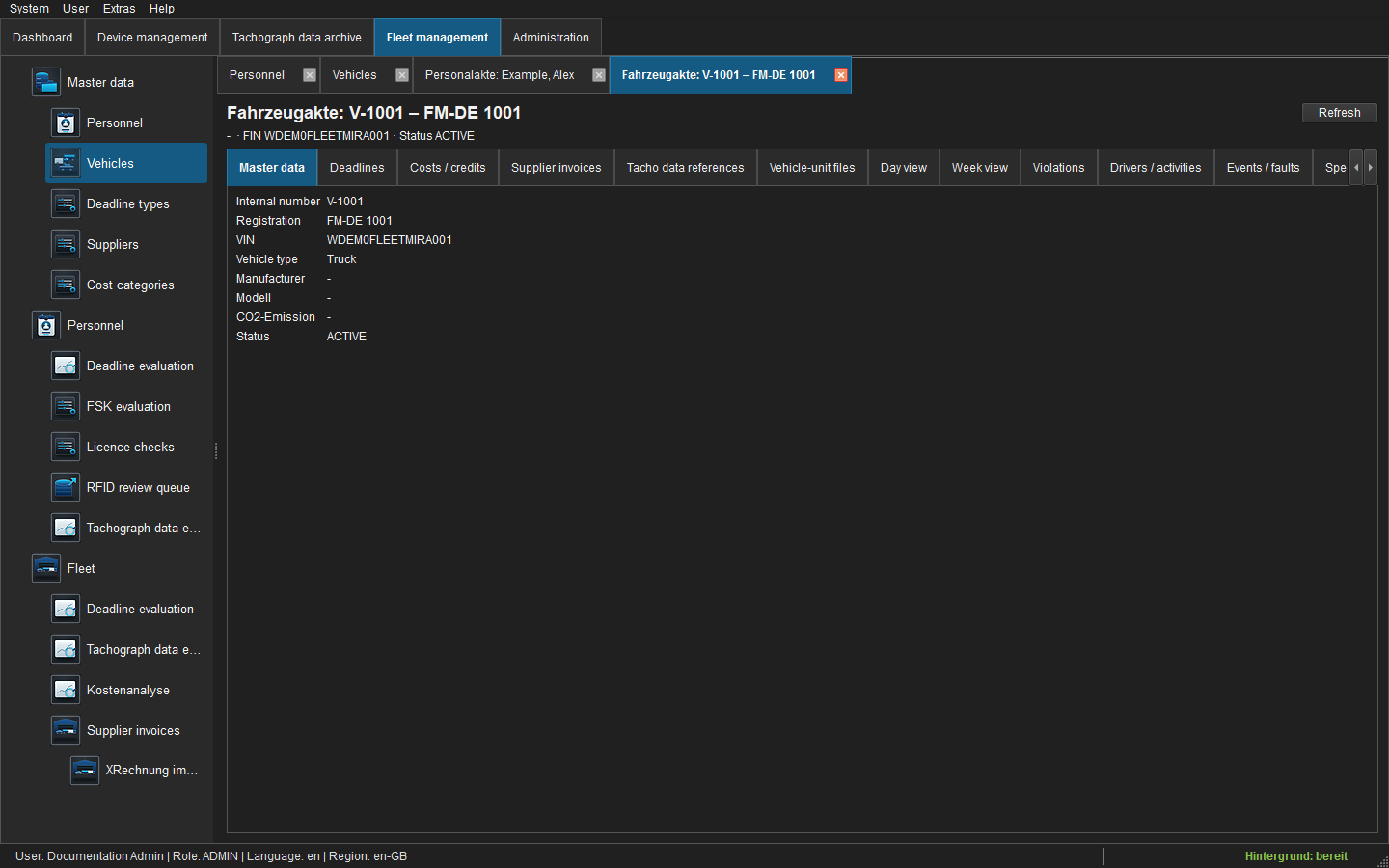 Figure: Vehicle record with tachograph, finance and position tabs.
Tabs include deadlines, documents, costs/credits, foreign invoices, tachograph links, M files, drivers/activities, events/faults, speed, technical data, calibrations, positions and audit. The Audit tab uses the same context menu as the global Audit Log: open the related record, show the XML tree view, or copy details, rows and cells. Record documents use the same audit-oriented archive and configured local, UNC or cloud backup destination. Aggregate functional tables hide the source-file column by default; the source archive remains available from the context menu. Identical technical records appear once with their source count and complete detail tree. Position rows can be opened together on the map.
9. Deadlines and download due dates
Personnel and vehicle deadline evaluations are separate but use the same sortable/filterable component. Personnel deadlines remain time-based. Vehicle deadlines can be time-based, mileage-based or combined; a combined deadline becomes due when the first limit is reached. Time and mileage lead values and recurrence intervals can be configured per deadline or as due-type defaults.
The fleet evaluation displays the latest reliable odometer reading, measurement time and source, target and remaining mileage, trigger and data quality. Filters cover due type, status, basis, trigger, mileage quality and evaluability. If a combined deadline has no valid mileage reading, its time condition remains usable while the mileage condition is marked only partially evaluable. Colours mean:
- green: outside the lead time;
- blue/orange status: approaching or due today;
- red: overdue;
- completed: closed with completion date.
Automatic download deadlines are managed by the system:
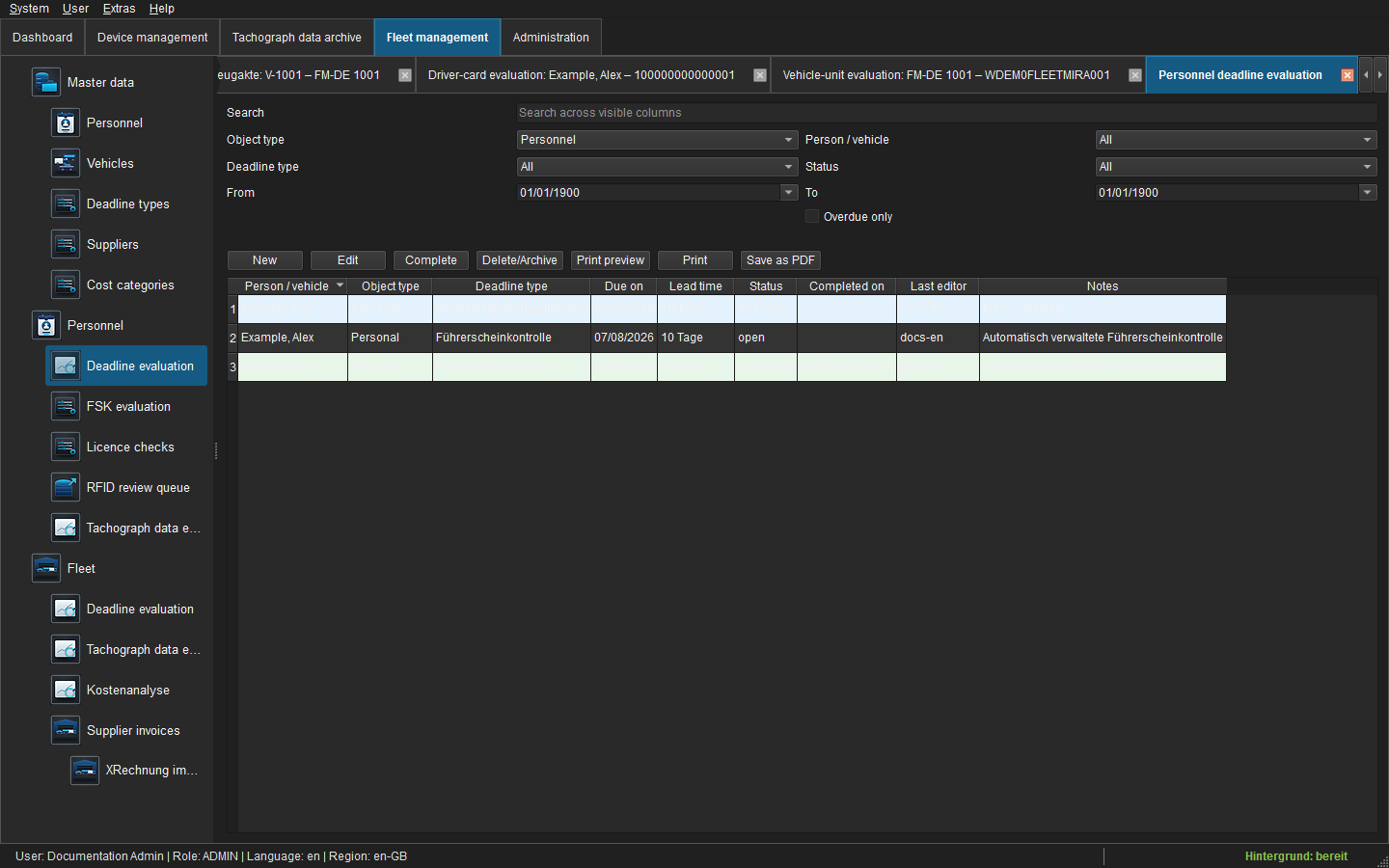 Figure: Filterable personnel deadline evaluation.
- current driver card: readout date + 28 days;
- vehicle unit matched by VIN: readout date + 90 days.
The readout date is taken from a valid C_YYYYMMDD_HHmm... or M_YYYYMMDD_HHmm... filename, then falls back to source creation, download and archive UTC dates. Automatic deadlines cannot be manually moved or completed. Tachograph calibration remains a separate vehicle deadline.
10. Driving-licence checks and RFID
The complete workflow for check policy, UID assignment, PC/SC checks, automatic follow-up dates, terminal CSV and exceptions is documented in Driving-licence checks and RFID/NFC. A system-managed deadline is completed only by a successful check; an unknown chip or a chip assigned to another person creates no success record.
The Personnel navigation provides:
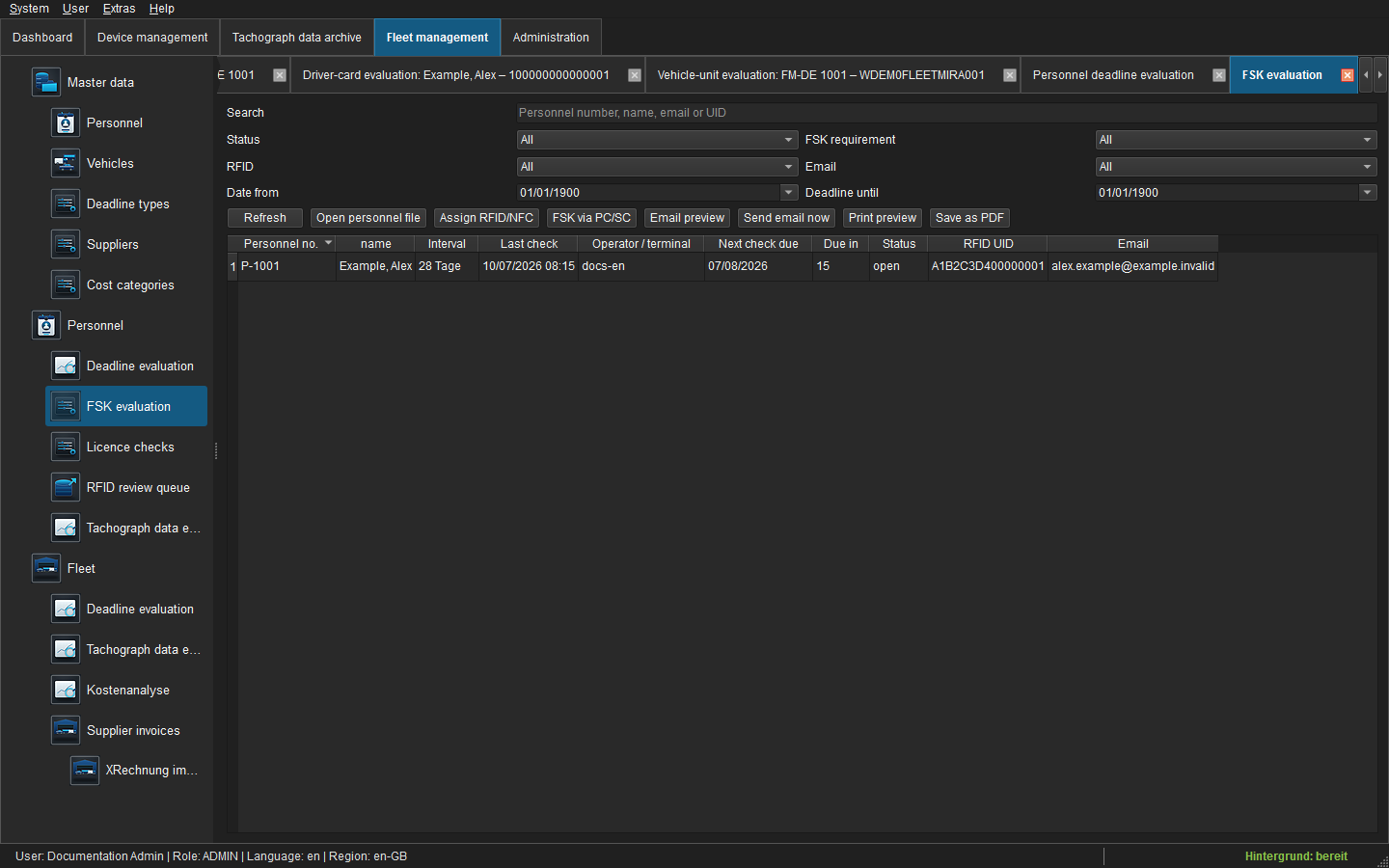 Figure: Driving-licence-check (FSK) due-date evaluation.
- FSK evaluation with interval, last check, next due date, terminal and status;
- licence-check history;
- RFID pending list for unknown UIDs or invalid CSV rows.
The default check interval is 28 days. Successful PC/SC, terminal CSV and resolved mobile records use the same service and update one managed FSK deadline. Assigning an RFID UID alone is not a check.
Unknown terminal UIDs remain pending. Assigning them creates the effective check; discarding requires a reason and never creates a permanent RFID assignment.
11. Notifications
Under Administration → Notifications, configure SMTP, responsible recipients, rules/templates and the send log. The system is disabled until SMTP and recipients have been tested and sending is explicitly enabled.
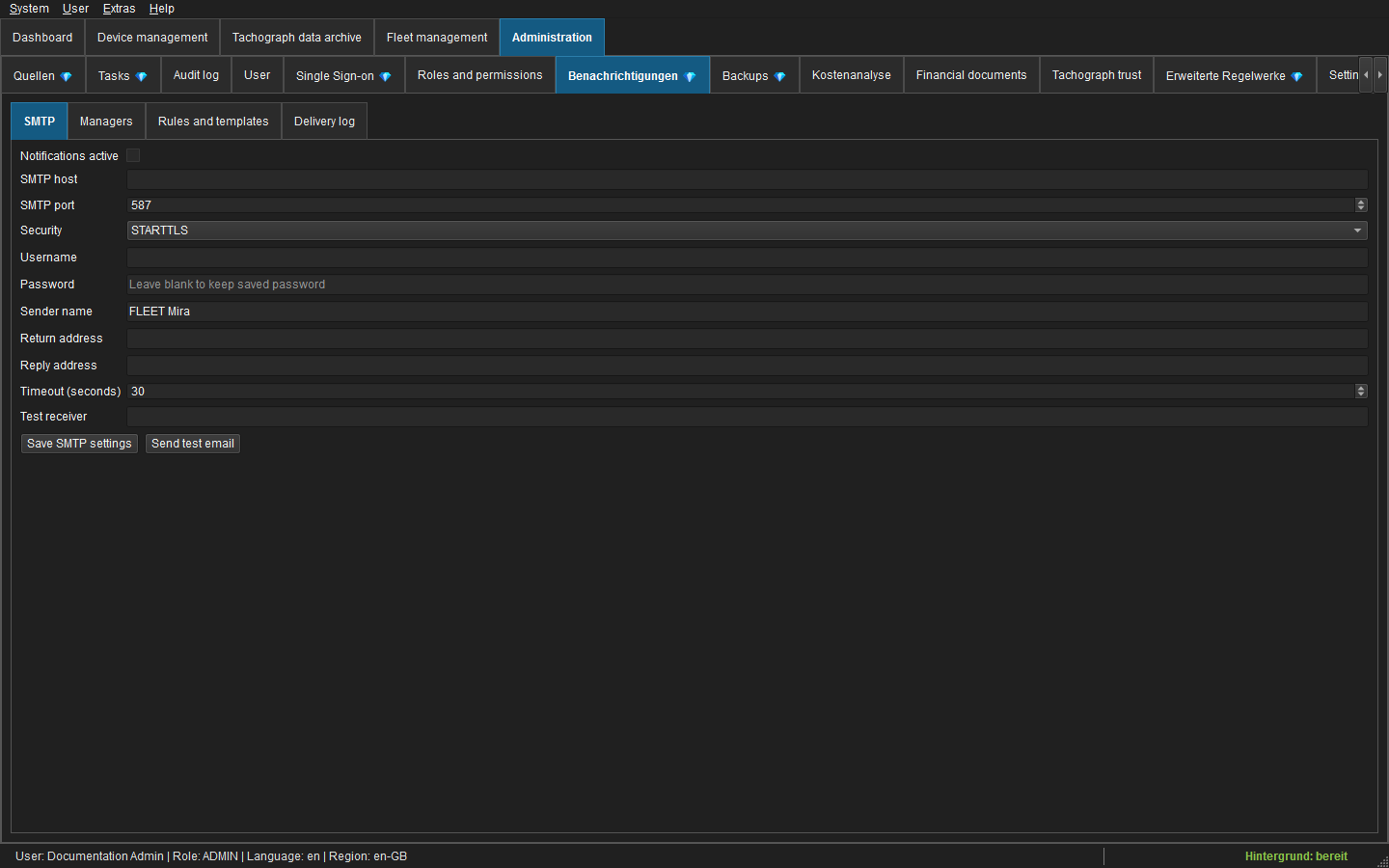 Figure: Notification rules, templates and schedules.
Standard rules cover weekly information, daily reminders from ten days, urgent reminders from three days, overdue warnings and a daily responsible-person report. Additional rules can distribute violation dashboards to managers and deliver each new driver instruction exactly once with its PDF attachment. Rules may be previewed or sent manually when the user has permission.
12. Costs, credits and foreign invoices
Direct vehicle costs
Open a vehicle record → Costs / Credits. Select category and type and enter document date, validity period, net and VAT. Variable allocates the full amount to the document date; fixed entries are distributed by day over their complete validity period. Amounts are stored to the cent. Draft, verification, booking, cancellation and credit are covered in Vehicle costs and credits.
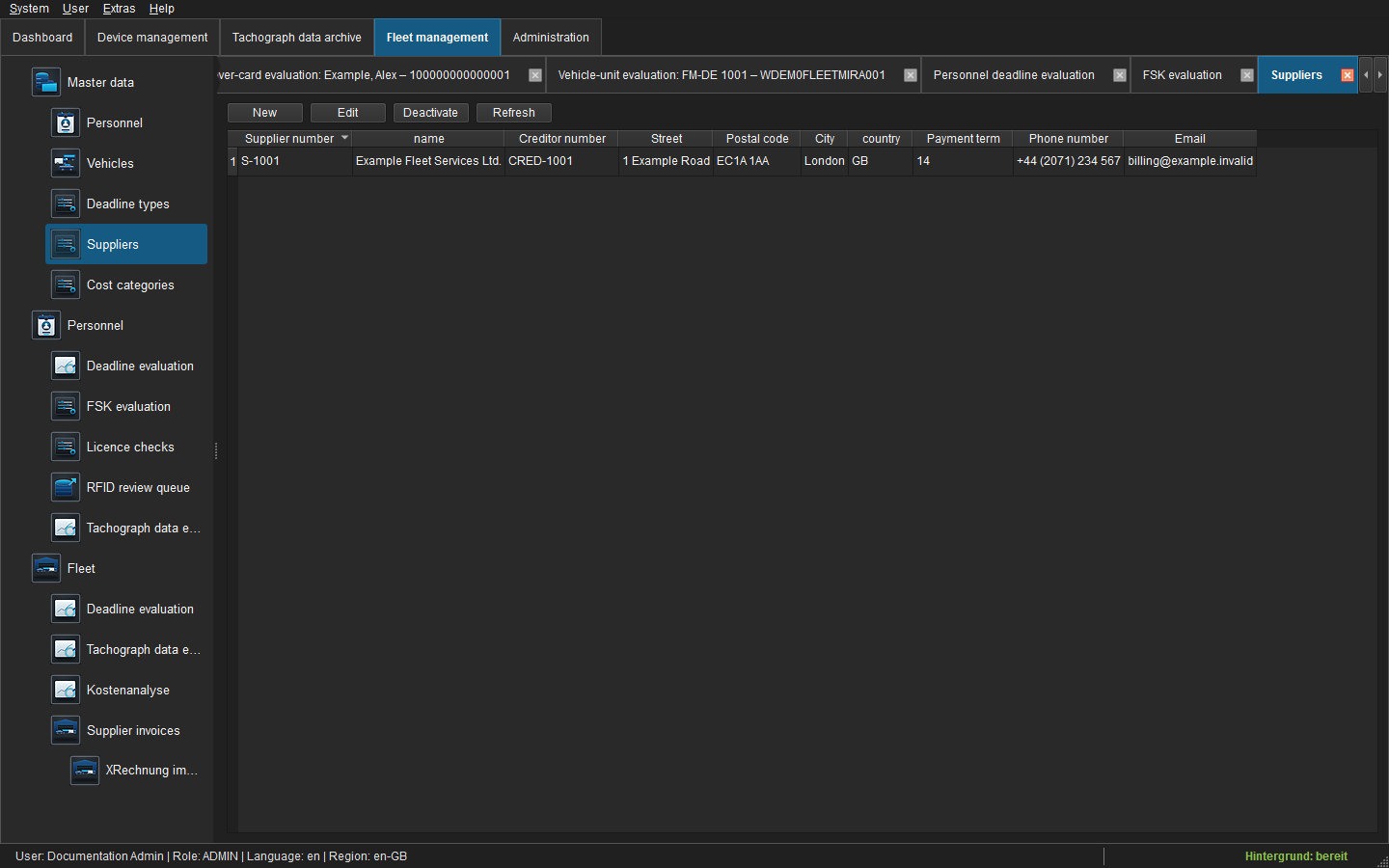 Figure: Supplier master data for financial documents.
Foreign invoices
Open Fleet → Foreign invoices. Double-click an invoice to open it as a work tab.
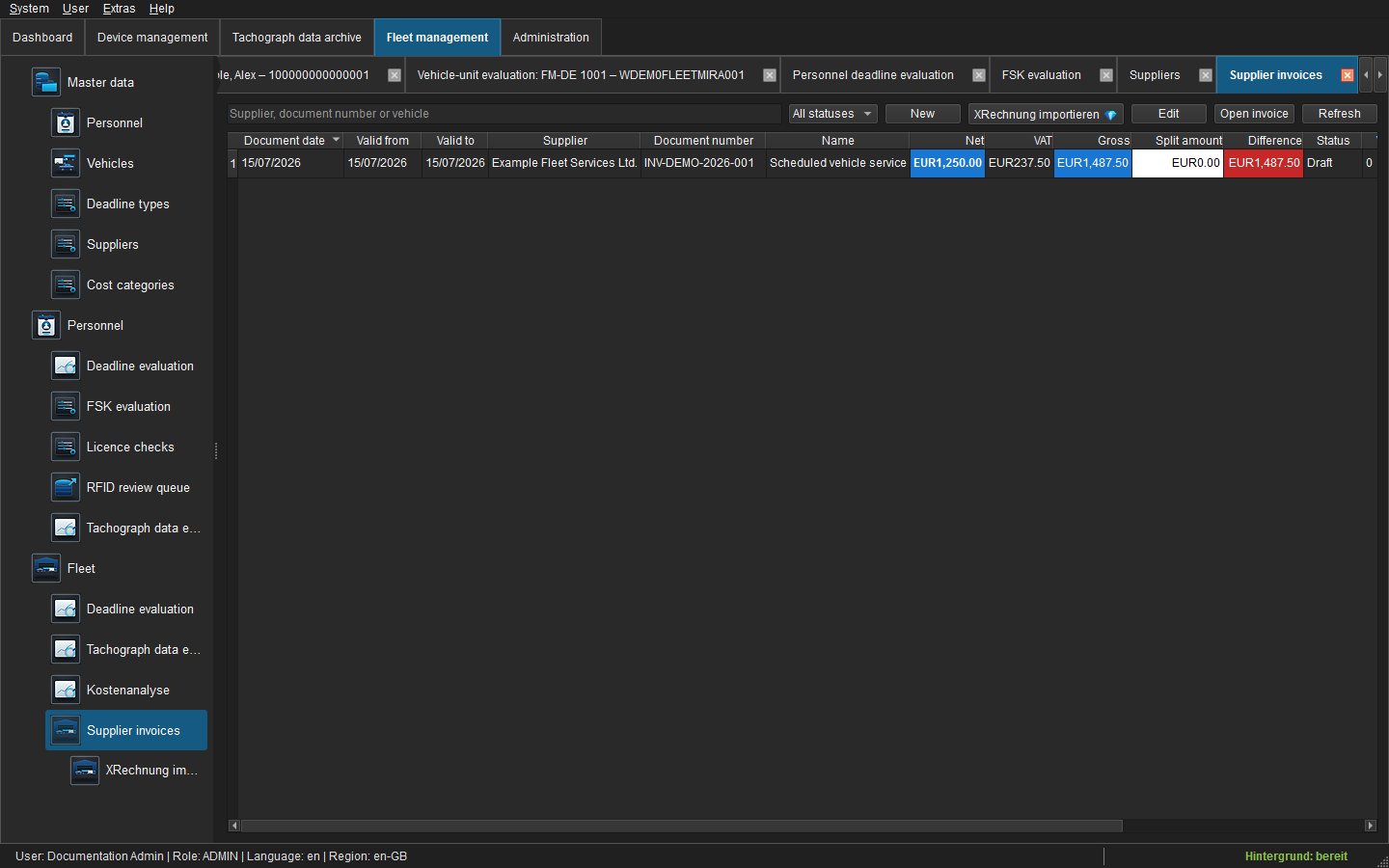 Figure: Foreign-invoice list and work-tab entry point.
flowchart LR
    A[Create draft header] --> B[Add vehicle positions]
    B --> C[Upload original documents]
    C --> D[Cloud hash verified]
    D --> E[Verify totals]
    E --> F[Book]
    F --> G[REST or CSV/ZIP accounting export]
The status row compares gross invoice amount, split amount and difference. Zero difference is green; any cent difference is red and blocks verification. Invoice-bound positions inherit the invoice date for document/valid-from/valid-to and are always variable. Booked data is immutable; corrections use cancellation or linked credits.
E-invoice/XRechnung
Fleet → Import XRechnung guides users through KoSIT validation, invoice and supplier data, vehicle/category allocation, line splitting and totals reconciliation. Only confirmed creation atomically writes a foreign-invoice draft and locally verified original, XML and report objects. See E-invoice and XRechnung import.
13. Audit, reports and logs
The global audit under Administration → Audit combines device, tachograph and fleet events. Filter by date, user, action or text. Double-click an entry to open its current related object when the stable ID can be resolved. Structured JSON/XML details can be opened as a tree, exported as JSON and printed. Navigation itself is not audited.
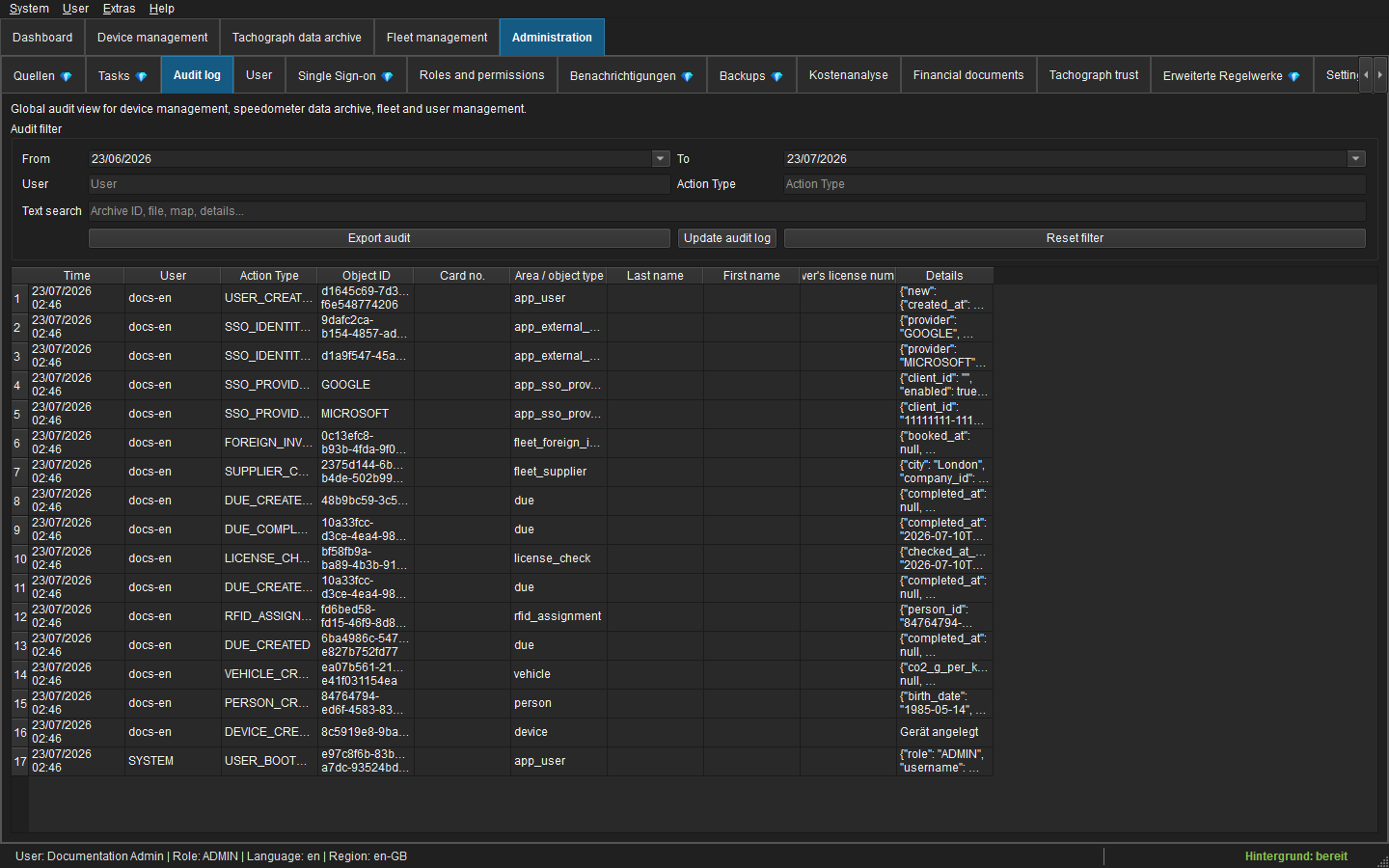 Figure: Global audit log with object-based navigation.
Fleet → Violation dashboard 💎 provides period-based risk scoring, detailed findings, a dashboard report and tamper-evident driver instructions. Fleet → Report dashboard 💎 contains six working-time and return reports with favourites, run history and PDF/Excel output. See Violation dashboard and driver instructions and Report dashboard.
Deadline and evaluation grids support print preview, system printing and PDF. Only visible filtered rows and columns are included.
Administration → Logs shows app.log, REST logs and native crash diagnostics. Logs use English technical messages regardless of the selected UI language.
14. Tray and shutdown
Closing the main window normally keeps background services running in the system tray. Use the tray action to restore the window. Use System → Exit application and services or the equivalent tray command for a clean shutdown; schedulers, REST API, notification service, backup coordinator and logs are closed in order.
15. Troubleshooting
| Symptom | Action |
|---|---|
| File is quarantined | Open Details/Signatures; install missing crypto/trust material or verify the source. Do not re-label the file manually. |
| Backup remains pending | Test the active target, inspect quota/authentication and use Back up now. |
| No PC/SC reader | Install the reader driver, reconnect it and reopen the read dialog. |
| No C/M comparison | Verify matching card number, generation, UTC range and valid signature status. |
| Invoice cannot be verified | Resolve the split difference and ensure at least one original document is locally verified. Backup status does not block verification. |
| UI job failed | Use Retry, then inspect app.log with the displayed job/request ID. |
For administrator-level recovery, continue with the Administrator and integrator guide.