Administrator and integrator guide
1. Deployment model
FLEET Mira Basic/Pro is a locally installed Windows 10/11 desktop application with background schedulers. Setup and runtime block Windows Server, RDP, Citrix and other terminal sessions. The application directory contains Python modules or the PyInstaller build, static assets and translations. Mutable data is referenced by config.json and normally includes:
| Item | Default/role |
|---|---|
| SQLite database | state/archive.db; fixed local drive only, never UNC, mapped network or removable storage |
| Tachograph archive | compressed .ddd.gz objects below the configured archive root |
| Logs | logs/app.log, REST logs and native_crash.log |
| Configuration | config.json; paths, sources, tasks and service defaults |
| UI profile | SQLite per-user JSON plus machine-local QSettings geometry |
Under Administration → Settings, FLEET Mira displays the active data root and the fully resolved log, SQLite, DDD archive, document archive and financial archive paths. These paths are read-only in Basic, Pro and Enterprise until a controlled relocation wizard can move data, database references and permissions as one operation. Raw configuration cannot bypass this restriction. Enterprise marks the SQLite path as unused because that edition uses PostgreSQL.
The Basic and Pro SQLite location is canonicalised and checked at startup. Mapped drives and reparse paths targeting network storage are rejected even when they appear to use a local drive letter. A blocked environment exposes only the rescue dialog for a verified local SQLite copy. Do not edit or move the data root manually. Grant write access only to the relevant application identity.
Initial deployment
- Deploy the build and the supplied empty deployment database.
- Review archive, database and log paths before importing data.
- Start FLEET Mira and sign in with
admin/admin. - Change the password to at least 12 characters.
- Create named users and test role restrictions.
- Configure sources/tasks, SMTP and backup in that order.
- Execute and document backup/restore and terminal-retention tests.
2. Users, roles and permissions
Passwords use Argon2id. Five failed attempts lock an account for 15 minutes. The last active administrator cannot be deactivated.
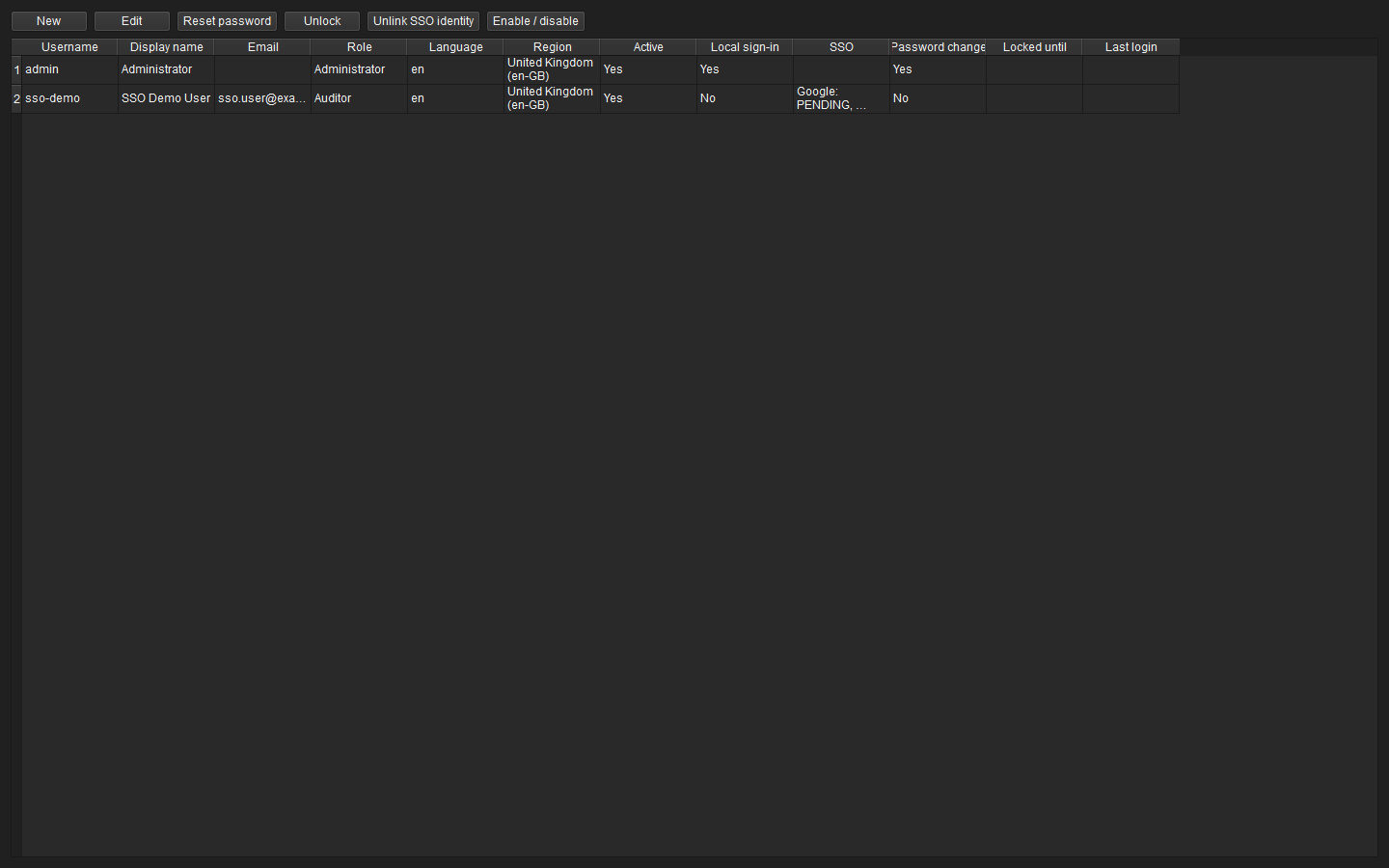 Figure: User, role, language and account administration.
| Role | Typical scope |
|---|---|
| ADMIN | complete administration, finance booking, restore and retention |
| SUPPORT | device/source/task operations, archive troubleshooting, read-only fleet/finance |
| OPERATOR | operational imports, fleet maintenance, licence checks, finance workflows |
| AUDITOR | read/report/export without business changes |
The UI disables unauthorised actions, while repositories/services call PermissionService.require(...) again. Do not treat hidden/disabled controls as the security boundary.
Local administrator recovery is available with --reset-admin-password. It requires Windows administrator rights, resets only the initial admin credential to admin, unlocks the account, enables its local sign-in method and forces a new password. The password itself is never audited. At least this local emergency account must remain available. SSO setup is described below.
Single sign-on with Microsoft Entra ID and Google
Microsoft Entra ID SSO: Beta – untested
The Microsoft Entra integration has not yet been validated end-to-end in production with a real customer tenant. Use it only in pilot and test environments until customer-specific acceptance is complete. A tested local emergency administrator must remain available; do not disable local sign-in for an Entra user until WAM, browser fallback, MFA and Conditional Access have all been tested successfully. This beta notice does not apply to Google SSO.
FLEET Mira supports tenant-bound Entra work or school accounts and individually approved Google accounts. Windows domain accounts that are hybrid-connected to Entra can use the Windows Account Manager (WAM) for single sign-on. Pure AD DS without Entra and personal Microsoft accounts are not supported. Roles and permissions are assigned only in FLEET Mira; identity-provider groups or roles are never imported.
Prerequisites:
- FLEET Mira administrator with
settings.managefor providers andusers.managefor assignments; - customer-owned Entra app registration; the Google vendor client is already included in FLEET Mira;
- Windows 10/11 or Windows Server 2019 or later for WAM; otherwise the system-browser fallback is used;
- outbound HTTPS access to Microsoft or Google sign-in endpoints;
- loopback access to
127.0.0.1/localhostfor the browser callback; - one tested local administrator account for emergency access.
Register Microsoft Entra ID – Beta
- Open App registrations > New registration in the Entra admin centre.
- Enter a unique name and select Accounts in this organizational directory only.
- Open Authentication > Add a platform and select Mobile and desktop applications.
- Register
http://localhostandms-appx-web://Microsoft.AAD.BrokerPlugin/<CLIENT_ID>as redirect URIs, replacing<CLIENT_ID>with the Application (client) ID. - Enable Allow public client flows. Do not create a client secret: FLEET Mira is a public desktop client.
- Retain only the OIDC baseline permissions and delegated
User.Readrequired by MSAL. Do not add mail, file or directory permissions. - Copy the Application (client) ID and Directory (tenant) ID.
- In FLEET Mira, open Administration > Single sign-on, enter both IDs, run Test Microsoft sign-in, and only then select Enabled and save.
WAM is attempted first and supports Windows Hello, MFA and Conditional Access. If the broker is unavailable, MSAL opens the system browser with Authorization Code and PKCE. The immutable link key is (tid, oid); UPN and email are used only as the initial assignment hint.
These Entra steps describe the intended setup path but are not yet a production-validated reference configuration. Record the tenant, client ID, redirects, consent and Conditional Access policies, and all pilot results in the customer-specific acceptance record.
Enable the central Google sign-in
Google requires no customer-side Cloud Console configuration. FLEET Mira contains a vendor-operated desktop OAuth client for personal Google and Google Workspace accounts.
- Open Administration > Single sign-on.
- In the Google section, verify that the application is FLEET Mira and the diagnostic reads The integrated Google vendor client is ready.
- Select Test Google sign-in. The system browser opens the central FLEET Mira consent dialog; Google may request consent for the basic profile and email on first use.
- After a successful test, select Enabled and choose Save SSO settings.
- Under Administration > Users, pre-assign the Google email addresses of permitted users. No further Google credentials are required.
If the integrated configuration is missing or damaged, the enable control remains unavailable and the diagnostic identifies a faulty software build. Contact the FLEET Mira vendor in this case; do not import or configure a customer OAuth client.
The browser callback binds only to 127.0.0.1 on a random free port. FLEET Mira uses Authorization Code with PKCE and validates signature, issuer, audience, expiry, nonce and email_verified. The durable key is (iss, sub); the email address is only used for initial assignment and may change afterwards. Google SSO stores no refresh tokens and does not reuse credentials, tokens or scopes from Google Drive backup. Scopes remain limited to openid, email and profile.
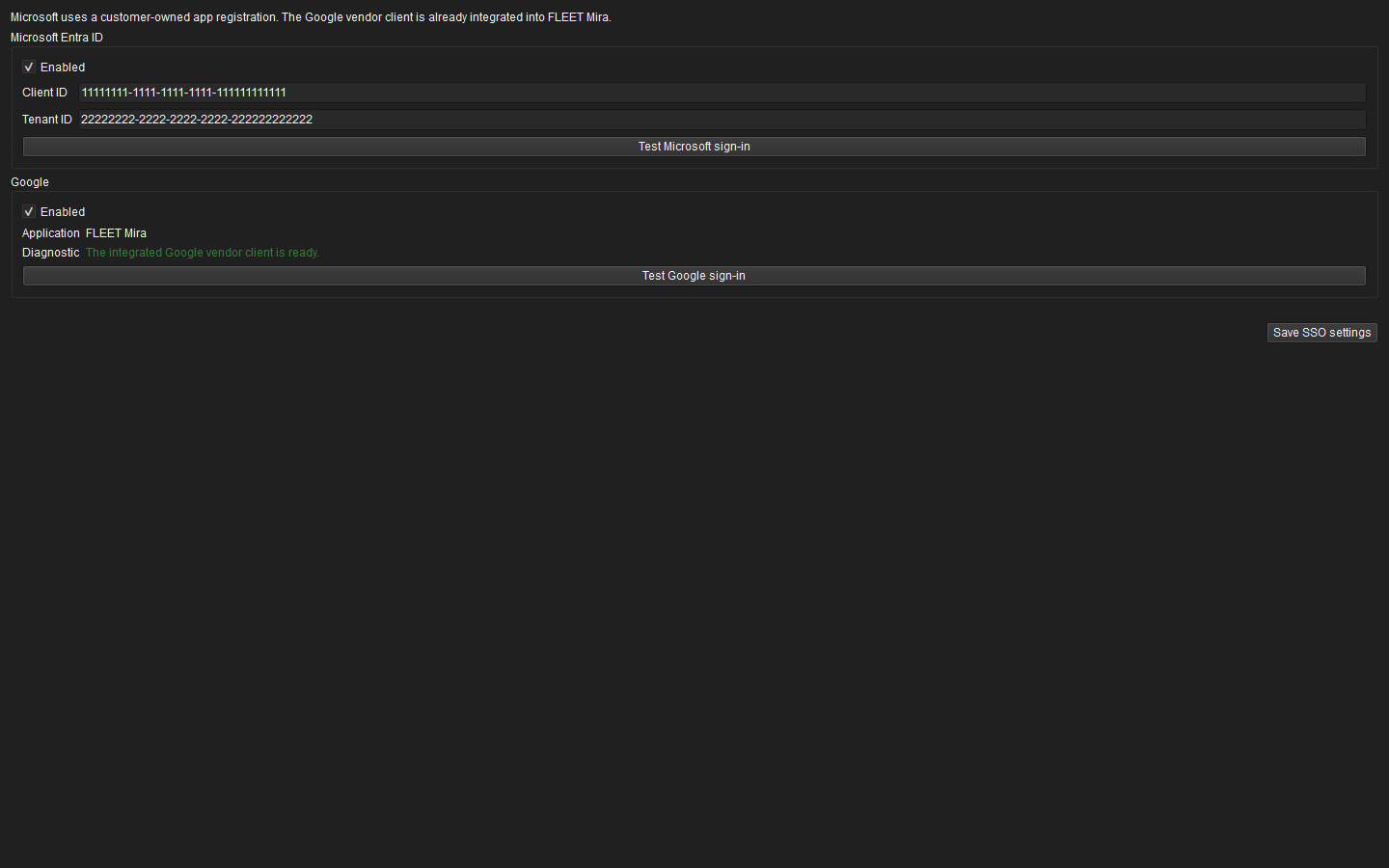 Figure: Entra configuration in untested beta status and the activatable, regularly supported Google vendor client.
Assign users and control local sign-in
- Open Administration > Users and create or edit a user.
- Set the local role, language, region and account status.
- Enter the expected Microsoft UPN under Microsoft UPN or verified Google address under Google email.
- Clear Local sign-in for an SSO-only account. A new SSO-only user does not require a temporary password.
- On the first successful provider sign-in, FLEET Mira atomically binds the immutable provider ID to exactly that user. Status changes from
PENDINGtoLINKED. - After the pilot sign-in, verify the link, local role and audit events.
Unknown identities are never provisioned automatically. Select Unlink SSO identity to relink an account; the approval returns to PENDING and the next matching provider sign-in binds it again. To remove the assignment completely, then clear the expected UPN/email in the user dialog. A disabled user cannot sign in locally or through SSO. The final local administrator cannot be converted to SSO-only.
Figure: Local sign-in, pre-approved SSO accounts and link status.
Operations, offboarding and incidents
- Signing out of the app ends only the local session; Windows, Microsoft and Google sessions remain active.
- During provider or network outages, only users with local sign-in enabled have a fallback.
- Microsoft Entra remains beta until WAM, browser fallback, MFA and Conditional Access have been tested and documented for the customer; no user should depend exclusively on Entra before then.
- For offboarding, disable the local user first, then block the provider account/consent and unlink the identity with an audit trail.
- Customer administrators rotate the Entra client as for initial setup. Only the vendor rotates the central Google client through a new FLEET Mira build; existing
(iss, sub)links remain and must be verified with pilot accounts. - ID, access and refresh tokens and complete claims must never appear in the database, audit or logs.
- Regularly review
SSO_LOGIN_*,SSO_IDENTITY_*andSSO_PROVIDER_CONFIG_UPDATEDtogether with provider sign-in logs.
| Symptom | Check and action |
|---|---|
| Entra beta not yet accepted | Keep local sign-in enabled and document the complete pilot flow with WAM, browser fallback, MFA and Conditional Access in a real customer tenant. |
| Wrong Entra tenant | Verify tenant ID and the account's tid; multi-tenant or personal accounts are not accepted. |
| Redirect error | Register http://localhost and the WAM redirect exactly on the desktop platform. |
| Account not assigned | Check expected UPN/email, provider and account status in user administration. |
| WAM/broker unavailable | Check Windows version and broker package; system-browser fallback must remain operational. |
| Loopback/timeout | Check local firewall, proxy, browser launch and binding to 127.0.0.1, then retry. |
| Google vendor client missing/invalid | Check the diagnostic under Single sign-on and obtain a corrected FLEET Mira build from the vendor. Do not import a customer client file. |
| Google consent expired/blocked | Restart sign-in; for a Workspace restriction, check the organisation policy. The vendor checks branding, publication and central client status. |
| Browser cancelled | Start sign-in again; no local session or identity link is created. |
Pilot and production check: successful provider test, pilot identity LINKED, unknown identity rejected, audit inspected for token leakage, local recovery tested and offboarding rehearsed. Microsoft Entra may only be considered a production sign-in method after successful additional acceptance of WAM, browser fallback, MFA and Conditional Access in a real customer tenant; until then it remains beta and untested.
3. Languages, regions and time basis
New deployments default to English and en-GB. User profiles may select any registered language/region. Date pickers, numbers and currency follow the region. Database/API dates remain ISO. Tachograph source data remains stored unchanged in UTC. Administrators may optionally select a local activity time zone under System → Settings; day/week boundaries, displays and compliance evaluations then use the same DST-safe projection. Evaluation runs and audit data record the selected time basis independently of the UI locale.
Translation catalogues live under translations/<language>.json. English is the fallback catalogue. Missing production keys log I18N_MISSING and fail the catalogue parity test.
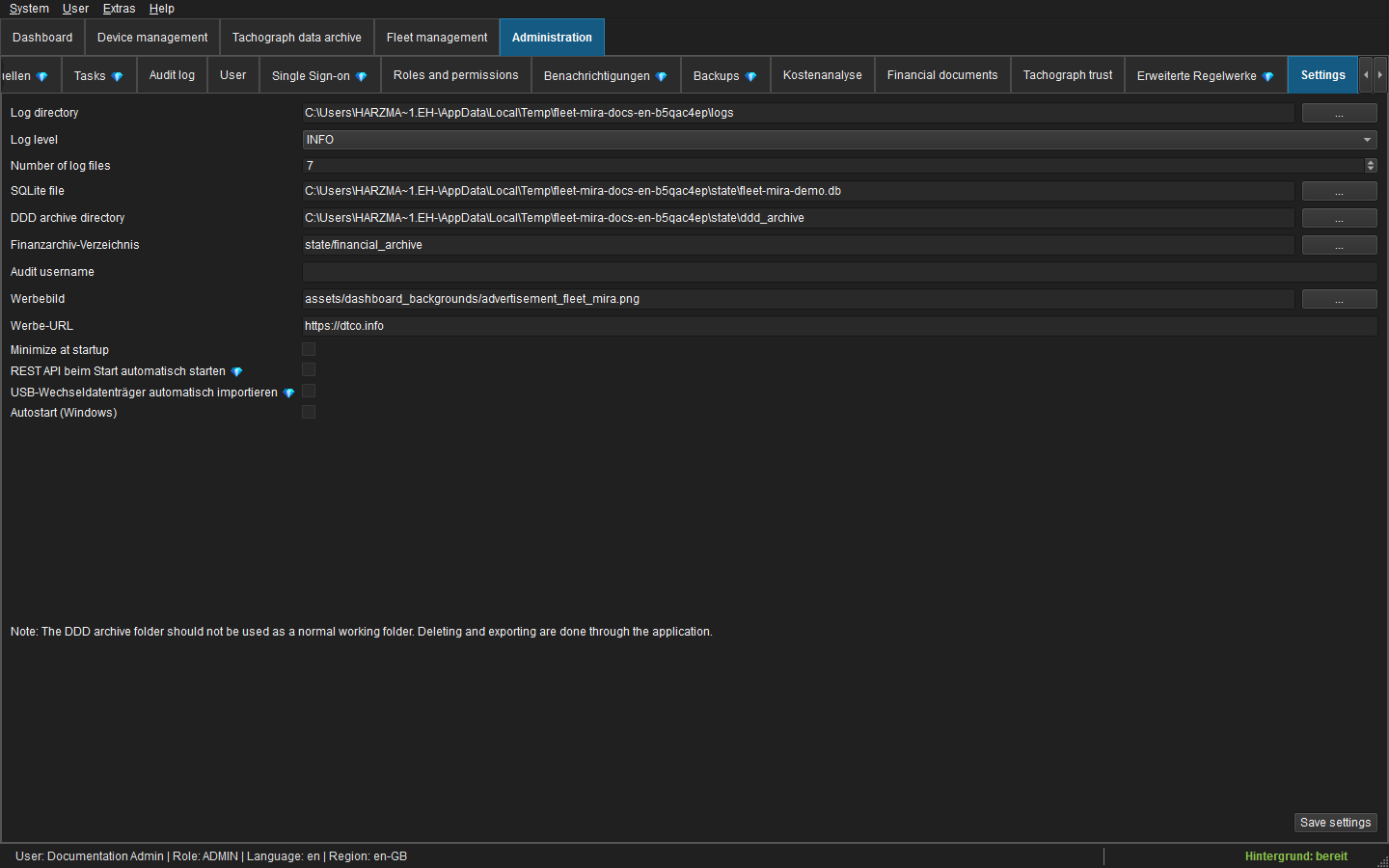 Figure: Administrative application settings.
4. SQLite and migrations
Migrations run once at startup before repositories serve UI jobs. Use SQLite WAL/default locking as configured by the application; never copy a live database file for backup.
Operational recommendations:
- keep database and archive on reliable local storage;
- monitor free space and failed backup jobs;
- use the built-in SQLite backup API snapshot;
- test
PRAGMA integrity_checkafter restore and during maintenance; - stop application and services before manual file-level maintenance;
- never edit audit, signature or finance tables directly.
The deployment database must contain schema/default rows but no operational persons, vehicles, DDD files, documents, credentials or audit history.
5. Scheduler, sources and tasks
Background scheduling starts independently of an authenticated UI session and runs as SYSTEM. Supported source types are FTP, DLT API, SFTP, local folders and UNC shares. Every network operation must have connect/read timeouts. USB monitoring is intentionally owned by the desktop process and stops when that process exits.
Task processing sequence:
flowchart TD
    A[Schedule or Run now] --> B[List matching remote objects]
    B --> C[Download to controlled local path]
    C --> D[Hash, classify and archive]
    D --> E[Parse/signature verify or RFID CSV import]
    E --> F[Create/update business links and deadlines]
    F --> G[Queue cloud backup]
    G --> H{Strict backup mode?}
    H -->|No| I[Mark processed / optional terminal deletion]
    H -->|Yes| J[Wait for verified cloud object]
    J --> I
A technical failure before durable archiving must not mark or delete the terminal object. Duplicate hashes resume pending backup/deadline work without creating duplicate archives.
6. Tachograph archive and signature trust
The content dispatcher classifies DRIVER_CARD, VEHICLE_UNIT or UNKNOWN. C files use G1 RSA/SHA-1 or G2 ECDSA chains; M files verify signed download sections for G1/G2/G2V2. cryptography is a required runtime dependency.
Signature result priority is INVALID → UNVERIFIABLE → VALID. Parser status maps to verified, verified-with-warnings or quarantine. Quarantine never deletes the original but blocks trusted linking, C/M comparison, compliance snapshots and “latest trusted” selection.
Trust-store updates are administrative, explicit and audited. Validate package source, manifest and pinned fingerprints. Do not silently fetch or trust certificates from an arbitrary server.
7. Audit and diagnostics
The global audit normalises device, tachograph, fleet, finance, user and backup events. Each entry should include UTC time, actor/user ID, role, origin, action, object type/ID, result, correlation ID and sanitised before/after data. Passwords, tokens, API keys and binary originals are prohibited.
app.log is the complete application log. It includes scheduler, downloads, imports, jobs, cache timings, backup and service errors. Technical messages are always English. native_crash.log is written by faulthandler for process-level failures after diagnostics initialisation; failures before Python startup cannot be captured there.
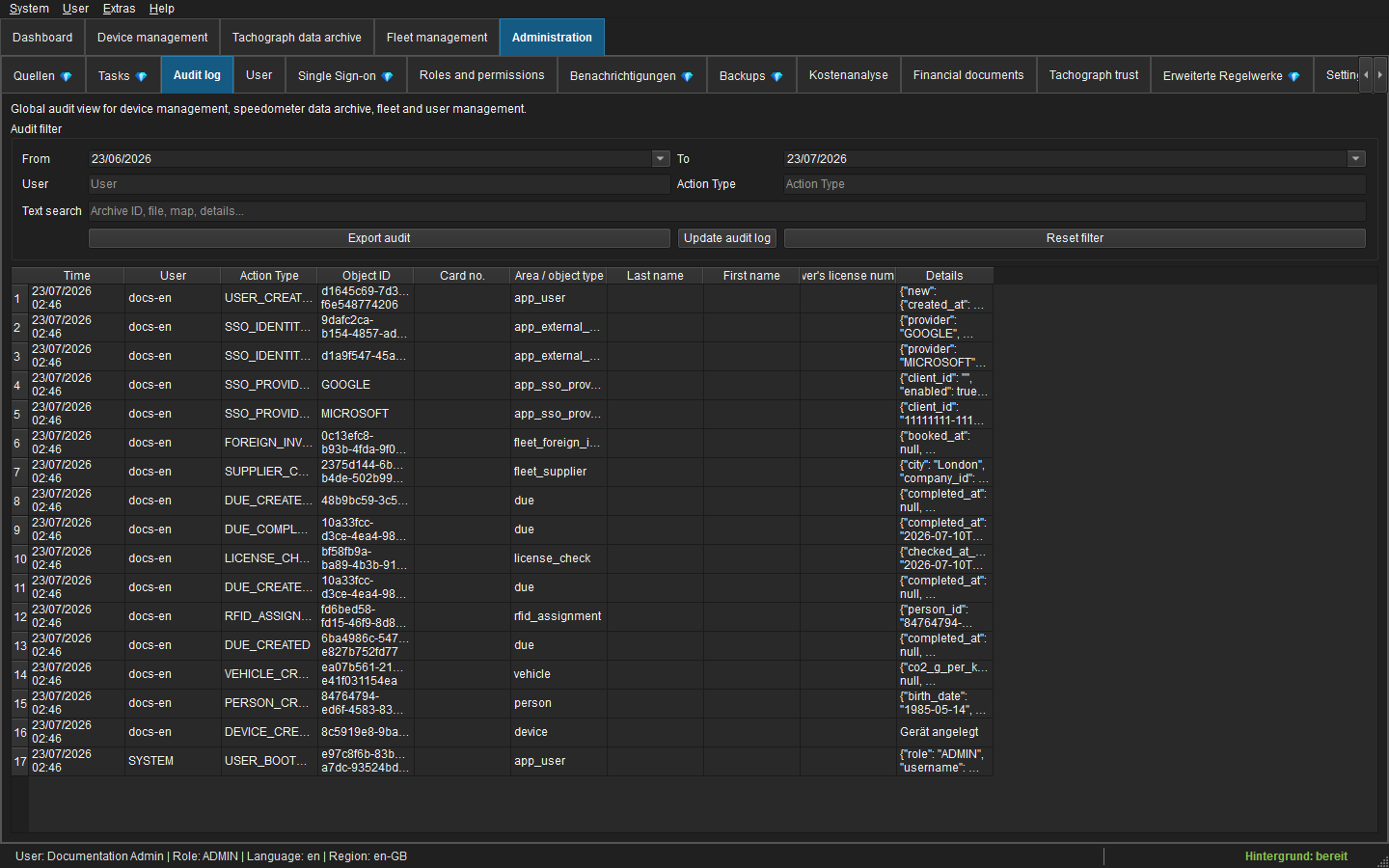 Figure: Audit evidence used together with technical diagnostics.
The UI heartbeat logs UI_STALL if the main event loop is blocked for more than one second. A recovery entry records the duration. Use job/request/correlation IDs to join UI, service and audit events.
8. UI job operation
Expensive reads/calculations use worker-local SQLite connections. Qt widgets are changed only in the GUI thread. Read jobs, serialised writes and low-priority prefetch use separate lanes. New filter/date requests cancel stale generations; tab closure cancels owned work.
Performance incidents should be investigated by separating queue, database, compute, render and total time from the job log. Do not reintroduce processEvents() loops or modal busy dialogs for long work.
9. Driving-licence checks and notifications
PC/SC reads UID with FF CA 00 00 00, normalises to uppercase hexadecimal and assigns at most one active UID per person. A UID cannot be active for multiple persons.
Terminal CSV fields are UID;DD.MM.YYYY;HH:mm:ss;hostname. File- and row-level fingerprints provide idempotency. Unknown/inactive/time-incompatible UIDs remain clarification records.
SMTP supports STARTTLS or TLS. Passwords are DPAPI-protected. Default rules produce driver reminders and a daily fleet-responsible report. A desktop/tray process must be running for scheduled sends; missed runs are caught up only on the same day. Outbox idempotency prevents duplicate automatic mail per rule/object/recipient/day.
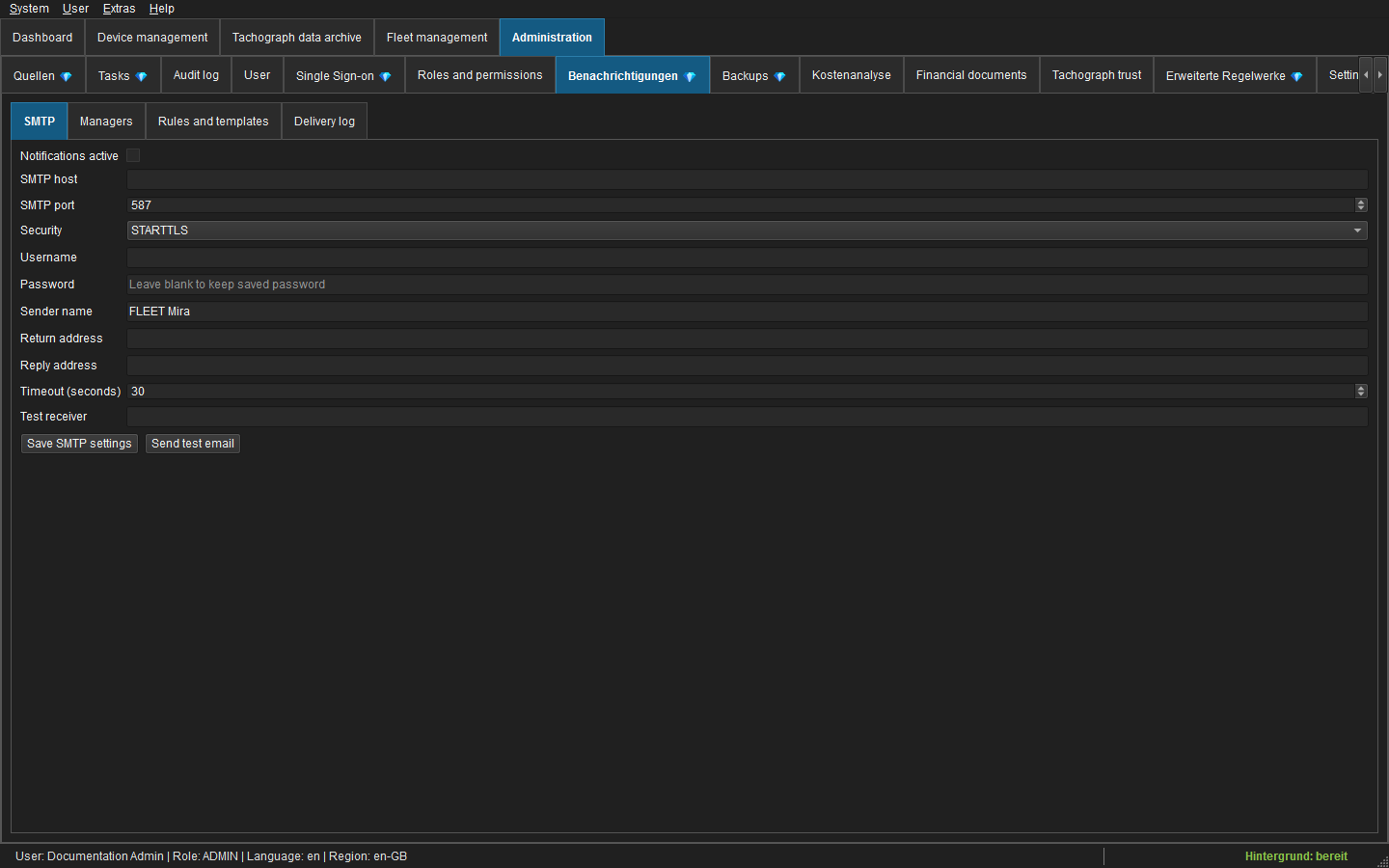 Figure: SMTP recipients, rules and send-log administration.
10. Finance and document vault
Financial data is stored in cents and EUR. Foreign invoices require exact header/position totals and at least one locally verified original before verification. Backup status is irrelevant to that decision. Booking makes business records immutable; corrections use cancellations or credits.
Original documents are never SQLite BLOBs. The financial vault stages, hashes, uploads, reads back and verifies each object. Metadata stores target, remote path/ID, hash, size, version and retention. Target deletion is blocked while documents reference it.
Accounting delivery is available through REST and CSV/ZIP. Only booked records are exportable. REST uses a persistent idempotent outbox.
11. Backup and disaster recovery
Exactly one Google Drive or HTTPS WebDAV target may be active. Client-side AES-256-GCM is optional and preselected. Activation requires exporting and confirming a recovery key.
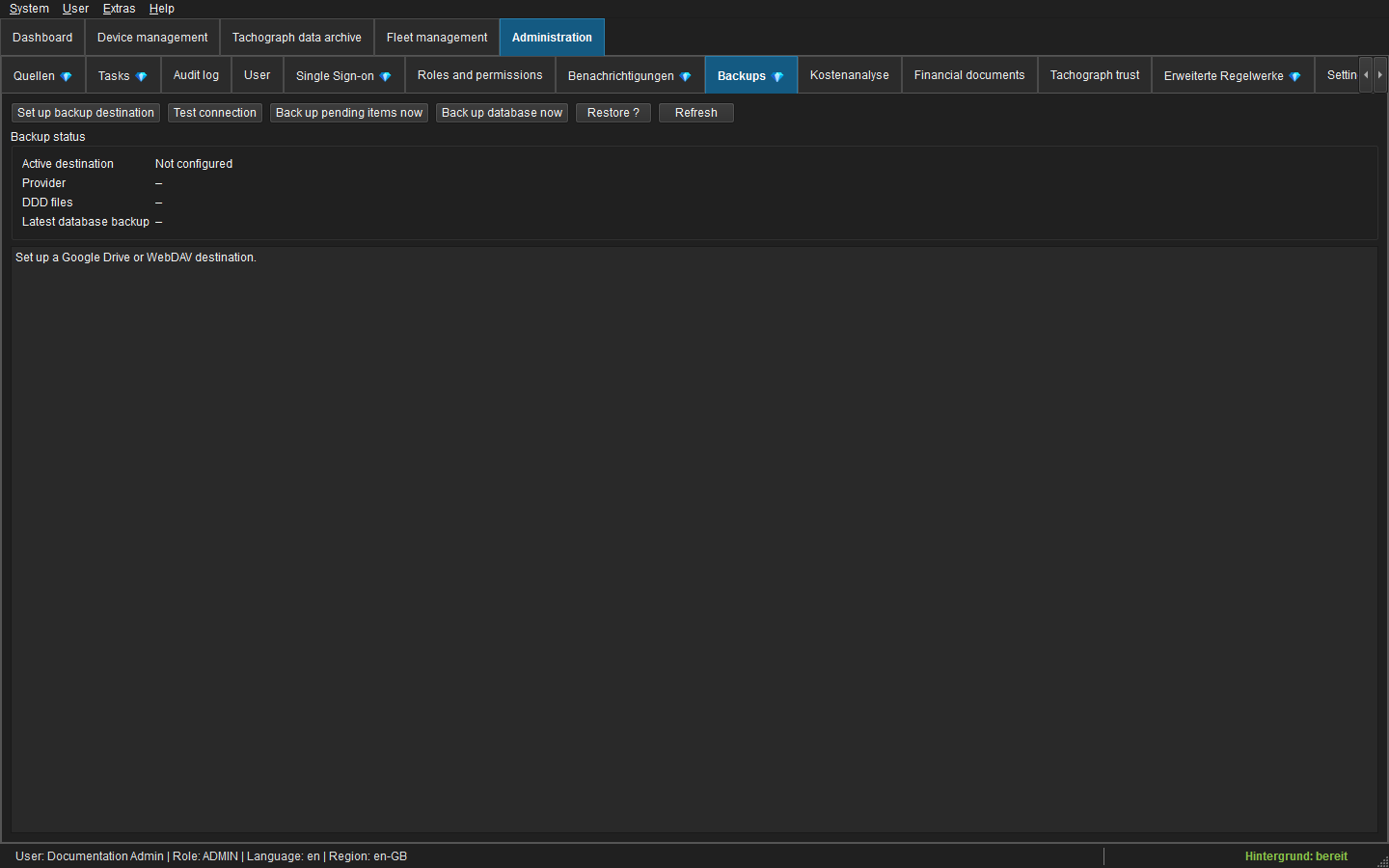 Figure: Cloud target, backup queue and restore administration.
Archives are backed up asynchronously when a target is configured; database snapshots default to 02:00 UTC. Retention keeps 30 daily and 12 monthly database states. DDD backup objects are never automatically removed. Details and runbooks are in Archiving, backup and restore.
SSO activation, Entra configuration and identity assignments are stored in SQLite and are therefore included in database snapshots. The central Google client is part of the software build; provider tokens are not backed up. Test local emergency access and both SSO methods after every restore. Microsoft Entra remains beta after a successful restore until WAM, browser fallback, MFA and Conditional Access have been documented and accepted in the restored customer context.
At least quarterly, restore a database snapshot and representative C/M objects to an isolated test directory, verify hashes/integrity and document the result.
12. REST and integrations
- DriverCard REST binds to
127.0.0.1by default and exposes parsed card evaluations. - Accounting REST sends booked invoice metadata and originals to a configured HTTPS endpoint.
- Mobile licence-check endpoints remain a separate fleet API surface when enabled.
Do not expose a local development endpoint directly to the Internet. Place authentication, TLS, rate limiting and network access controls in front of any externally reachable API.
13. Legacy technical identifiers
The visible product is FLEET Mira. The following are intentionally retained for compatibility:
- repository/project folder and PyInstaller file
DLTNGDownloadTool.spec; - technical executable/internal names where changing them would break upgrades;
- SQLite table/column names, configuration keys and event codes;
- DriverCard/API paths and payload fields;
- remote root
DLTNG/<installation-id>/..., manifest magic values and existing User-Agent identifiers.
These are protocol/storage identifiers, not user-facing product branding. Renaming them requires a separately versioned migration.
14. Security checklist
- [ ] named users only; initial admin password changed;
- [ ] role matrix tested with a non-admin account;
- [ ] database/archive ACLs restricted;
- [ ] source, SMTP, backup and REST secrets protected;
- [ ] WebDAV HTTPS certificate, separate Google Drive client and integrated Google SSO diagnostic validated;
- [ ] Entra beta tested with WAM, browser fallback, MFA and Conditional Access in a real customer tenant; local fallback remains enabled;
- [ ] recovery key stored offline and access logged;
- [ ] strict terminal deletion selected where policy requires it;
- [ ] audit/log retention and log rotation monitored;
- [ ] signature trust store current and controlled;
- [ ] daily database backup and archive backlog monitored;
- [ ] restore test completed and documented;
- [ ] operator procedural documentation covers retention, scan and legal review.
15. Incident and recovery checklist
- Stop automatic writes if integrity, ransomware or credential compromise is suspected.
- Preserve
app.log,native_crash.log, configuration and relevant audit exports. - Revoke/rotate affected source, SMTP, SSO app registrations, Google/WebDAV and API credentials; see SSO operations and offboarding.
- Verify local archive hashes and remote object manifests.
- Restore into an isolated path first; never overwrite the only remaining database copy.
- Run integrity/hash checks and reconcile backup states.
- Resume services only after root cause, credentials and recovery result are documented.
16. Build and release checks
Before release, run application tests, translation parity, documentation verification, mkdocs build --strict --clean, PyInstaller smoke tests and a clean deployment-database start. Verify both German and English screenshots contain FLEET Mira branding and no operational data.