User manual
The workshop guide covers orders, articles, inventory, purchasing and outgoing invoicing in Pro and Enterprise. Follow workshop accounting operations for archiving, external backup and recovery.
Detailed business guides
- Driver-card analysis – every tab
- Vehicle-unit analysis – every tab
- Deadlines and record documents
- Driving-licence checks and RFID/NFC
- Vehicle costs and credits
- Foreign invoices – workflow and every tab
- Lease contracts, factor calculation and reports
- E-invoice and XRechnung import
- Cost analysis and reporting
- Position maps for C and M data
These guides use a temporary anonymised copy of the development database. Activities, timestamps, amounts and approved coordinates remain representative. Driver names, dates of birth, card identities, registrations and VINs are replaced deterministically with recognisable demonstration values.
Edition and processing model
Basic and Pro use a local SQLite database and process background tasks in the application. Enterprise uses PostgreSQL exclusively. Its client places central work in the database queue; the independent FleetMiraWorker service performs imports, notifications, backup and other scheduled work. The same user workflow therefore produces the same business result, but Enterprise jobs may continue after the client window is closed.
Open licence management through Help → Licensing. This menu entry and the licence dialog titles follow the signed-in user's language; the region does not change their wording. Changing the language does not activate a licence or replace online activation.
1. Sign-in and workspace
Start FLEET Mira from the installed shortcut. The splash screen remains visible throughout startup initialization and the initial workspace load wave. Only after its UI callbacks have completed is the splash seamlessly replaced, within the same render cycle, by the immediately interactive sign-in dialog. A new installation uses admin / admin once and forces a secure replacement password. If an administrator has configured SSO and pre-assigned your account, select Sign in with Microsoft or Sign in with Google instead. Microsoft Entra ID SSO is currently beta and has not yet been validated end-to-end with a real customer tenant. Keep local sign-in available as a fallback until customer-specific acceptance is complete and contact your administrator if sign-in fails. Setup and troubleshooting are covered by the Administrator and integrator guide.
 Figure: FLEET Mira splash screen before sign-in.
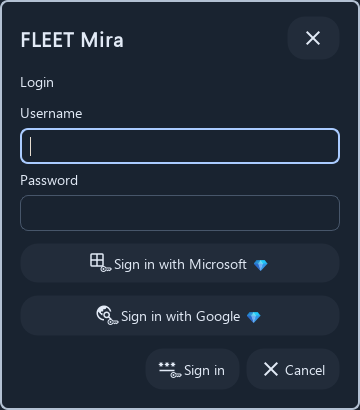 Figure: Local sign-in, Microsoft Entra SSO in untested beta status and regularly supported Google SSO.
After every sign-in, the Dashboard is the active page. The top navigation switches between the five main areas. Long operations show a non-modal loading status and may be cancelled; other tabs remain usable.
User profile
Open User → My profile to change display name, email, language and region. Language or region changes take effect after the next sign-in. Table layouts, filters, splitter positions and column order are stored per user.
Editable fields, selection lists, date and number fields, and toggles provide concise input guidance. In forms, point to the field caption; for standalone filters or toggles, the guidance appears on the control itself. The description states the expected input, any applicable format or range, and the effect of the selection. It always follows the authenticated user's language, while date, time, and number formats continue to follow the selected region.
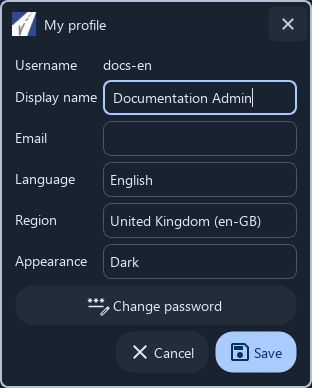 Figure: User-specific language, region and profile settings.
Tables and context menus
- Click a header to sort; click again to reverse the direction.
- Drag headers to change the column order and drag header boundaries to change widths.
- Right-click a header to show or hide columns where offered.
- Right-click a data row for object-specific actions. The row under the pointer is selected first.
- Selected rows use a dark-blue background and white text, overriding status colours for readability.
Column width, order, visibility and sorting belong to your personal table layout. When users change, the most recent actual edits are retained; another unchanged view of the same table cannot overwrite them. Restore default layout removes the saved layout until you change a column again. Closing the context menu without a selection changes nothing. Menu captions follow your user language.
2. Dashboard
The six photo-backed cards provide direct navigation:
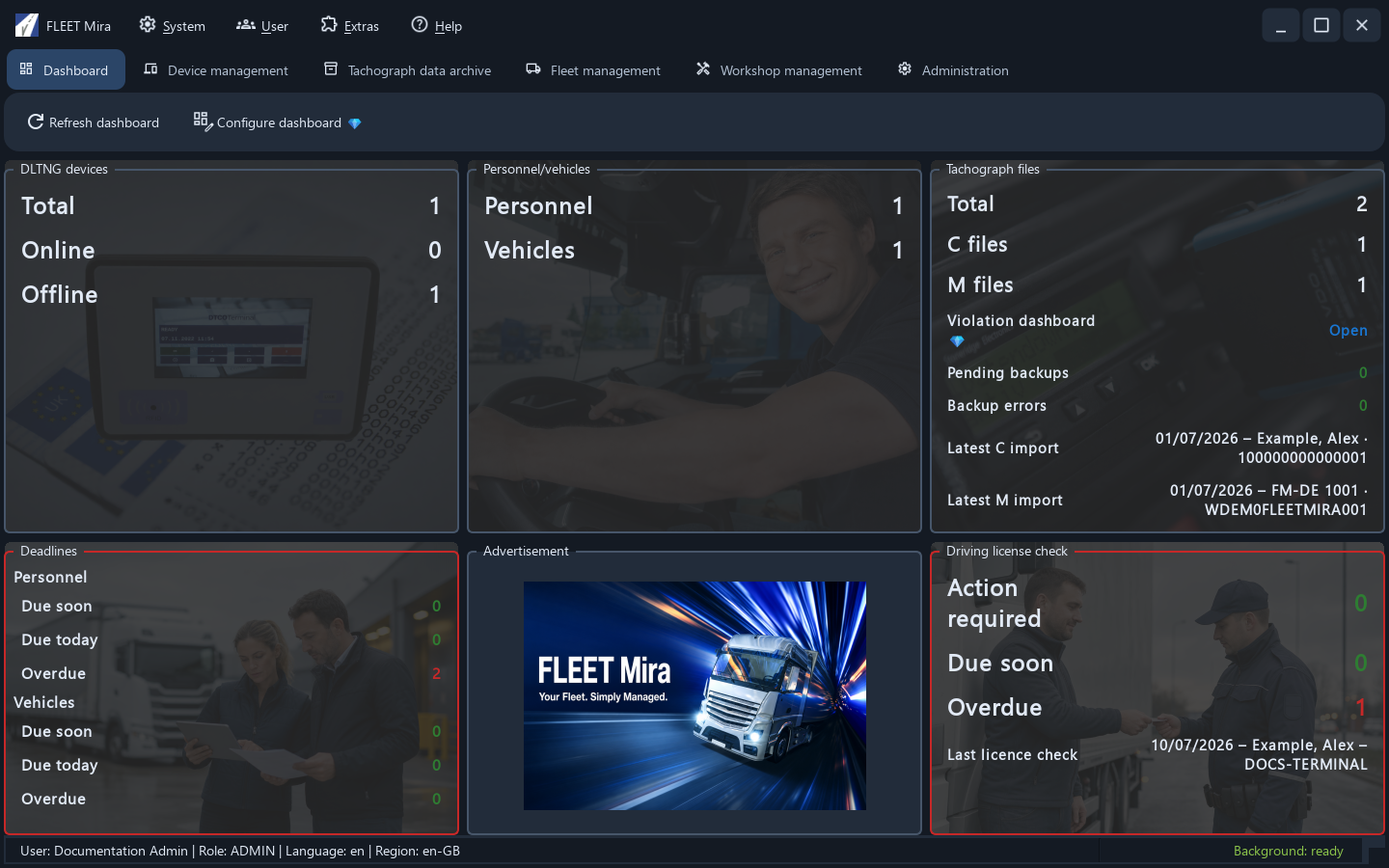 Figure: Dashboard with anonymised demonstration data and direct navigation figures.
- DLTNG devices: total, online and offline devices.
- People/Vehicles: active master records.
- Tachograph files: total C/M files, backup backlog/errors and latest imports.
- Personnel deadlines / Vehicle deadlines: upcoming, due today and overdue items.
- Driving-licence checks: pending clarification, checks due soon, overdue checks and the latest successful check.
Click an individual figure, not only the card, to open the corresponding pre-filtered list. Select Refresh dashboard after major imports when an immediate refresh is needed.
Basic always shows these six widgets in the fixed default layout. In Pro and Enterprise, Configure dashboard 💎 opens a personal editing mode on a 6×4 grid. Use the catalogue to show or hide widgets and drag them by their handle. A free area accepts the widget; dropping it on one equally sized widget swaps their positions. Save stores the layout for the signed-in user across workstations, Cancel discards the draft, and Restore default restores all six 2×2 widgets before saving.
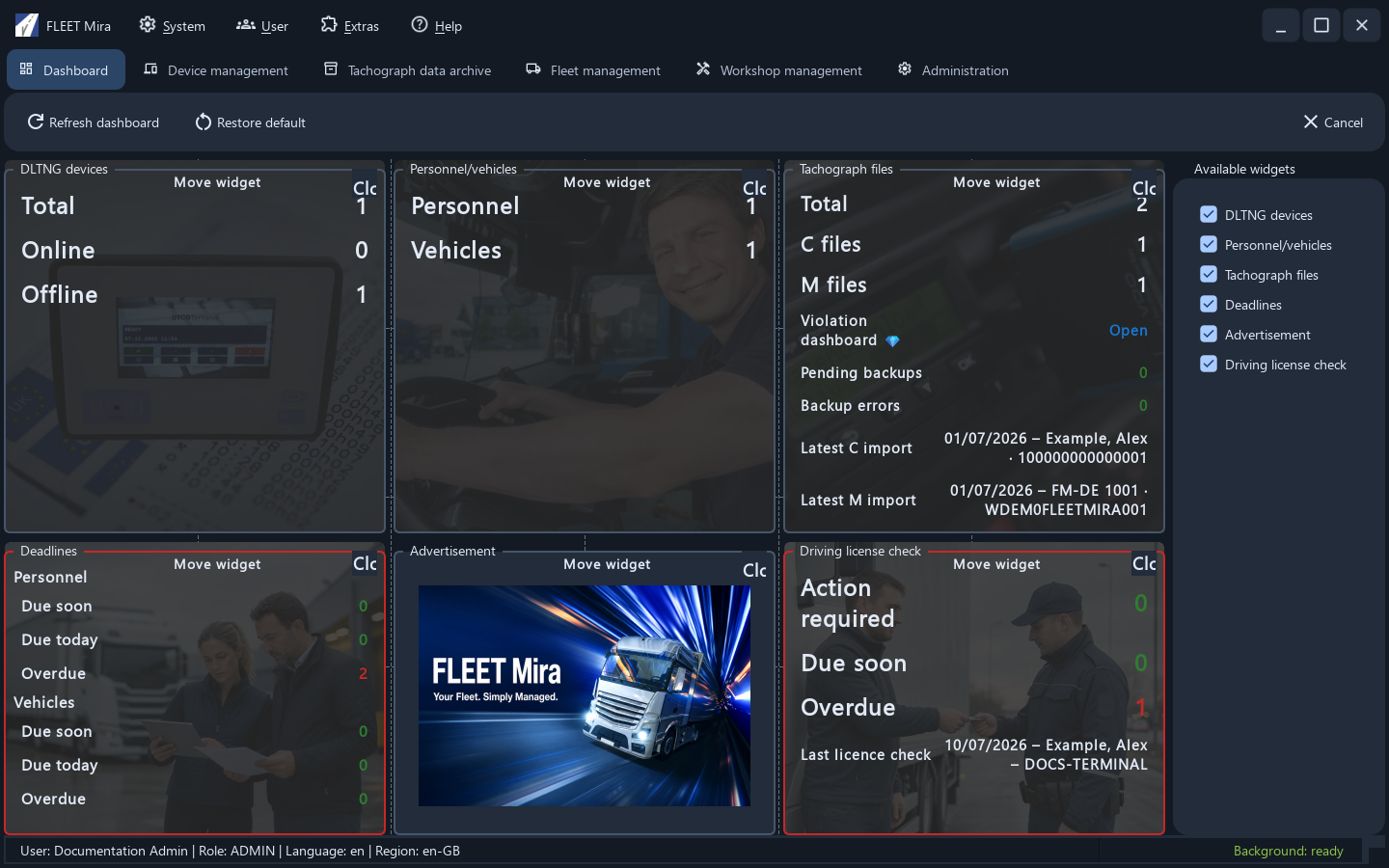 Figure: Editing mode with the 6×4 grid, widget catalogue and drag handles.
3. Device Management
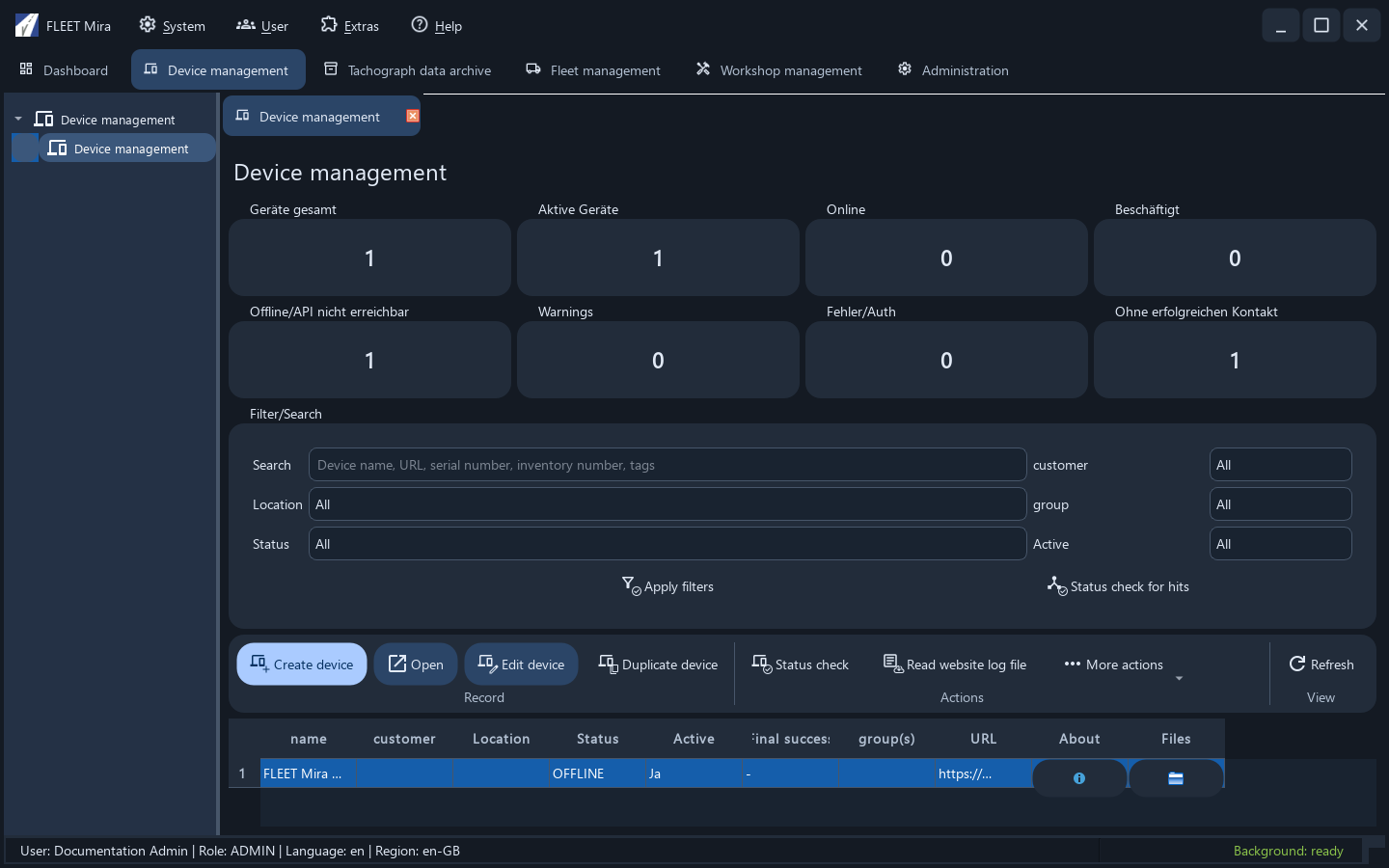 Figure: Device list and device-management workspace.
The device list can be filtered by name, tenant, site, group and status. Depending on permission, the toolbar and context menu allow you to:
- create, edit or duplicate a device;
- check status for one device or the current result set;
- open the embedded or standard browser interface;
- retrieve system information, remote files and the website log;
- deactivate or archive a device with confirmation.
The lower detail pages show master data, files, status history and audit. Remote file downloads use the configured destination and never alter the archive until the normal import path processes them.
4. Sources and download tasks
Open Administration → Sources to configure FTP, DLT API and SFTP endpoints, local folders, or UNC server shares. Test the connection before assigning a source to a task. Credentials and SFTP key passphrases are protected and do not appear in logs.
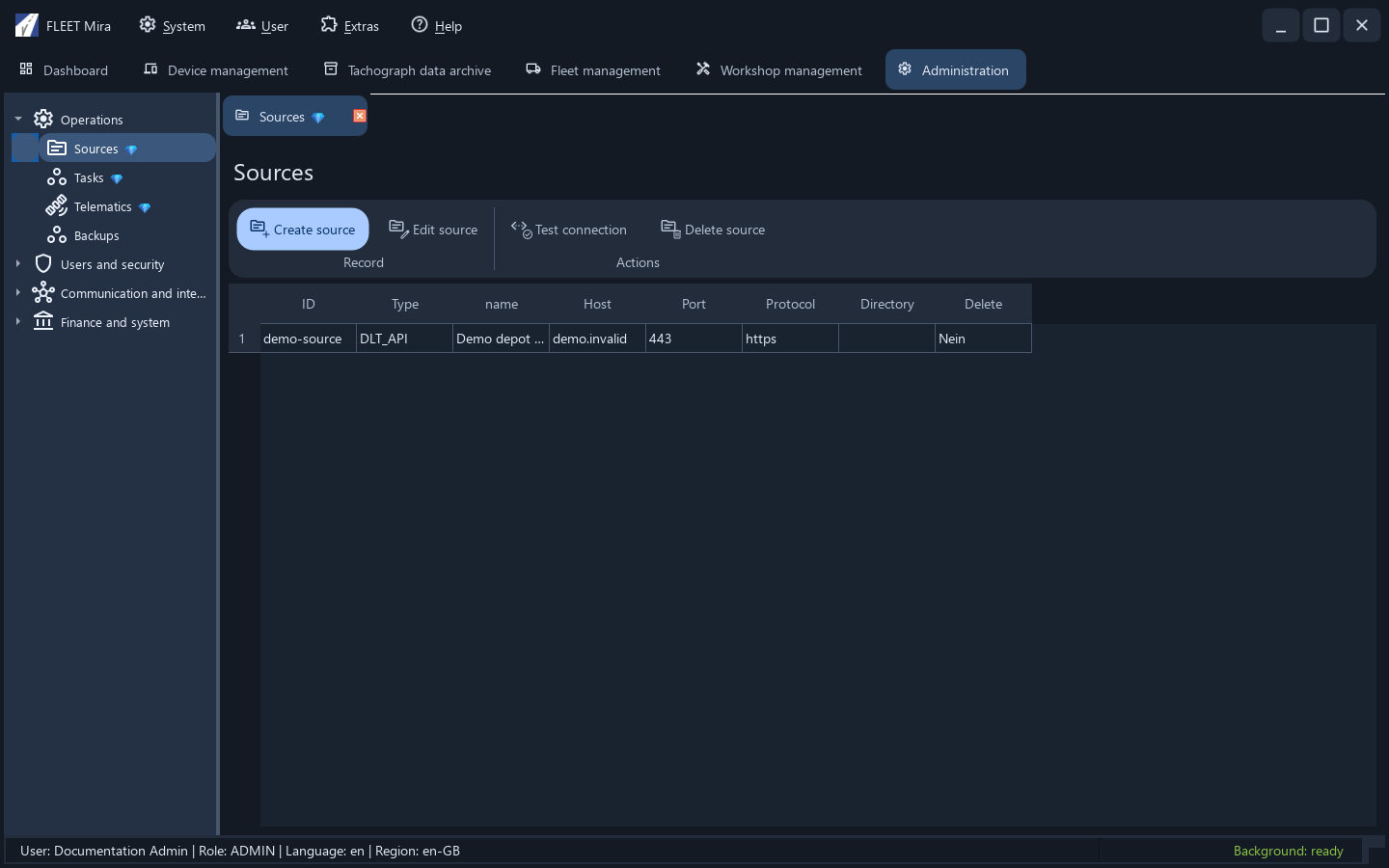 Figure: Administration of automatic import sources.
Open Administration → Tasks to define source selection, file patterns, recursion, schedule, archive behaviour and optional strict cloud-backup mode. Run now opens a detailed progress view with one row per source and live log messages. View latest log in the context menu opens the most recently stored execution with its trigger, run status, counters, source details and file details; unfinished runs remain visible. RFID terminal CSV files require RFID_*.CSV in the pattern.
The Administration → Settings → Automatically import USB removable drives option recursively scans newly inserted drives for DDD and RFID*.CSV files. It operates only while FLEET Mira is open or running in the system tray; source files remain on the drive.
Data root and storage paths
Under Administration → Settings, administrators can see the active data root and the fully resolved log, SQLite, DDD archive, document archive and financial archive paths. These fields remain read-only so files, database references and access permissions cannot be separated. Relocate data root … opens a guided wizard that copies and verifies the complete local root, normalises internal paths and restarts FLEET Mira through the new machine-wide locator. The target must be empty and on a fixed local drive. Enterprise moves only its local application root; PostgreSQL and deliberately external archives remain in place.
Quick Backup and central backup jobs
Under Administration → Backups → Quick Backup, Basic and Pro choose between Database only and Complete manual backup. The database option remains a consistent, read-back-verified diagnostic ZIP. The complete backup also contains active DDD, financial and record-document archives with their manifests and can be written as either a portable ZIP64 file or a backup directory on a local or UNC destination. Optionally encrypted sets require a separately exported recovery key. The restore wizard supports both formats.
In Enterprise, Quick Backup requests the dedicated backup credentials and creates a PostgreSQL custom dump through the worker. Complete Enterprise backup jobs additionally process the configured DDD, financial and record-document archives. Closing the Enterprise client does not cancel a job already accepted by FleetMiraWorker.
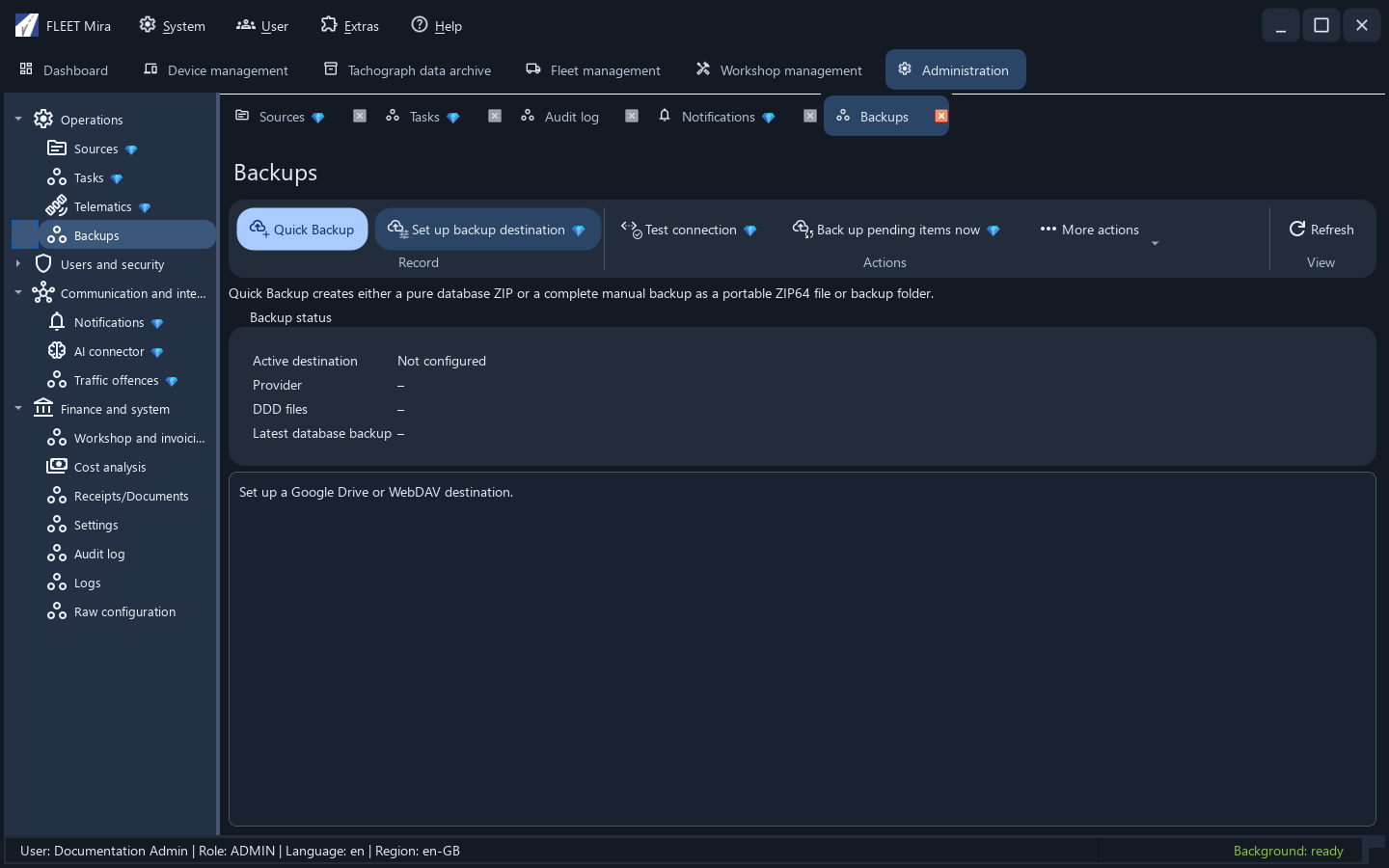 Figure: Backup configuration, verification state and manual actions.
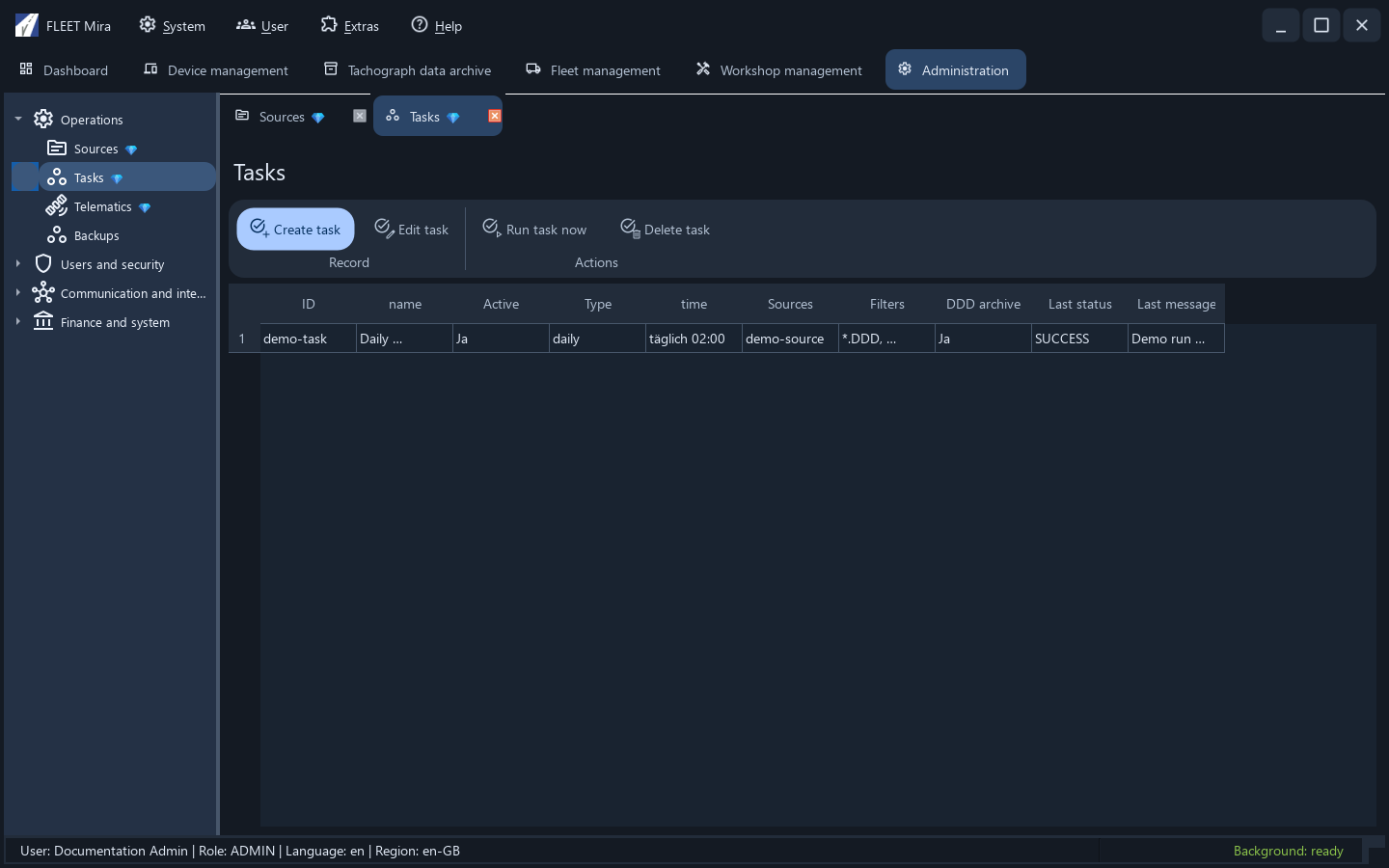 Figure: Scheduled and manually executable download tasks.
In strict mode, a terminal file is not marked as processed or deleted until its cloud copy is verified.
5. Tachodata Archive
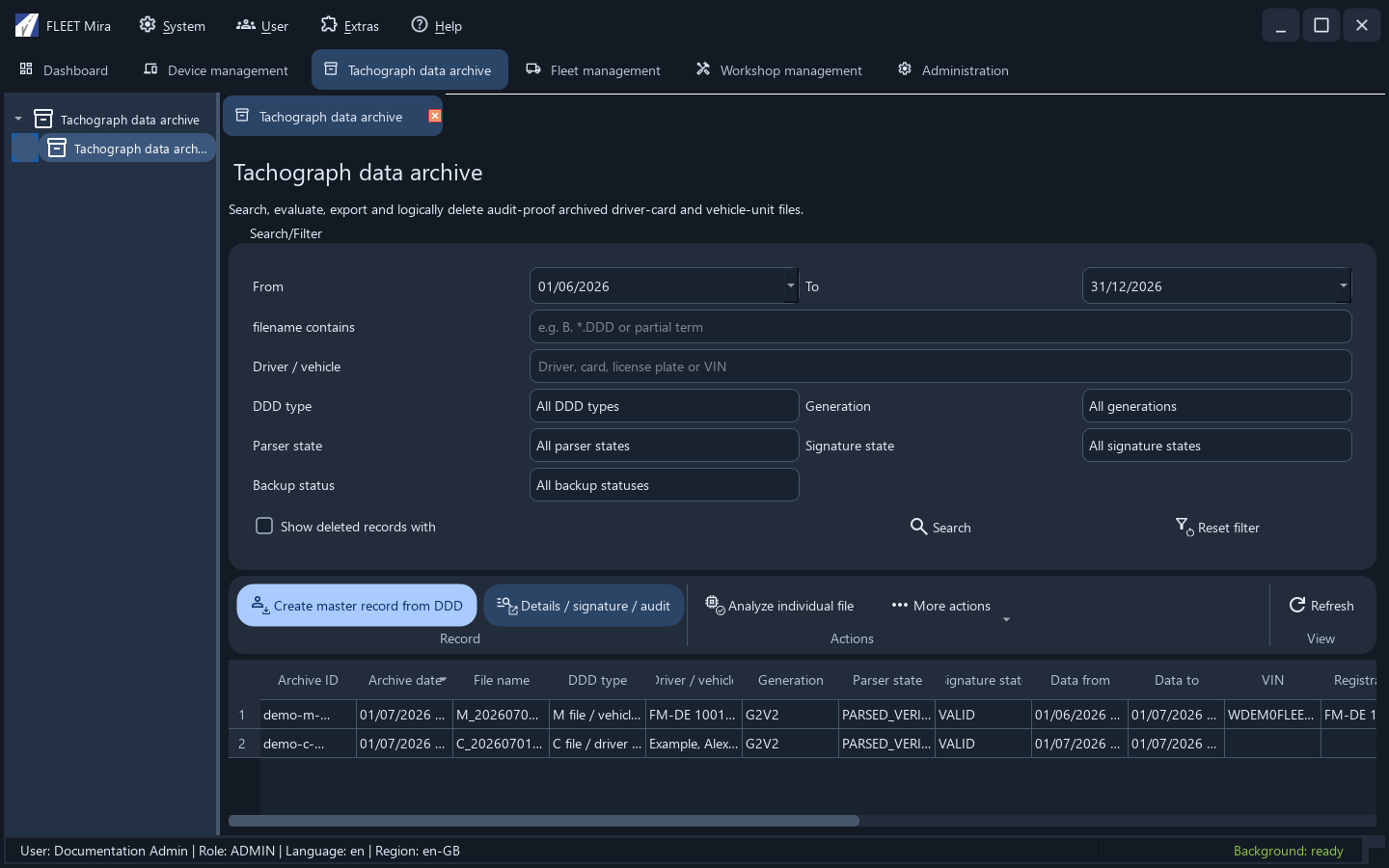 Figure: Filterable C/M tachodata archive with status columns.
The archive contains driver-card C files and vehicle-unit M files. Filter by date, name, driver/vehicle, file type, generation, parser status, signature status, deletion state or backup state.
Import and status
- Import DDD files accepts one or more local files.
- Content determines C/M type; the filename is only a hint.
- Successful parsing stores structured details without changing the original archive object.
VALIDmeans all available signatures and the chain could be verified.INVALIDorUNVERIFIABLEplaces the file in quarantine; it remains viewable and exportable but cannot drive trusted links or combined evaluations.
Open, export and delete
- Double-click or choose Open analysis to open the C or M analysis.
- One selected row exports the original DDD; several rows or the current view export a ZIP.
- Logical deletion requires a reason and is recorded in audit. It does not automatically delete a verified cloud backup.
- Details / Signature / Audit explains hashes, parser warnings, signature sections and history.
Backup status
Verified is shown only after complete upload and remote hash verification. Use the context menu to retry, verify or restore a file. Backup errors are also linked from the dashboard.
6. Driver-card analysis
The header identifies the driver, card number and selected archive file. The analysis always uses the selected C file as its base.
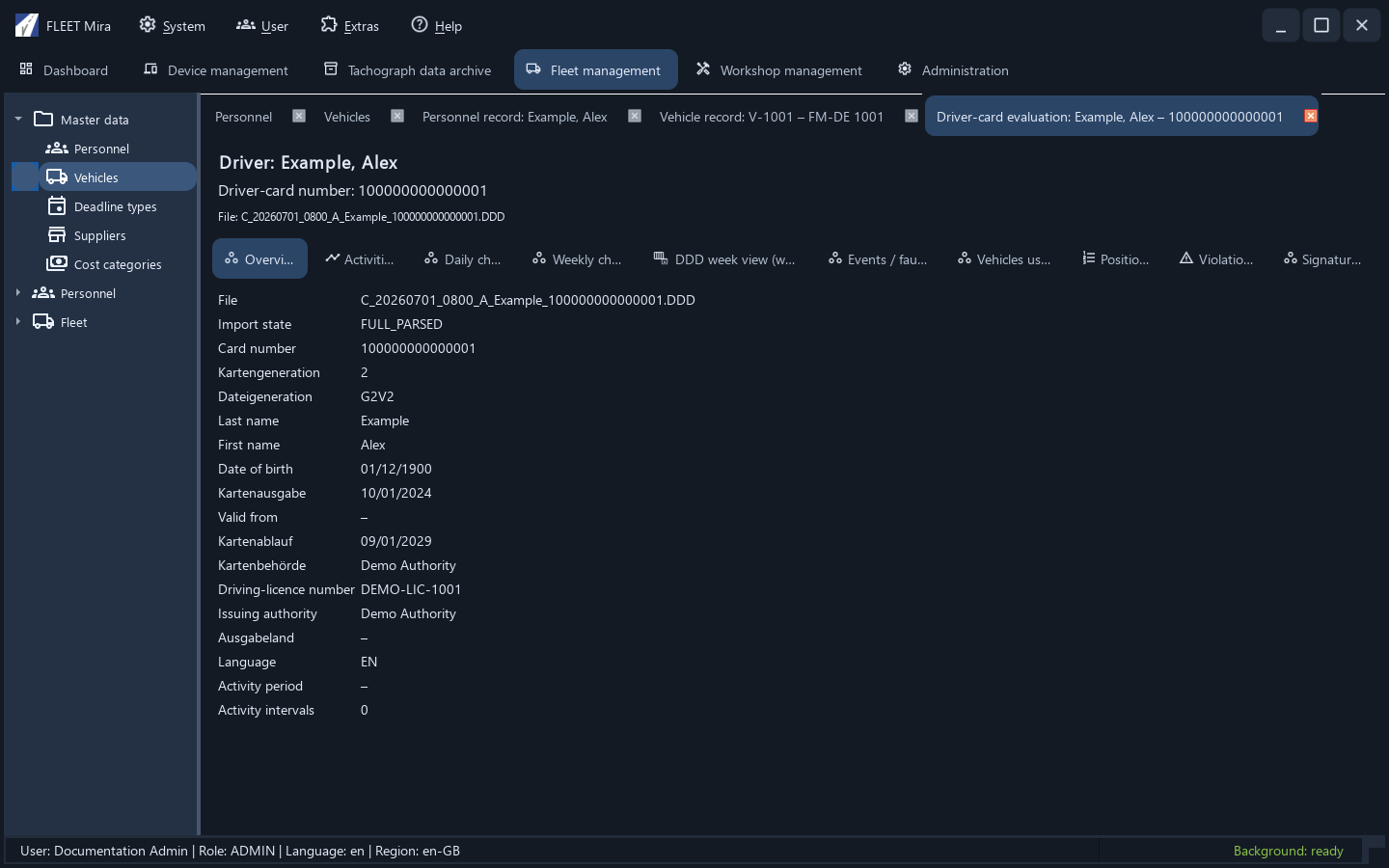 Figure: Driver-card analysis for one selected C archive.
| Tab | Purpose |
|---|---|
| Overview | identity, validity, issuing authorities, generation and data range |
| Activities | sortable activity intervals in the configured time basis with C/M availability |
| Day / Week | graphical timelines, totals and details for the selected period |
| DDD week view Web | browser-style interactive week view using the selected file |
| Events / Faults | technical records from the card |
| Vehicles used | vehicle identifiers observed on the card |
| Positions | location list and interactive map |
| Violations | technical EU 561/2006 pre-check |
| Signatures | chain and per-EF verification results |
The Data availability filter distinguishes all activities, C and M available, driver card only and vehicle unit only. The other source is comparison evidence; it never replaces the selected base file. Tachograph source data remains stored unchanged in UTC. Display and calculations use UTC by default. When Use local time for activities and calculations is enabled under System → Settings, display, day/week boundaries and compliance evaluations instead use the selected time zone. Daylight-saving transitions change neither source values nor elapsed durations.
7. Vehicle-unit analysis
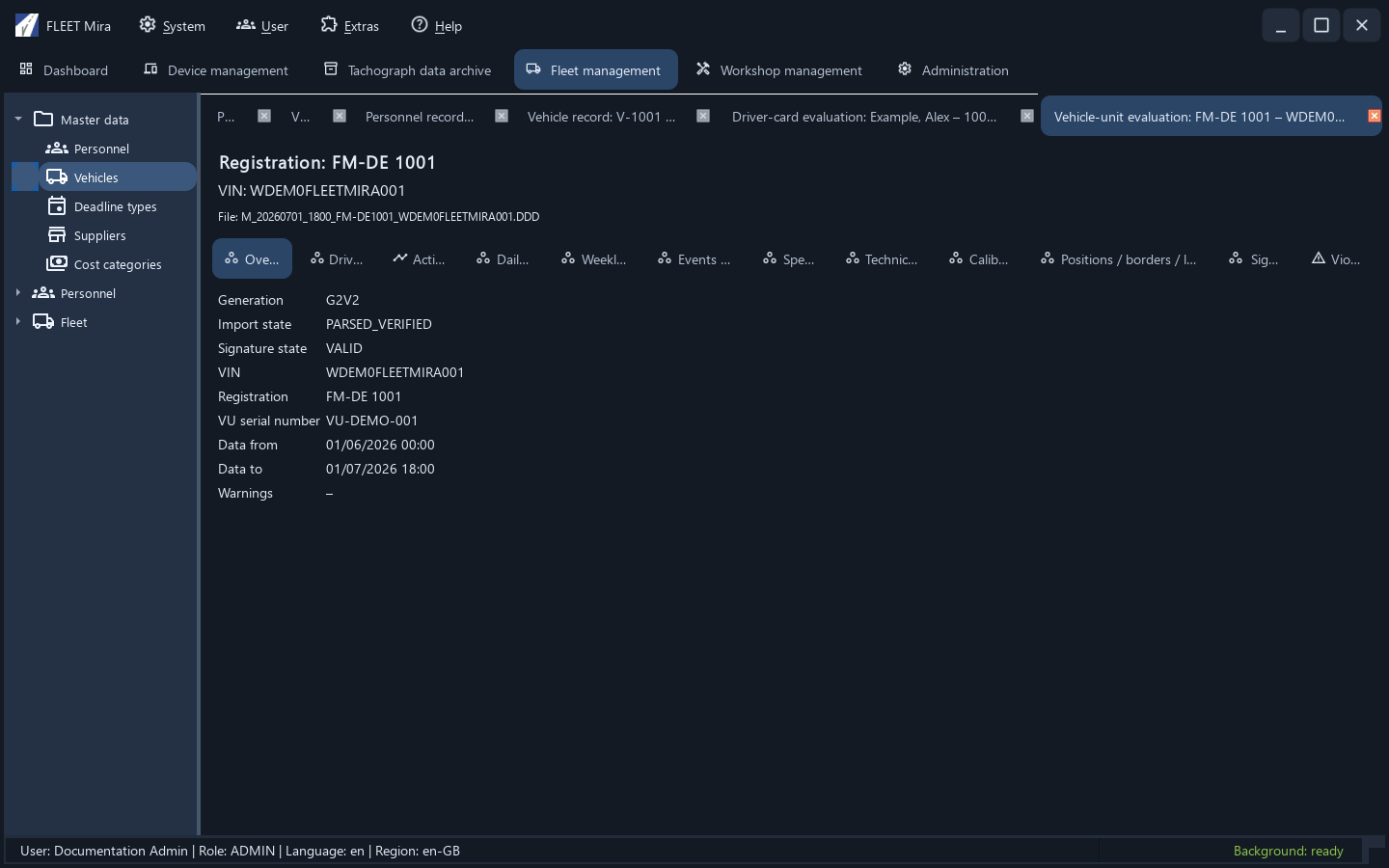 Figure: Vehicle-unit analysis for one selected M archive.
The M analysis shows vehicle identity and the selected M file. Driver sessions are grouped by normalised card number and generation. Team driving displays slot 1 and slot 2 separately.
Tabs include drivers, activities, day/week timelines, events/faults, speed, technical data, calibrations, positions/borders/loading, signatures and violations. Technical data uses a field tree; Calibrations lists calibration time, next calibration, workshop, VIN and registration. Position tabs can open the interactive map.
“No assigned driver card” means the M file contains slot activity for which no active card-insertion interval with a usable card number was found. It does not mean that a matching C archive is merely missing; the tooltip in day/week views explains this distinction.
8. Fleet Management
The compact left icon navigation opens non-duplicated work tabs and behaves the same in Fleet Management and Administration. A + or − to the left of a parent item expands or collapses its children. The context menu shows fixed pairs for Expand/Collapse item, Expand/Collapse group, and Expand/Collapse all; actions that do not apply are disabled. Group recursively affects the complete top-level subtree, including nested areas such as Traffic offences and External invoices. The state is stored for the signed-in user. Users without a stored preference start with the navigation fully collapsed. A new session starts with an empty workspace in both areas.
In Administration, Operations, Users and security, Communication and integrations, and Finance and system are the parent groups. Their pages are child entries and each opens one closable, movable work tab on the right. Selecting an already open child focuses its tab instead of creating a duplicate.
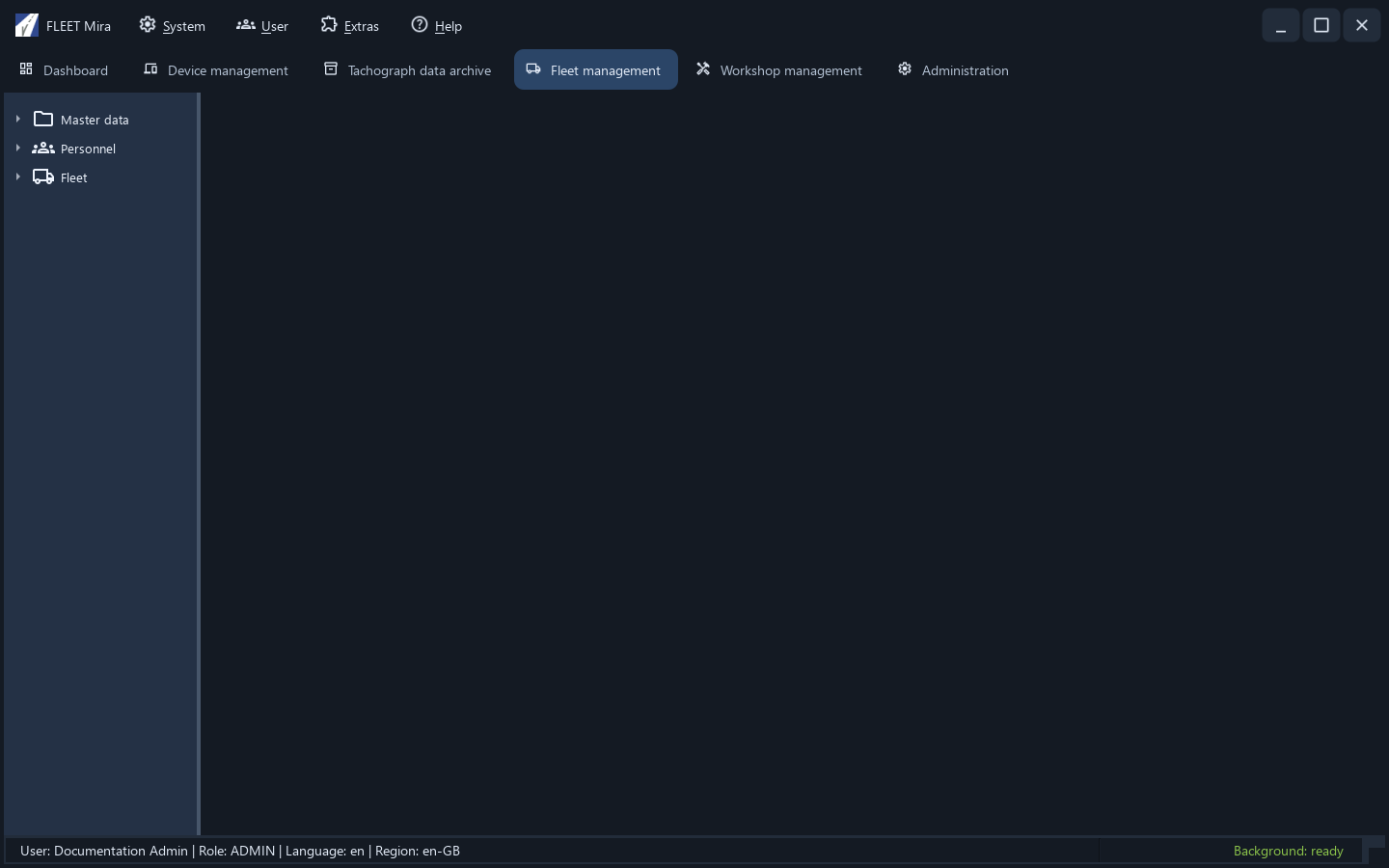 Figure: Fleet Management icon navigation and non-duplicated work tabs.
Master data
- People: personal number, identity, contact data, licence data, FSK policy and status.
- Vehicles: internal number, registration, VIN, type and status.
- Due types: system and user-defined deadline categories for people or vehicles.
- Suppliers / Cost categories: finance master data.
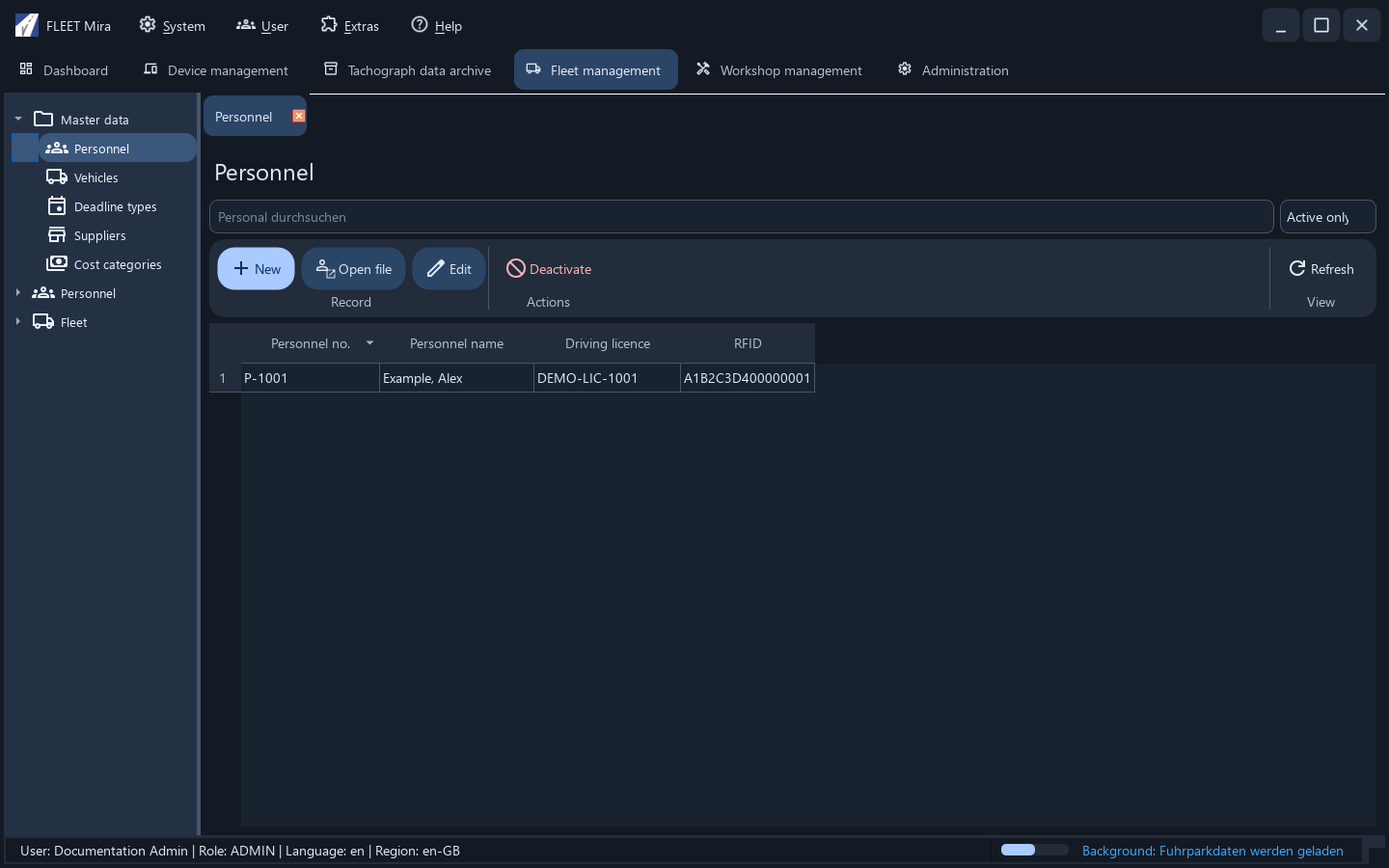 Figure: Personnel master-data list.
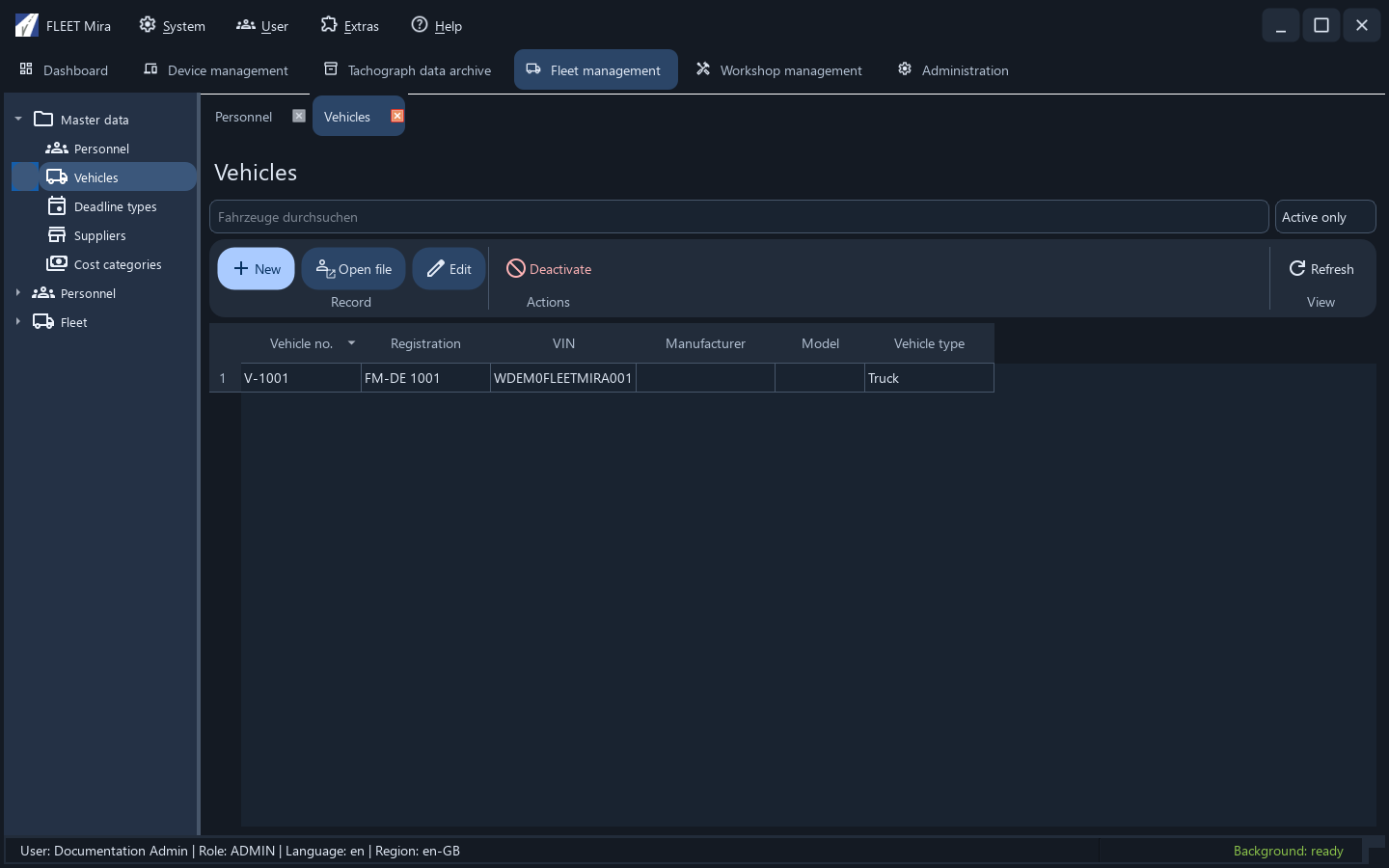 Figure: Vehicle master-data list.
Double-click a person or vehicle to open its record. Context menus jump directly to deadlines, tachodata, RFID or finance pages.
Use Fleet > Cost analysis to evaluate booked vehicle costs. Its initial period runs from the start of the current year through today; administrators can change the global default under Administration > Cost analysis > Calculation parameters.
Person record
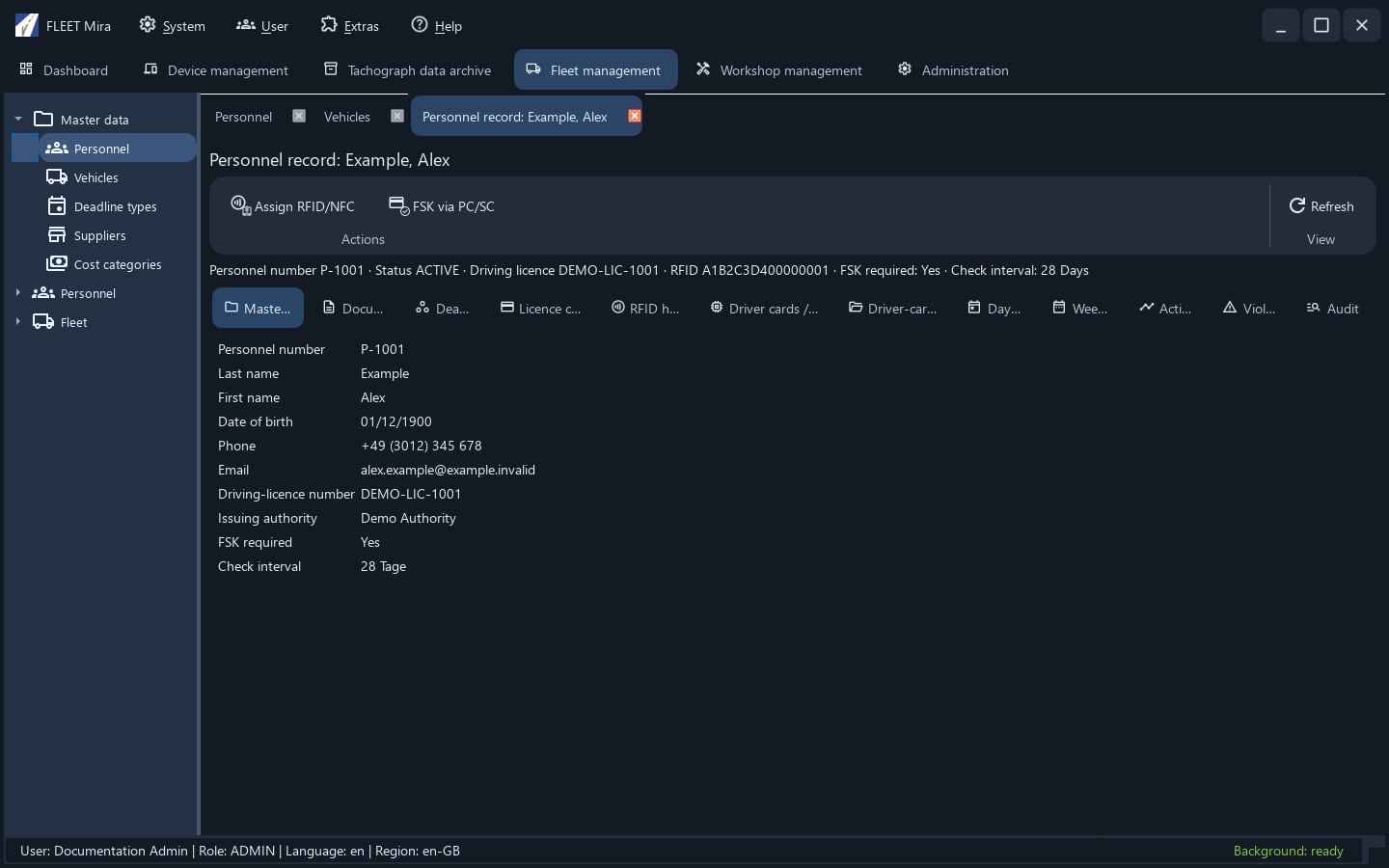 Figure: Person record with related business tabs.
The record contains master data, deadlines, documents, licence checks, RFID history, card links/files, day/week/activity views and audit. The Audit tab uses the same context menu as the global Audit Log: open the related record, show the XML tree view, or copy details, rows and cells. The Documents tab accepts drag-and-drop or file selection, versioning and metadata; PDF and image files can be previewed directly. Document and validity dates use date pickers formatted for the signed-in user's region. The immutable local original is created when the document is added, while the configured backup task handles external backup. Logical archiving remains available from the context menu. Local restore and permanent purge are visible only to appropriately authorised administrators. Use Assign RFID/NFC to read a UID from a local PC/SC reader. FSK via PC/SC records a successful check only when the read UID belongs to the selected person.
For a new record document, the document date defaults to today. Valid until is calculated from the document date plus the period configured under Administration → Receipts/Documents → Document retention period. The financial-document retention period remains independent.
The Audit tab covers the complete record. In addition to personnel or vehicle master-data changes, it includes logged events for related deadlines, documents, driving-licence checks and tachograph links. Vehicle records additionally include odometer readings, costs/credits, associated supplier invoices, financial documents and accounting exports. The Area column identifies the related sub-object.
Vehicle record
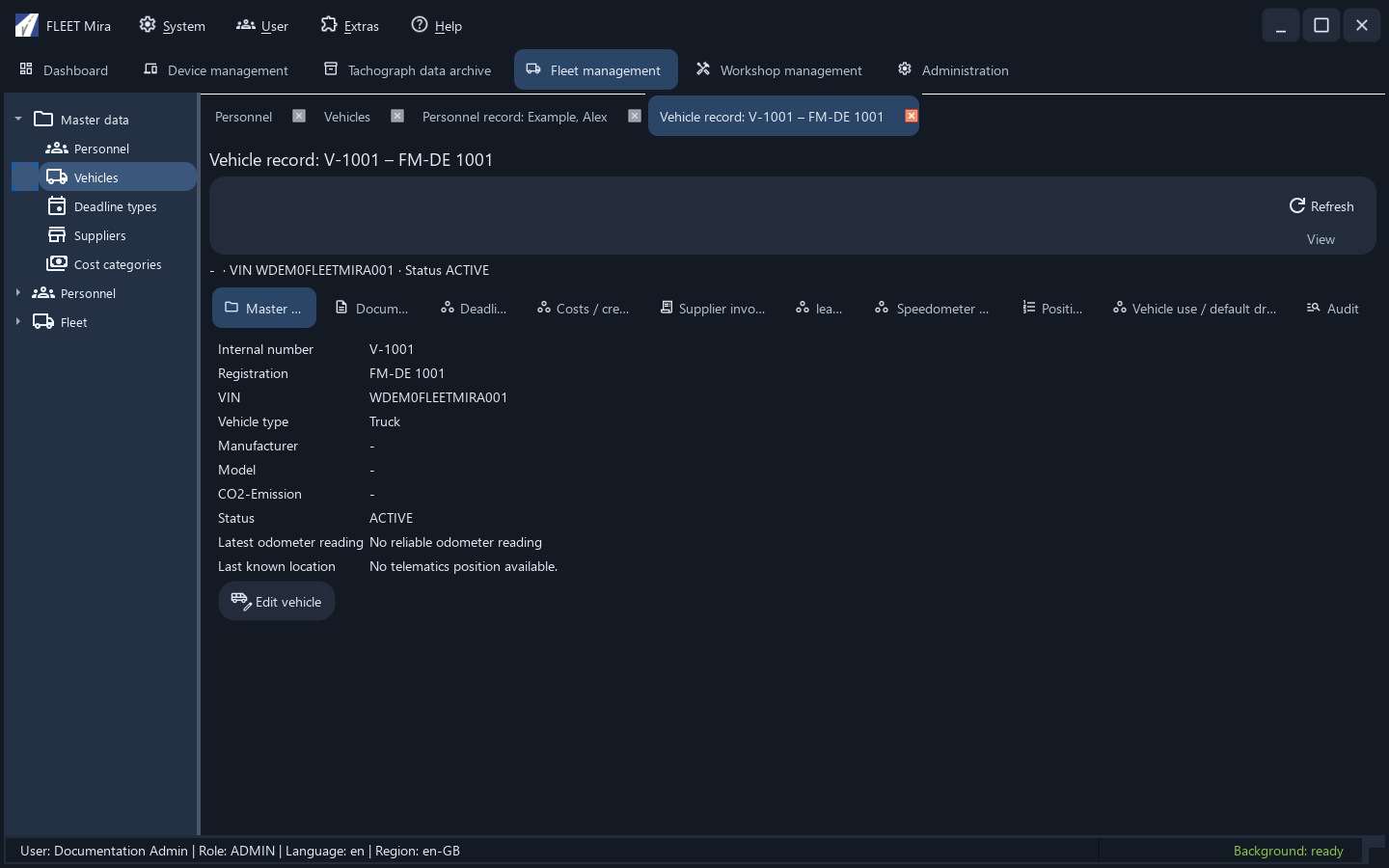 Figure: Vehicle record with tachograph, finance and position tabs.
The Master data tab opens the existing modal vehicle form through Edit vehicle. It also shows the latest reliable odometer reading with its source and quality, and the last known human-readable location. With an active telematics assignment, Open telematics opens a dedicated workspace for current location, route history, combined positions and events.
The Positions tab globally merges tachograph and telematics evidence, clearly labels its source and provides a source filter. Only telematics points form the route line in Route history; tachograph positions can be shown as reference markers.
Tabs include deadlines, documents, costs/credits, foreign invoices, lease, positions and audit. Tachograph links, mass-memory files, day/week views, infringements, drivers/activities, events/faults, speeds, technical data and calibrations are grouped below Tachodata. The Audit tab uses the same context menu as the global Audit Log: open the related record, show the XML tree view, or copy details, rows and cells. Record documents use the same audit-oriented archive and configured local, UNC or cloud backup destination. Aggregate functional tables hide the source-file column by default; the source archive remains available from the context menu. Identical technical records appear once with their source count and complete detail tree. Position rows can be opened together on the map.
Odometer determination
FLEET Mira uses the same central odometer resolver for mileage reports and cost per kilometre. Manage the system-wide calculation rules under Administration → Cost analysis → Calculation parameters → Odometer determination. The provider tab Administration → Telematics → GPS-server.net additionally controls retention of telematics daily readings; use Mileage rules there to enable an override for an individual linked vehicle.
The settings shown in the standard dialog have the following meaning:
| Setting | Default | Meaning |
|---|---|---|
| Position detail retention (days) | 28 | Position points and sensor parameters are purged after 28 days. Qualified daily odometer readings are retained separately. |
| Retain daily odometer readings (years) | 6 | Consolidated telematics daily readings are retained for six years. The permitted range is 1 to 20 years; Unlimited disables this purge. |
| Missing period boundaries | Extrapolate | If a day or month has no sufficiently recent actual reading at its boundary, the following rules estimate it. This also applies to the current day once it has started. The alternatives are Interpolate and Incomplete. |
| Estimation basis (days) | 14 | Depending on direction, extrapolation considers up to 14 plausible daily distances before or after the missing boundary. |
| Minimum daily values | 3 | At least three usable daily distances are required for extrapolation. |
| Maximum estimation gap (days) | 7 | The gap between the actual support reading and the missing boundary must not exceed seven days. For interpolation, this limit applies on both sides. |
FLEET Mira first searches the 24 hours before the period boundary for a qualified actual reading. If several sources are available, the following priority is mandatory:
- M-file midnight reading (
M_MIDNIGHT) - Telematics sensor (
GPS_SERVER_SENSOR) - C-file vehicle use (
C_VEHICLE_USE) - C-file place (
C_PLACE) - C-file three-hour GNSS position (
C_GNSS_3H) - Telematics GPS (
GPS_SERVER_GPS)
Only readings with quality Valid or Warning are eligible. Unverified, unknown, manual or conflicting readings are excluded. The newest reading wins within the same source. A higher-priority reading can therefore override a slightly newer lower-priority reading as long as it is not older than 24 hours.
Source-priority example: At the 1 July 00:00 boundary, an M-file midnight reading of 80,000 km was measured at 23:58 and a telematics sensor reading of 80,005 km at 23:59. Both are recent and qualified, so the M-file value of 80,000 km is used. If the M-file value is absent, the sensor value is used.
With Interpolate, the resolver draws a straight line between the latest qualified reading before the boundary and the first qualified reading after it. Both support readings must lie within the maximum estimation gap, must be compatible and must not produce an odometer rollback:
Estimated value = previous reading + elapsed share × (following reading − previous reading)
Interpolation example: A reading of 120,000 km is available for 10 July 00:00 and 120,800 km for 14 July 00:00. Two of the four days have elapsed at the 12 July boundary. The interpolated reading is 120,000 + 2/4 × 800 = 120,400 km.
With Extrapolate, FLEET Mira calculates the median of the plausible daily distances in the estimation basis. A missing closing boundary is projected forwards from the latest actual reading. If the opening boundary is missing and qualified readings only follow it, the same logic is applied symmetrically backwards from the first actual reading. Daily rates below 0 or above 1,800 km are rejected, and different GPS odometer kinds are not mixed:
Estimated value = latest actual reading + median daily distance × estimation gap
Opening reading = first following actual reading − median daily distance × estimation gap
Example using the default settings: The latest actual reading on 12 July is 120,000 km. The usable daily distances in the preceding 14 days are 180, 200 and 220 km, giving a median of 200 km. The gap to the 15 July boundary is three days. FLEET Mira calculates 120,000 + 200 × 3 = 120,600 km. With only two usable daily distances or an eight-day gap, the displayed settings would not permit an estimate and the boundary would remain incomplete.
Opening-boundary example: The first qualified reading after the start of the month is 80,200 km at 2 July 00:00. Three subsequent plausible daily distances have a median of 180 km. For the month boundary one day earlier, FLEET Mira derives an opening reading of 80,200 − 180 × 1 = 80,020 km.
Estimated values are not stored as actual odometer readings. The report exposes the result, method, support readings, measurement times, estimation distance and algorithm version. Opening and closing boundaries use the same configured strategy and quality limits. Both readings are rounded to whole kilometres first; the difference is then calculated exactly as closing − opening. For the current local day, FLEET Mira first uses the latest qualified actual reading from that day. If none exists and Extrapolate is configured, the reading is estimated up to the current calculation instant, not to the future midnight boundary. Daily, monthly and overall mileage and cost analysis share this central closing boundary. If no permitted estimate can be produced, an existing latest actual period reading remains usable as partial coverage. See Report dashboard for the detailed daily audit and Cost analysis and reporting for the identical use in cost per kilometre.
9. Deadlines and download due dates
Personnel and vehicle deadline evaluations are separate but use the same sortable/filterable component. Personnel deadlines remain time-based. Vehicle deadlines can be time-based, mileage-based or combined; a combined deadline becomes due when the first limit is reached. Time and mileage lead values and recurrence intervals can be configured per deadline or as due-type defaults.
The fleet evaluation displays the latest reliable odometer reading, measurement time and source, target and remaining mileage, trigger and data quality. Filters cover due type, status, basis, trigger, mileage quality and evaluability. If a combined deadline has no valid mileage reading, its time condition remains usable while the mileage condition is marked only partially evaluable. Colours mean:
- green: outside the lead time;
- blue/orange status: approaching or due today;
- red: overdue;
- completed: closed with completion date.
Automatic download deadlines are managed by the system:
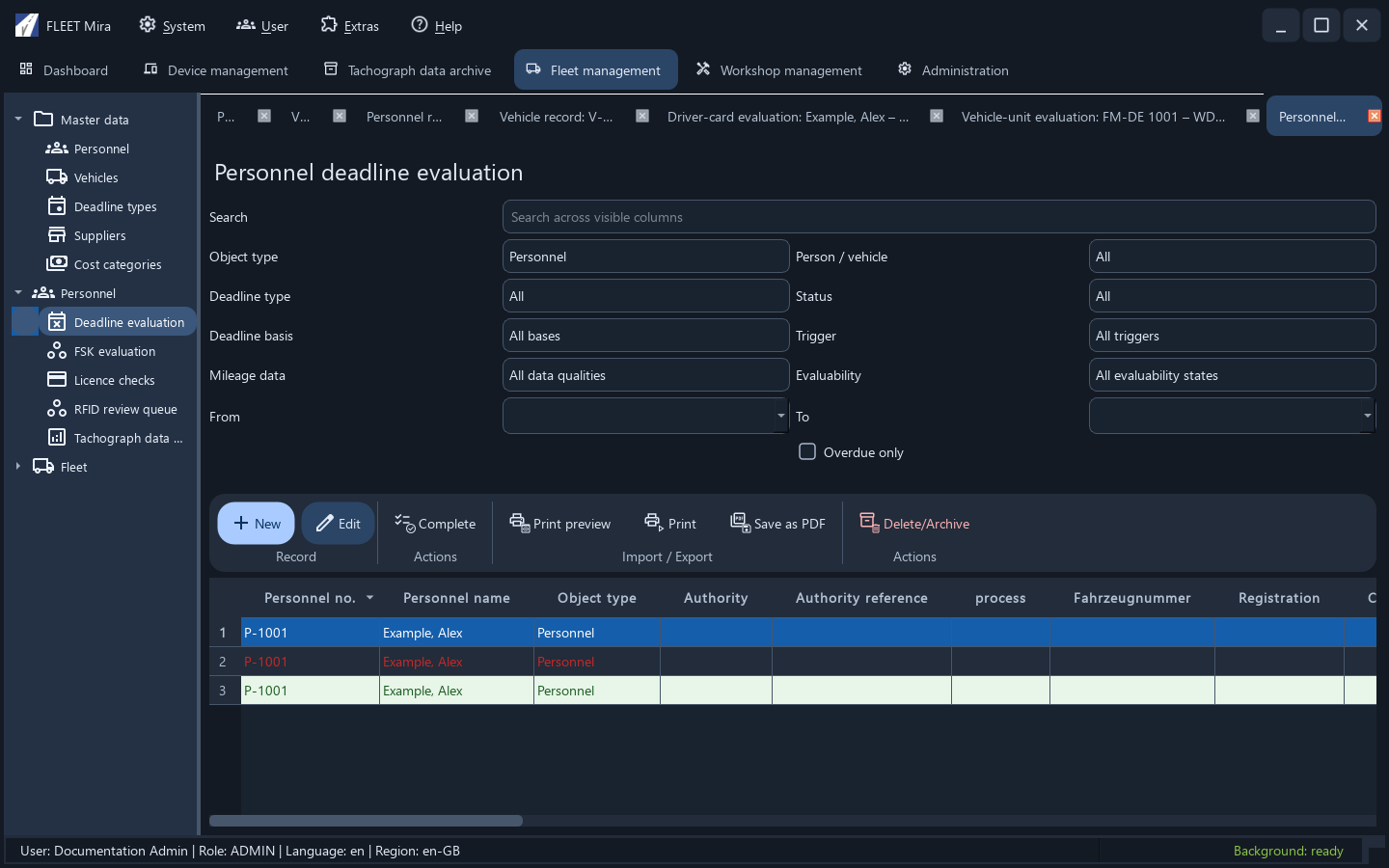 Figure: Filterable personnel deadline evaluation.
- current driver card: readout date + 28 days;
- vehicle unit matched by VIN: readout date + 90 days.
The readout date is taken from a valid C_YYYYMMDD_HHmm... or M_YYYYMMDD_HHmm... filename, then falls back to source creation, download and archive UTC dates. Automatic deadlines cannot be manually moved or completed. Tachograph calibration remains a separate vehicle deadline.
10. Driving-licence checks and RFID
The complete workflow for check policy, UID assignment, PC/SC checks, automatic follow-up dates, terminal CSV and exceptions is documented in Driving-licence checks and RFID/NFC. A system-managed deadline is completed only by a successful check; an unknown chip or a chip assigned to another person creates no success record.
The Personnel navigation provides:
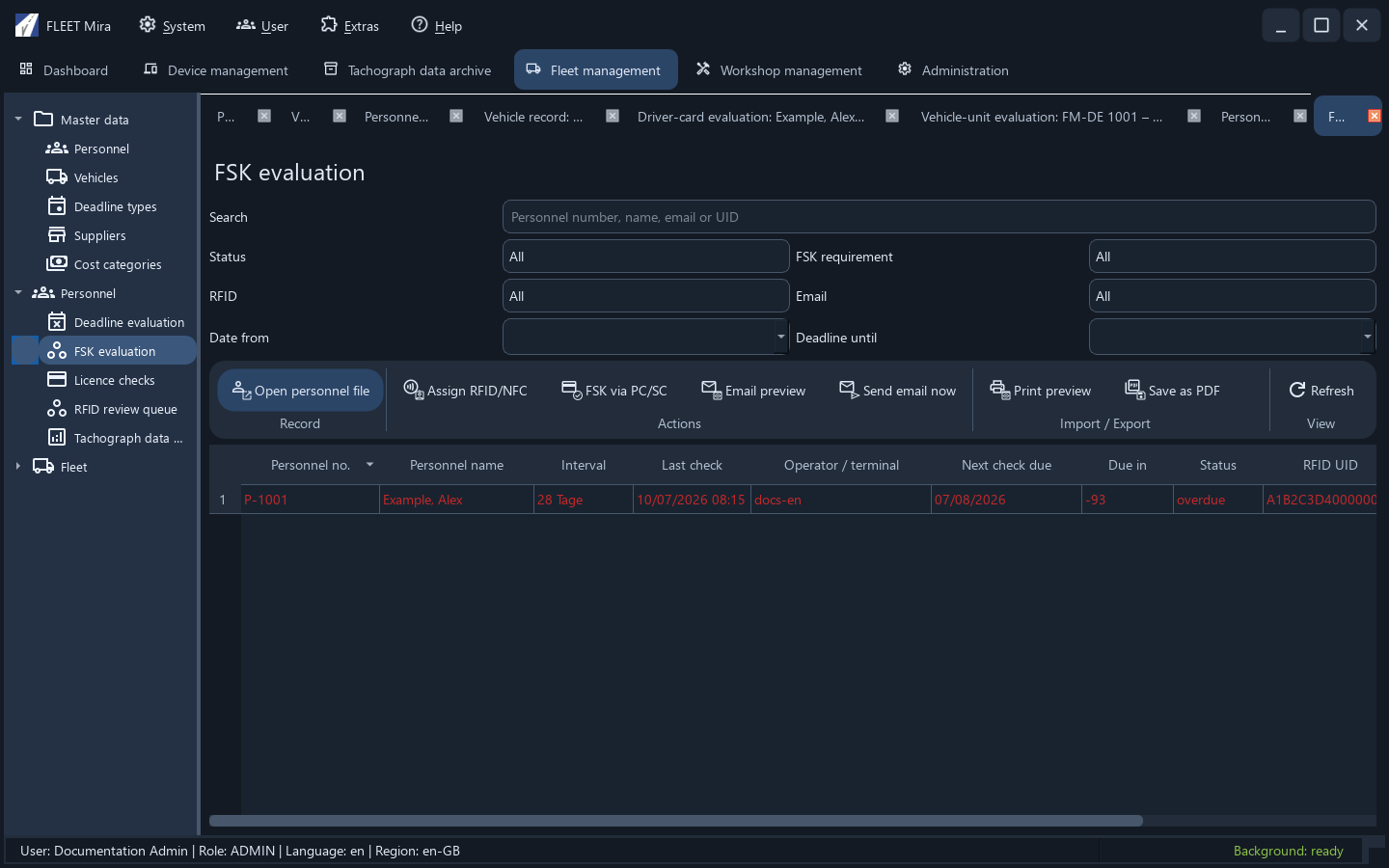 Figure: Driving-licence-check (FSK) due-date evaluation.
- FSK evaluation with interval, last check, next due date, terminal and status;
- licence-check history;
- RFID pending list for unknown UIDs or invalid CSV rows.
The default check interval is 28 days. Successful PC/SC, terminal CSV and resolved mobile records use the same service and update one managed FSK deadline. Assigning an RFID UID alone is not a check.
Unknown terminal UIDs remain pending. Assigning them creates the effective check; discarding requires a reason and never creates a permanent RFID assignment.
11. Notifications
Under Administration → Notifications, configure SMTP, responsible recipients, rules/templates and the send log. Recipients may be assigned to fleet management, system management or both; their To/CC type applies to both assignments. Double-clicking a recipient or rule opens its edit dialog. The system is disabled until SMTP and recipients have been tested and sending is explicitly enabled.
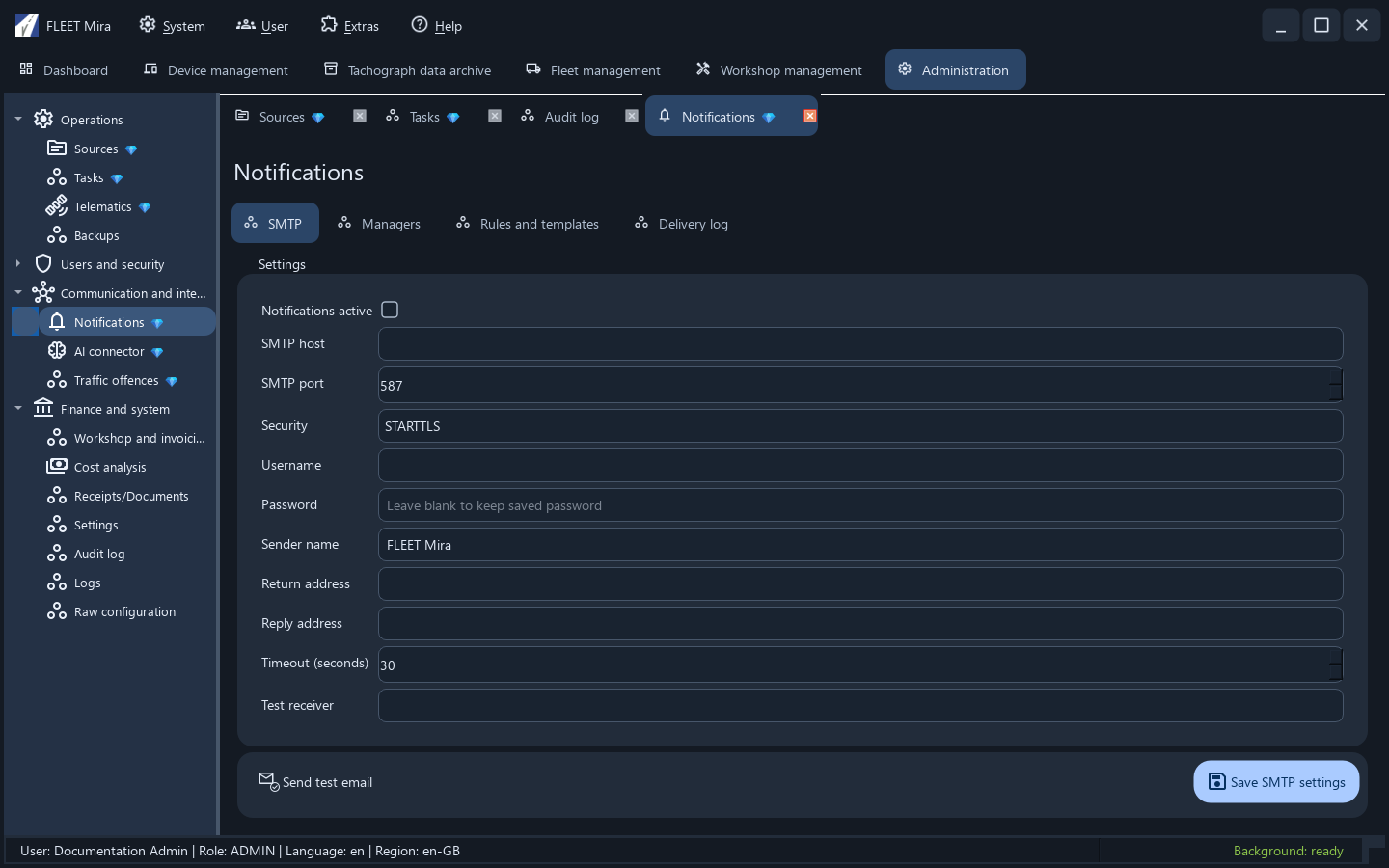 Figure: Notification rules, templates and schedules.
Standard rules cover weekly information, daily reminders from ten days, urgent reminders from three days, overdue warnings and a daily responsible-person report. Additional rules can distribute violation dashboards to managers and deliver each new driver instruction exactly once with its PDF attachment. Rules may be previewed or sent manually when the user has permission.
The Daily task status report system rule is sent exclusively to system managers at 07:00 each day by default. Immediately before delivery it checks every active DLTNG device and summarises scheduled and manual download tasks from the complete previous day. For each source it shows availability, error details and downloaded, successful, failed and skipped file counts. One UTF-8 CSV lists every successful or failed file; a report with a header-only CSV is also sent on days without a run. Previewing deliberately performs no live device access. Fleet status, cost analysis and violation dashboard reports remain exclusive to fleet managers.
12. Costs, credits and foreign invoices
Direct vehicle costs
Open a vehicle record → Costs / Credits. Select category and type and enter document date, validity period, net and VAT. Variable allocates the full amount to the document date; fixed entries are distributed by day over their complete validity period. Amounts are stored to the cent. Draft, verification, booking, cancellation and credit are covered in Vehicle costs and credits.
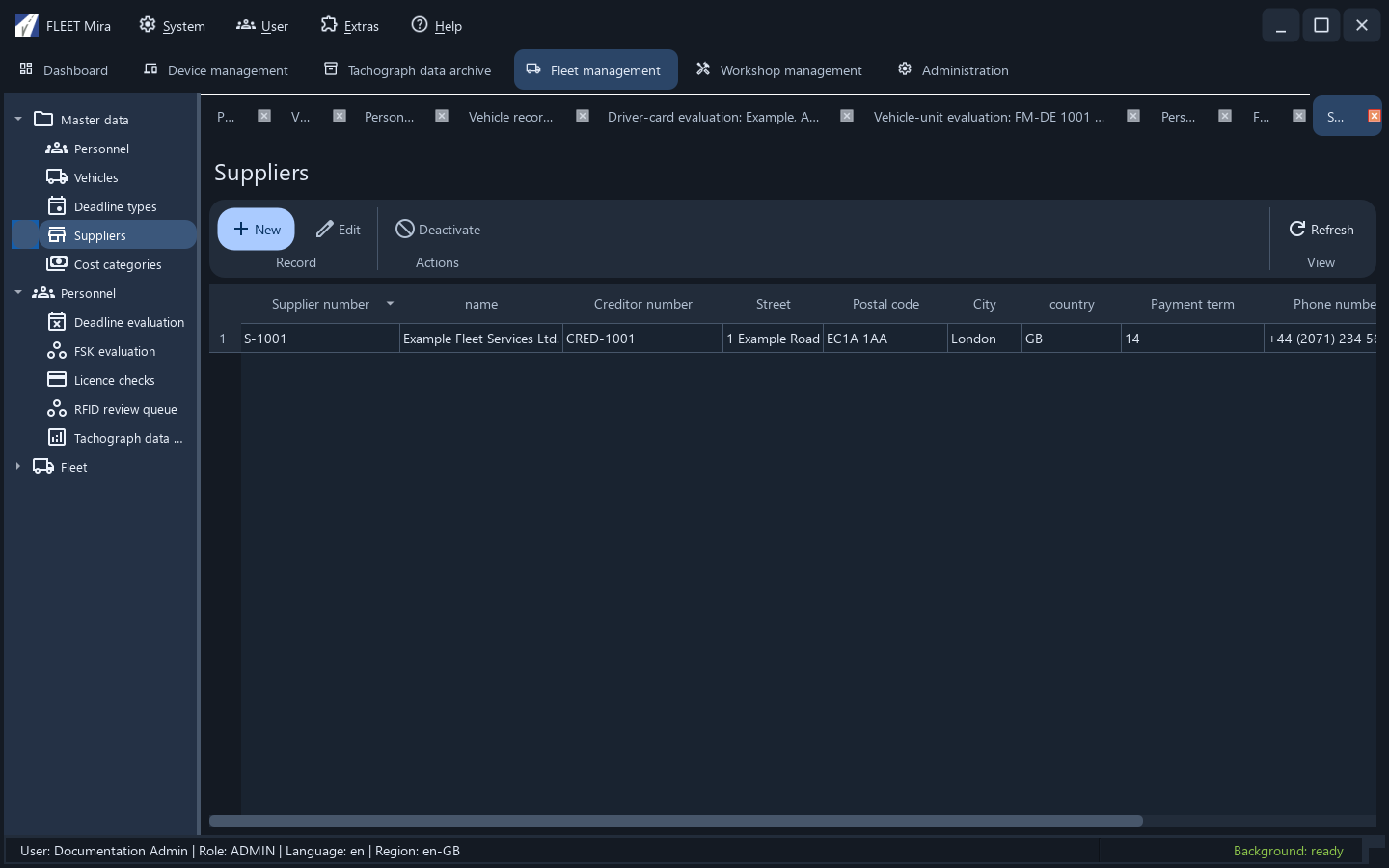 Figure: Supplier master data for financial documents.
Foreign invoices
Open Fleet → Foreign invoices. Double-click an invoice to open it as a work tab.
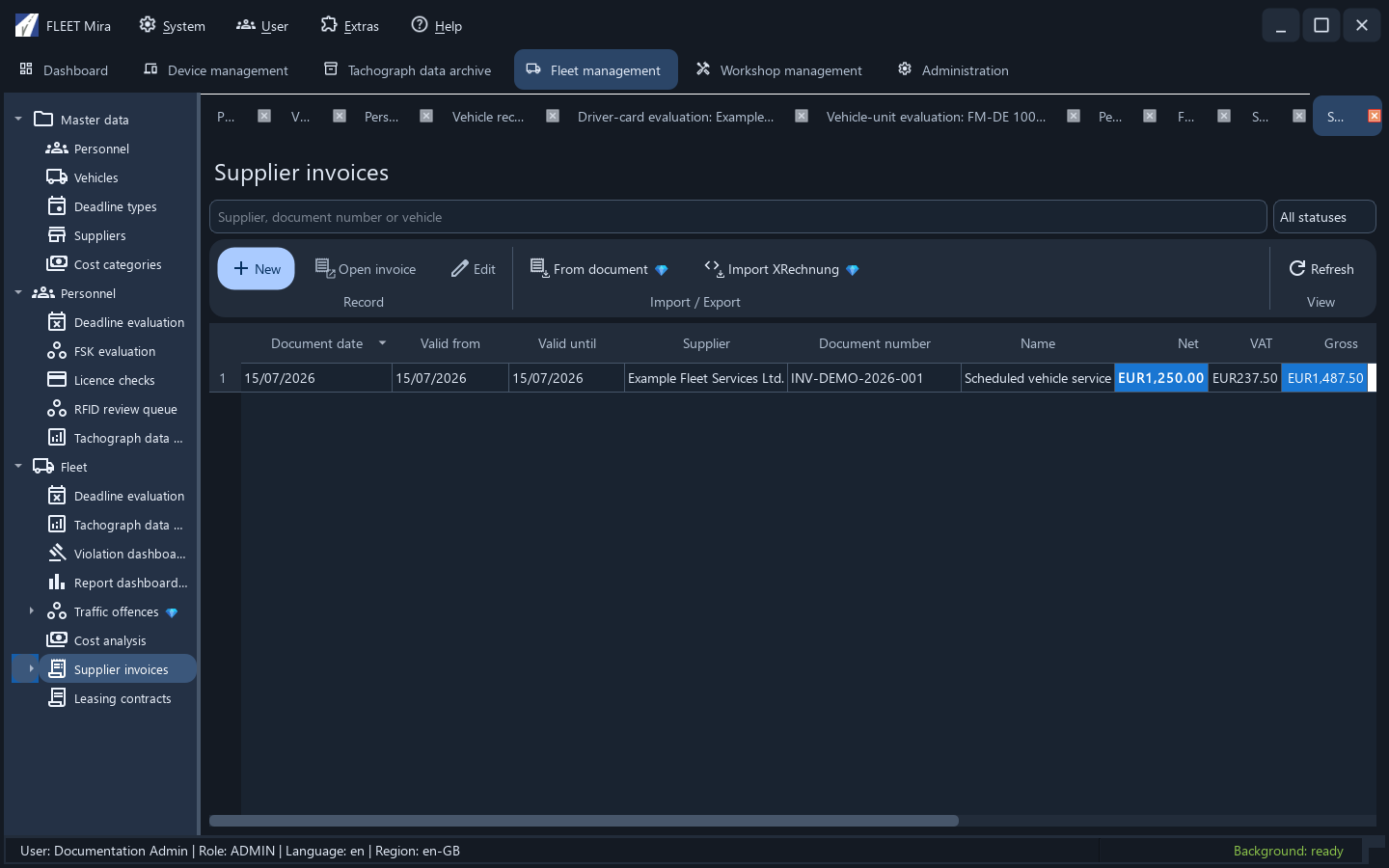 Figure: Foreign-invoice list and work-tab entry point.
flowchart LR
    A[Create draft header] --> B[Add vehicle positions]
    B --> C[Upload original documents]
    C --> D[Cloud hash verified]
    D --> E[Verify totals]
    E --> F[Book]
    F --> G[REST or CSV/ZIP accounting export]
The status row compares gross invoice amount, split amount and difference. Zero difference is green; any cent difference is red and blocks verification. Invoice-bound positions inherit the invoice date for document/valid-from/valid-to and are always variable. Booked data is immutable; corrections use cancellation or linked credits.
Lease contracts
Use Fleet → Lease contracts to manage contract data, factor-based pre-calculation, payment schedule, documents, recurring invoices and linked actual costs. Creation is manual or, in Pro/Enterprise, document-assisted through XInvoice, PDF text, OCR, local ML and the optional AI connector; every proposal requires explicit review and confirmation. Lease contracts explains the workflows, factor formulas, M-data mileage evidence and all three leasing reports.
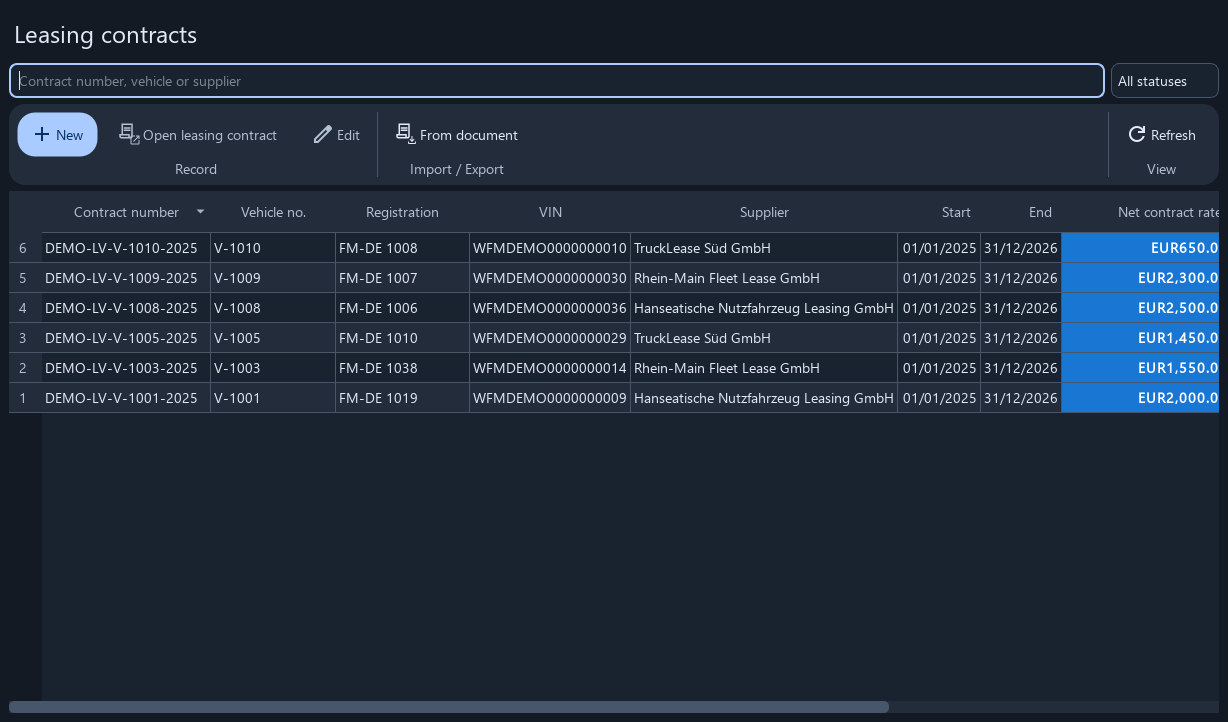 Figure: Filterable lease-contract overview from the anonymised demo database.
E-invoice/XRechnung
Fleet → Import XRechnung guides users through KoSIT validation, invoice and supplier data, vehicle/category allocation, line splitting and totals reconciliation. Only confirmed creation atomically writes a foreign-invoice draft and locally verified original, XML and report objects. See E-invoice and XRechnung import.
13. Audit, reports and logs
The global audit under Administration → Audit combines device, tachograph and fleet events. Filter by date, user, action or text. Double-click an entry to open its current related object when the stable ID can be resolved. Structured JSON/XML details can be opened as a tree, exported as JSON and printed. Navigation itself is not audited.
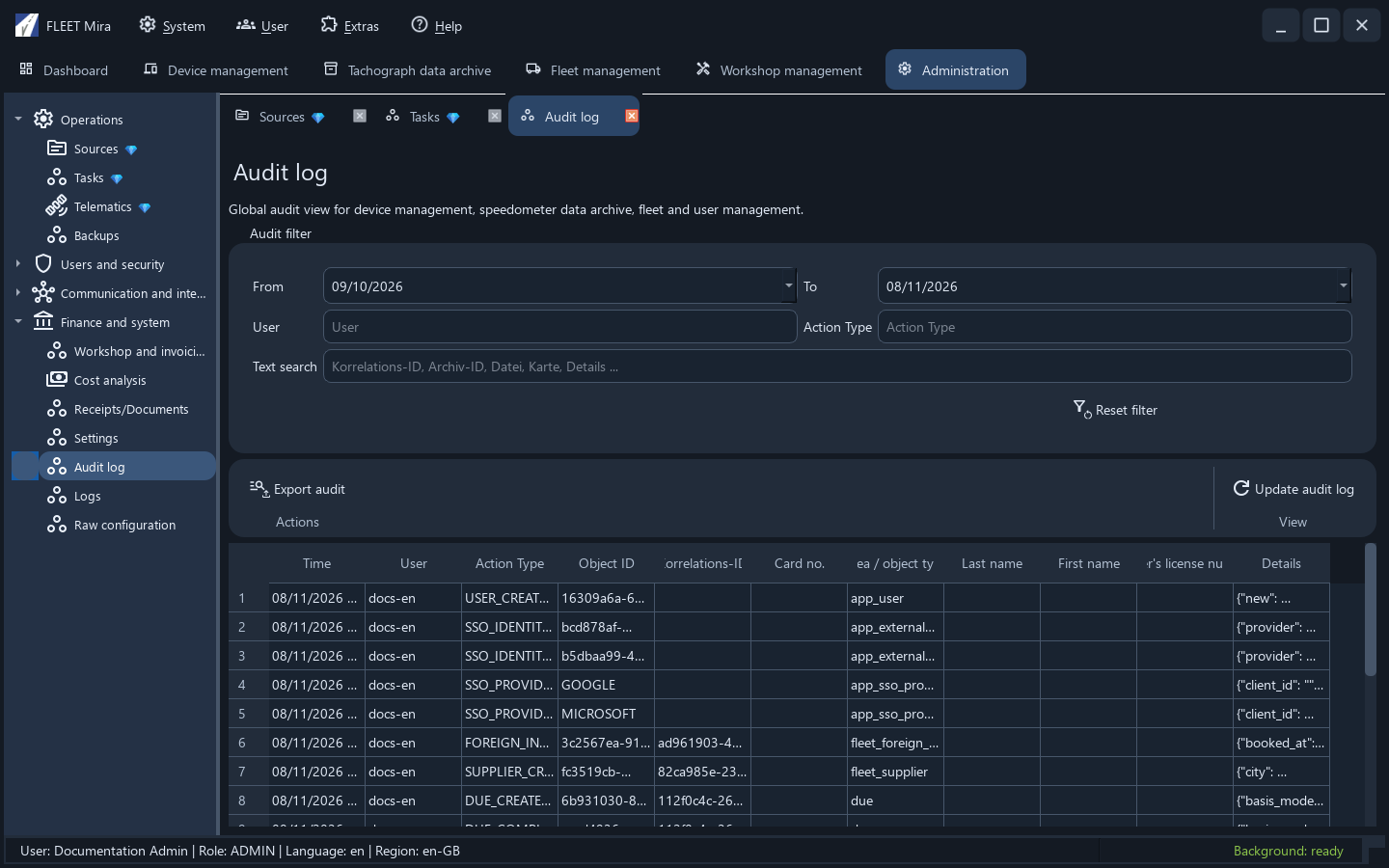 Figure: Global audit log with object-based navigation.
Fleet → Violation dashboard 💎 provides period-based risk scoring, detailed findings, a dashboard report and tamper-evident driver instructions. Fleet → Report dashboard 💎 contains fifteen working-time, mileage, leasing, return and deadline reports with favourites, run history and PDF/Excel output. All screens, purpose descriptions and Stimulsoft PDF examples are shown in Violation dashboard and driver instructions and Report dashboard.
Deadline and evaluation grids support print preview, system printing and PDF. Only visible filtered rows and columns are included.
Administration → Logs shows app.log, REST logs and native crash diagnostics. Logs use English technical messages regardless of the selected UI language.
14. Tray and shutdown
Closing the main window normally keeps background services running in the system tray. Use the tray action to restore the window. Use System → Exit application and services or the equivalent tray command for a clean shutdown; schedulers, REST API, notification service, backup coordinator and logs are closed in order.
15. Troubleshooting
| Symptom | Action |
|---|---|
| File is quarantined | Open Details/Signatures; install missing crypto/trust material or verify the source. Do not re-label the file manually. |
| Backup remains pending | Test the active target, inspect quota/authentication and use Back up now. |
| No PC/SC reader | Install the reader driver, reconnect it and reopen the read dialog. |
| No C/M comparison | Verify matching card number, generation, UTC range and valid signature status. |
| Invoice cannot be verified | Resolve the split difference and ensure at least one original document is locally verified. Backup status does not block verification. |
| UI job failed | Use Retry, then inspect app.log with the displayed job/request ID. |
For administrator-level recovery, continue with the Administrator and integrator guide.
Application-wide action-bar and function-icon standardization is documented in the UI rollout report, including every covered program point.